
Crop images and remove backgrounds
These steps apply to image objects in Infinite documents, Vertical documents, and Paged notes on iPhone, iPad, and Mac. Cropping keeps part of an image. Background removal extracts a foreground subject recognized by the system. Videos, file attachments, and media in Text documents use different controls.
Crop an image
- Tap the image to show its selection handles and floating menu.
- Choose Crop.
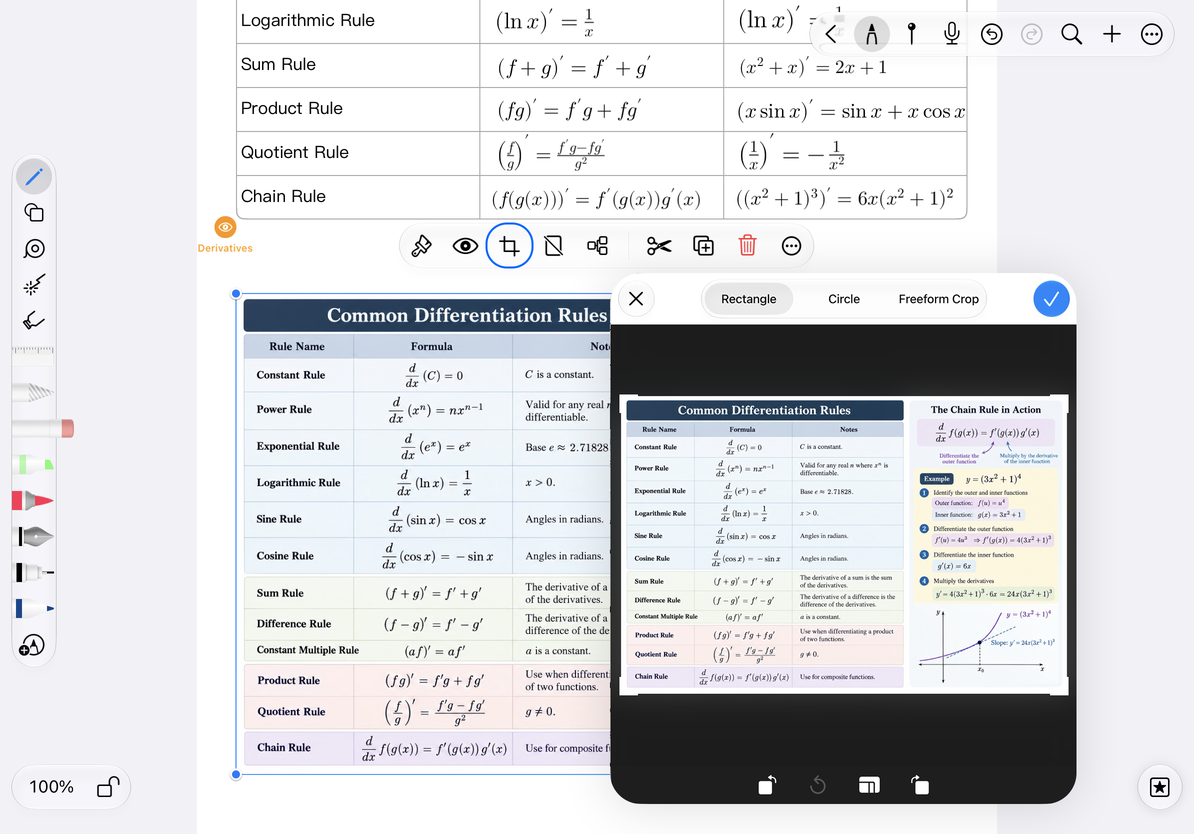
- Adjust the crop boundaries around the content you want to keep. Check every edge so you do not cut off small text.
- Confirm and check the result on the canvas. You can still move and resize the cropped image.
Cancel in the crop editor to discard the current crop. If you have already confirmed an unwanted result, use canvas Undo immediately. Cropping again does not necessarily restore everything previously removed.
Crop an image
Remove an image background
- Select the image and choose Remove Background in its floating menu.
- Wait for subject recognition and processing to finish. Do not start it repeatedly while it is working.
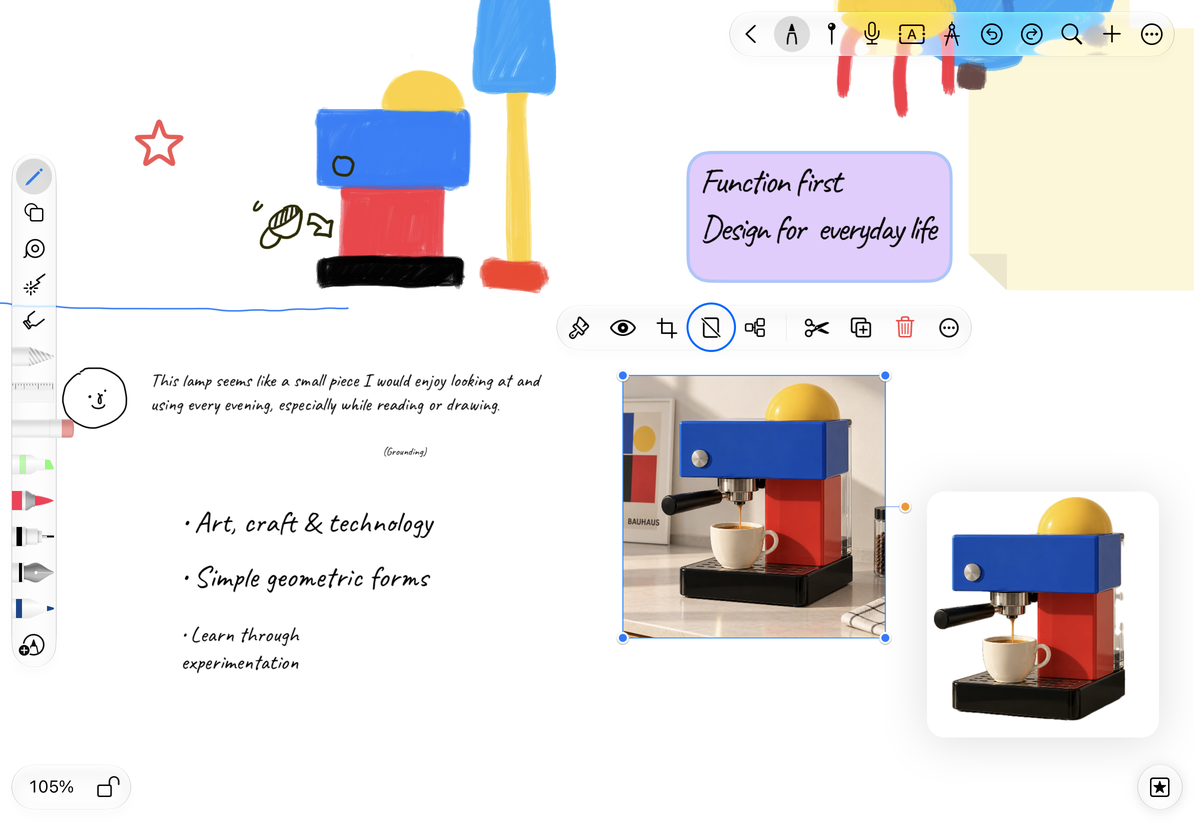
- Check the subject's edges, then move the result into place.
Background removal relies on system foreground recognition. Unclear subjects, complex edges, or similar foreground and background colors can cause failure or rough edges. It cannot perfectly isolate every image. If processing fails, check that the original opens correctly or try an image with a clearer subject. Use cropping when you want to choose the retained area manually.
Compare before and after background removal
Common questions
Crop or Remove Background is missing
Check that you selected a single image, rather than a PDF card, video, or group of objects.
The result is not what I expected
Undo immediately, then try another image or a smaller crop area.
I only want to change the size
Resize with the selection handles. Cropping changes which part of the image is shown.
Related guides: Insert photos and videos · Scan documents · Export native documents