
Insert and edit tables in text documents
Available in text documents on iPhone, iPad, and Mac. These tables flow with the text. They do not use canvas-style resizing, rotation, or draggable column-width controls.
Insert a table
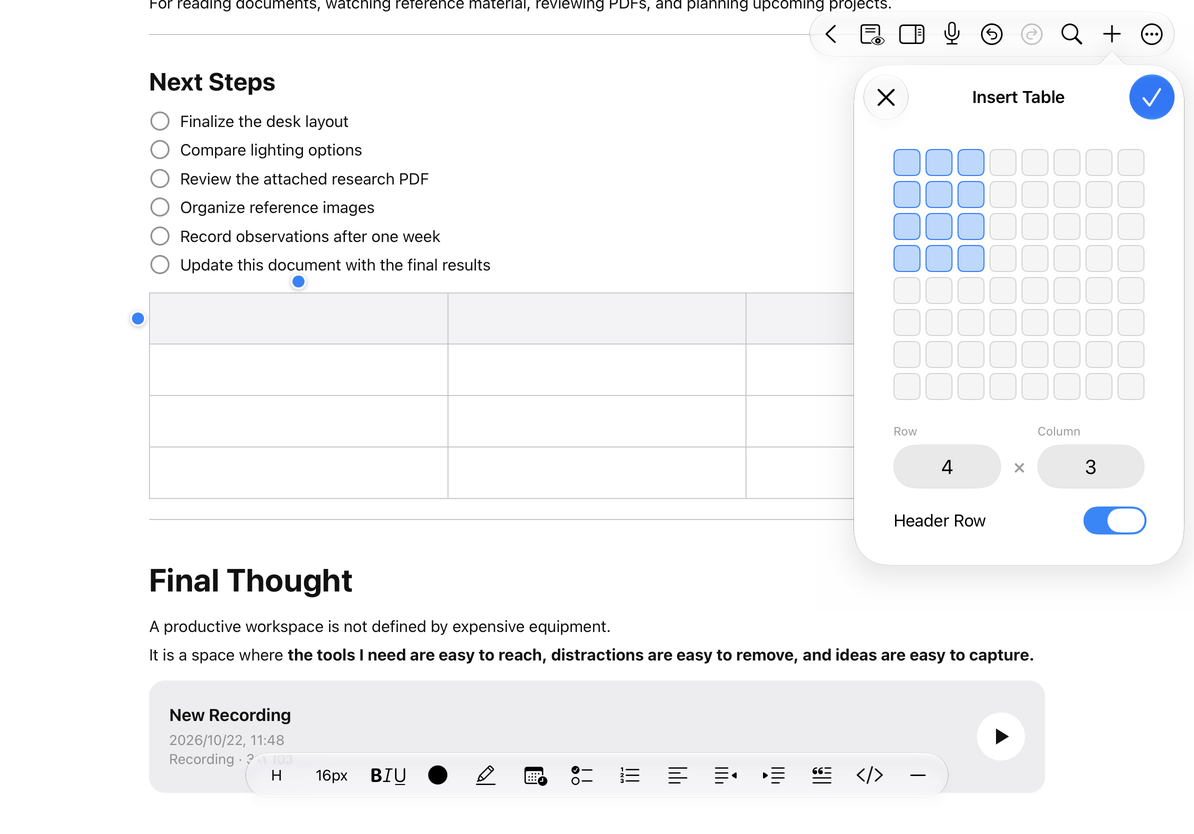
- Place the cursor where you want the table, open Add, and choose Insert Table.
- Select a size in the grid or use the row and column controls.
- Choose whether to include a header, check the preview, and confirm.
- Tap cells to enter their contents.
The creation picker offers 1–8 rows and 1–8 columns. You can add more afterward through the row and column menus. Canceling the picker does not insert an empty table.
Insert a table
Change rows, columns, and the header
Tap inside a cell to show the row and column handles at the table’s edges, then open the relevant handle’s menu. Row actions add above or below or delete the row. Column actions add left or right or delete the column. The table menu also toggles the header row or deletes the whole table.
Check the active cell’s position before adding, and check the affected data before deleting. Use Undo immediately after an accidental deletion. To clear only text, edit within the cell rather than removing the row.
Merge and split cells
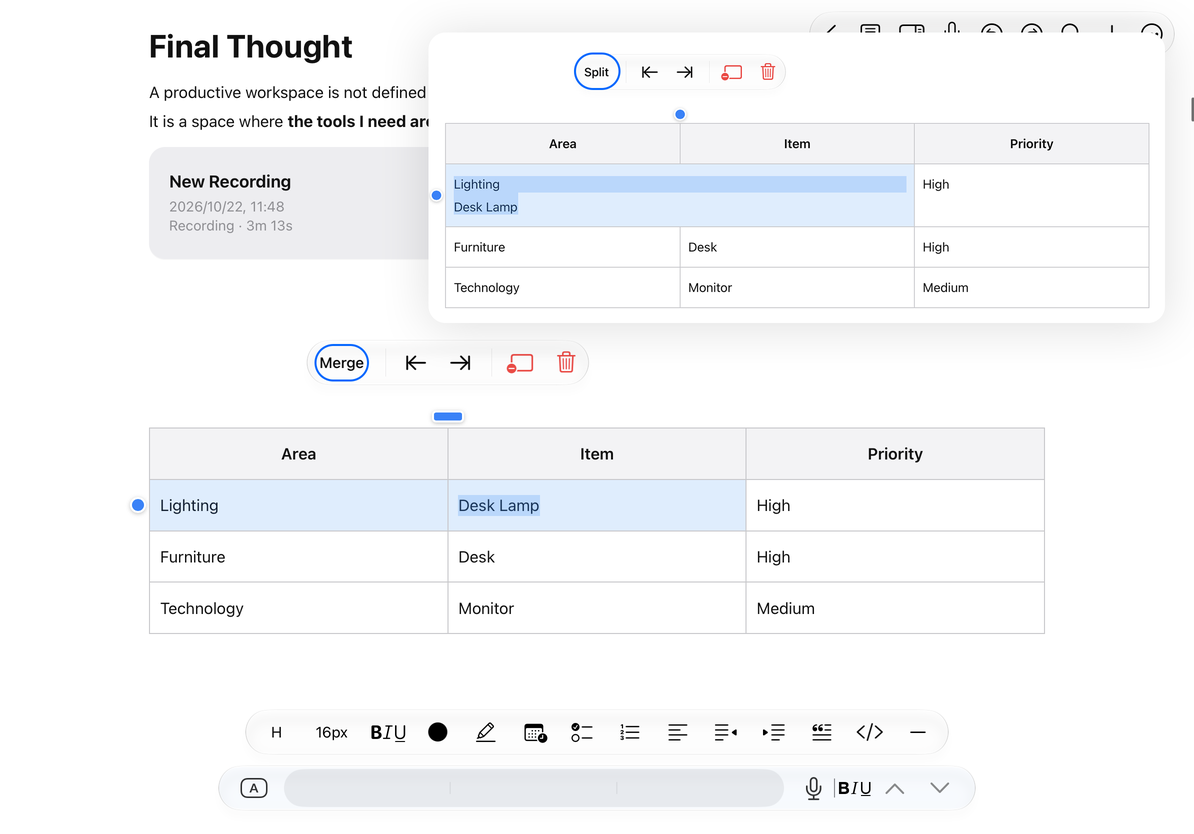
Select adjacent cells so the table selection covers the intended range, then open a row or column handle’s menu. Merge appears for a range that can be merged; Split appears for merged cells that can be split. Check the text and grid afterward and undo any mistake.
Merge and split cells
Common questions
Merge is missing
Select several mergeable cells. Selecting text within a cell is not the same as selecting multiple cells.
I cannot drag a column’s width
Text-document tables do not have canvas-style column-width dragging. Try fewer columns or adjust the content.
Can the table calculate automatically?
These tables organize text. They are not spreadsheet formula calculators.
Related guides: Text formatting, Export text documents.