
Select, duplicate, and merge documents
Use selection mode to move, favorite, export, or manage several documents at once. Duplicating creates an independent copy. Merging combines the pages of several Paged notes, in order, into a new note.
Applies to: All four document types can be selected in the library. Merging requires at least two Paged notes.
Select multiple items
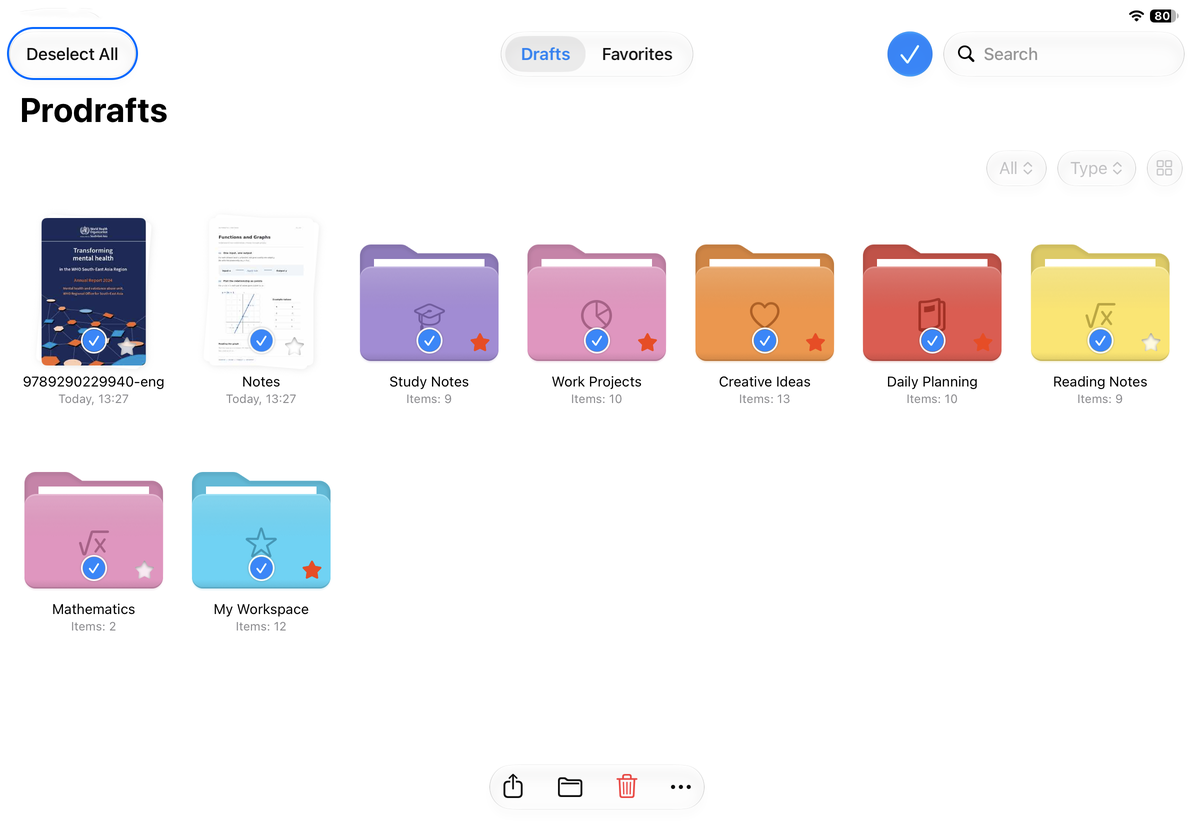
- Tap Select in the library.
- Tap each document you want to include and check its selection mark.
- Tap a selected item again to deselect it.
- Use Select All to select the current list, or Deselect All to clear the selection.
- Tap Done to leave selection mode.
If a type filter or name search is active, check that the visible list covers the intended items. Actions apply to the items actually selected. Select All does not select the entire library regardless of filters.
Select multiple items
Duplicate one or more documents
One document: Touch and hold it and choose Duplicate. If it is locked, authenticate when prompted. If you reach a document creation limit, you can cancel and continue using existing documents.
Several documents: Enter selection mode, select the documents, then choose More → Duplicate.
Check the new copies and rename them if useful—for example, “Practice version” or “Before revision.” A duplicate can be edited independently; a favorite still refers to the same document. Prompts may differ between individual and batch actions, so check the result of the action you used.
Merge Paged notes
- Select at least two Paged notes in the library. Do not include folders, Infinite documents, Vertical documents, or Text documents.
- Choose More → Merge Notes.
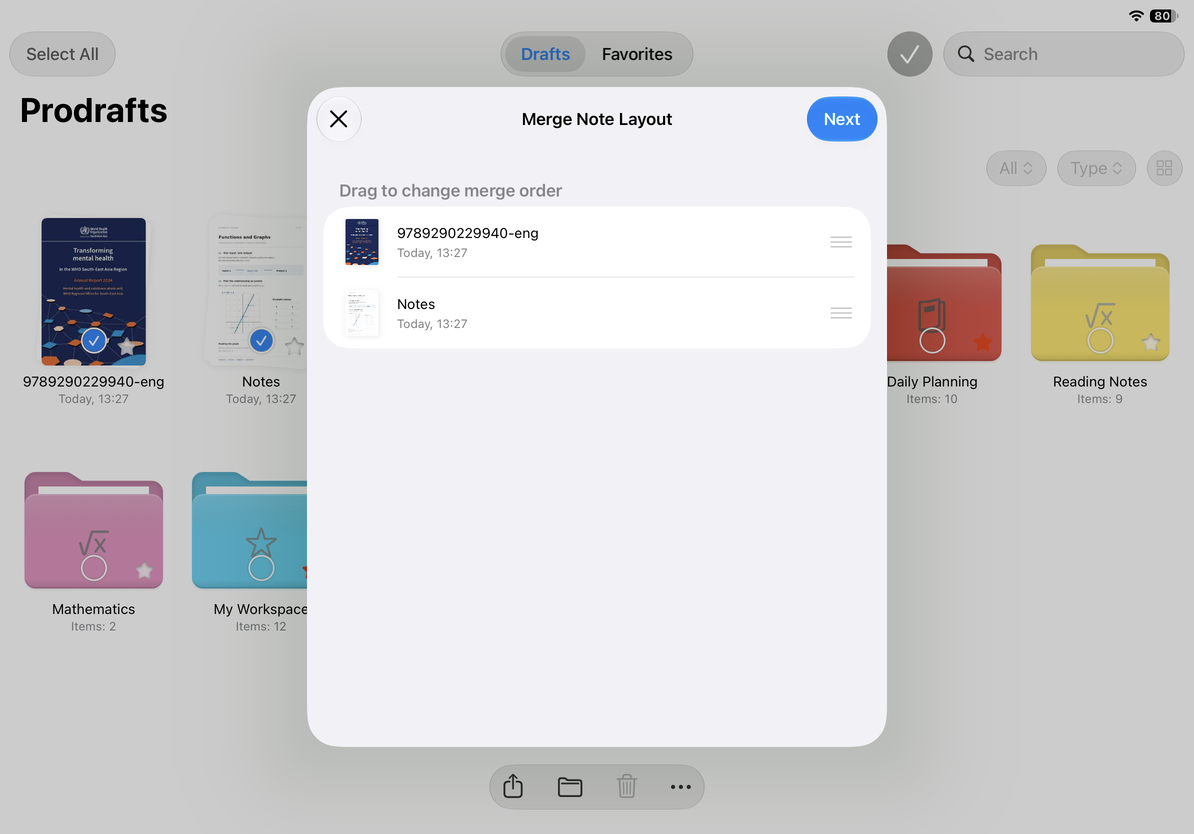
- Drag the items in Merge Note Layout to set their order.
- Tap Next and enter a name for the merged note.
- Confirm and wait for completion, then open the new note in the current folder.
- Check its page count, page order, and the transitions between the source notes.
Merging creates a new note and keeps the original Paged notes. Check the result before organizing the originals.
Set the order before confirming the name. To stop, cancel before confirmation. Do not tap Merge repeatedly to check whether it is processing.
Set the merge order
Other batch actions
- Move changes the selected documents' folder.
- Favorite adds frequently used documents to Favorites.
- Batch export offers formats supported by the selected document types.
- Move to Trash removes selected items from the normal list. Check the selection first.
Common questions
Why is Merge Notes unavailable?
Select at least two documents, all of them Paged notes. Including another document type or a folder makes this merge action unavailable.
Why did Select All miss some documents?
Check the current folder, search, and type filter. Select All applies to the visible list. To include more items, go to the appropriate folder and adjust the filters first.
I just want to keep several notes together
Use a folder or Favorites if you do not need to combine their pages. Each document then keeps its own type and name.