
Find and replace text
Available in text documents on iPhone, iPad, and Mac. Search covers the current document’s body, useful for checking wording, finding paragraphs, or correcting repeated spelling errors. It does not search the full contents of every document in the library.
Find a word
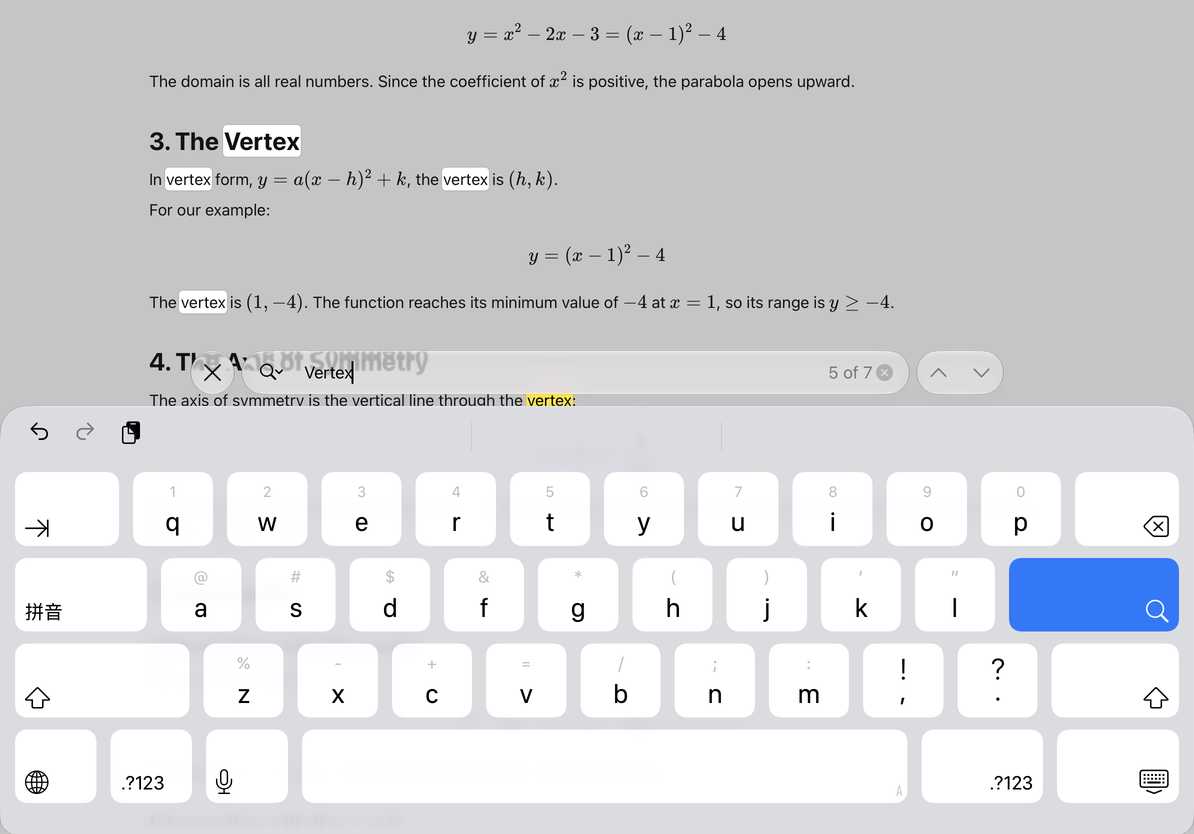
- Open a text document and tap the search button at the top.
- Enter a query in the system find bar.
- Check the match count and use Previous and Next to move between results.
- Read each result in context. Edit the query to search for something else.
Opening the find bar dismisses the keyboard and temporarily hides the top and formatting toolbars. They return when you close the find bar; no tools have been removed.
Find a word
Replace text
Enter replacement text in the find bar’s replacement area and use the system replacement controls. Replace one match first and check its meaning and formatting before continuing. Review results before choosing Replace All so you do not change similar words used in different contexts.
Replacing changes the document. If you replace something by mistake, close the find bar, use Undo immediately, and check the result. Searching alone does not change the text.
Finish searching
Close the find bar using its close control. You can reopen it with the top search button. Tap the intended paragraph to continue typing or change character and paragraph formatting.
Common questions
I cannot find words inside an image
Text search is not image recognition. Use Scan Text first if you need editable text.
I want to search what was said in a recording
Open the recording list and transcripts.
Why does canvas search have no Replace option?
Infinite documents, vertical documents, and PDFs have their own search tools. They do not use text-document replacement.
Related guides: Heading outline, Undo and redo.