
Choose pen types and properties
Suitable for handwriting in Infinite documents, Vertical documents, and Paged notes. Pen properties affect new strokes. To recolor existing handwriting, select it with the Lasso.
Select pen type
Tap + on the customized Pen Boxes, select the type, and then tap the selected pen to open the properties. You can choose from Pen, Fountain Pen, Watercolor, Monoline, Pencil, Highlighter, and Crayon; Reed Pen are also available for iOS/iPadOS 26 and above.
You can start by writing the same phrase to compare the effects: Monoline pens are suitable for more even lines, pencils and crayons are used for textured handwriting, highlighters are suitable for marking large areas, and fountain pens and reed pens can be used to experiment with changes in the direction of the pen tip. Handwriting changes with the system's drawing ability, writing strength and tilt, and is subject to the preview and trial writing of the current device.
When Selected System Tool is available, first choose a tool in the system Pencil toolbar, then add it to custom Pen Boxes. This saves the current tool as a preset and counts toward the saved-tool limit.
Adjust color, thickness, and opacity
- Tap on a pen and tap again to open the properties panel.
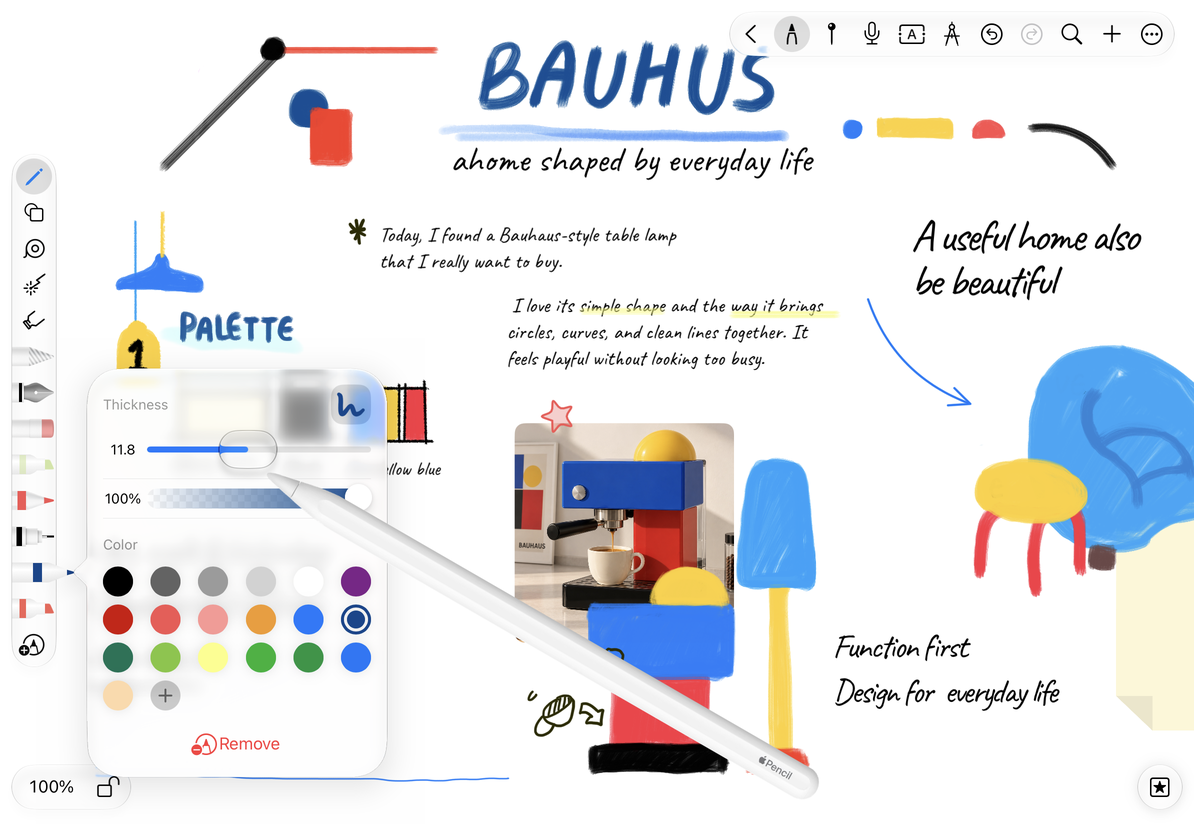
- Tap the color swatch in the color area; tap + when you need a new color and use the color picker to adjust.
- Drag the Thickness control and observe the preview and value. Different pen types have different adjustable ranges, so there is no need to use the same value to compare visual thickness.
- Adjust opacity. At lower values, the paper and the content below will show through more easily.
- Close the panel and try writing in the blank space. Tap this pen back later to continue using the saved properties.
Adjust color, thickness, and opacity
Organize commonly used colors
After using + to add and save a color swatch, you can press and hold a color swatch to delete it, or drag to adjust the order. Deleting a color swatch will not delete the handwriting in that color. Color panels for different purposes may save different color sample lists; the colors collected in the pen may not automatically appear in all text or background panels.
Some color panels also allow the selection of transparency or "no color". Availability depends on the current tool, for example shapes can be unfilled and pens require visible color.
Angle of fountain pen and reed pen
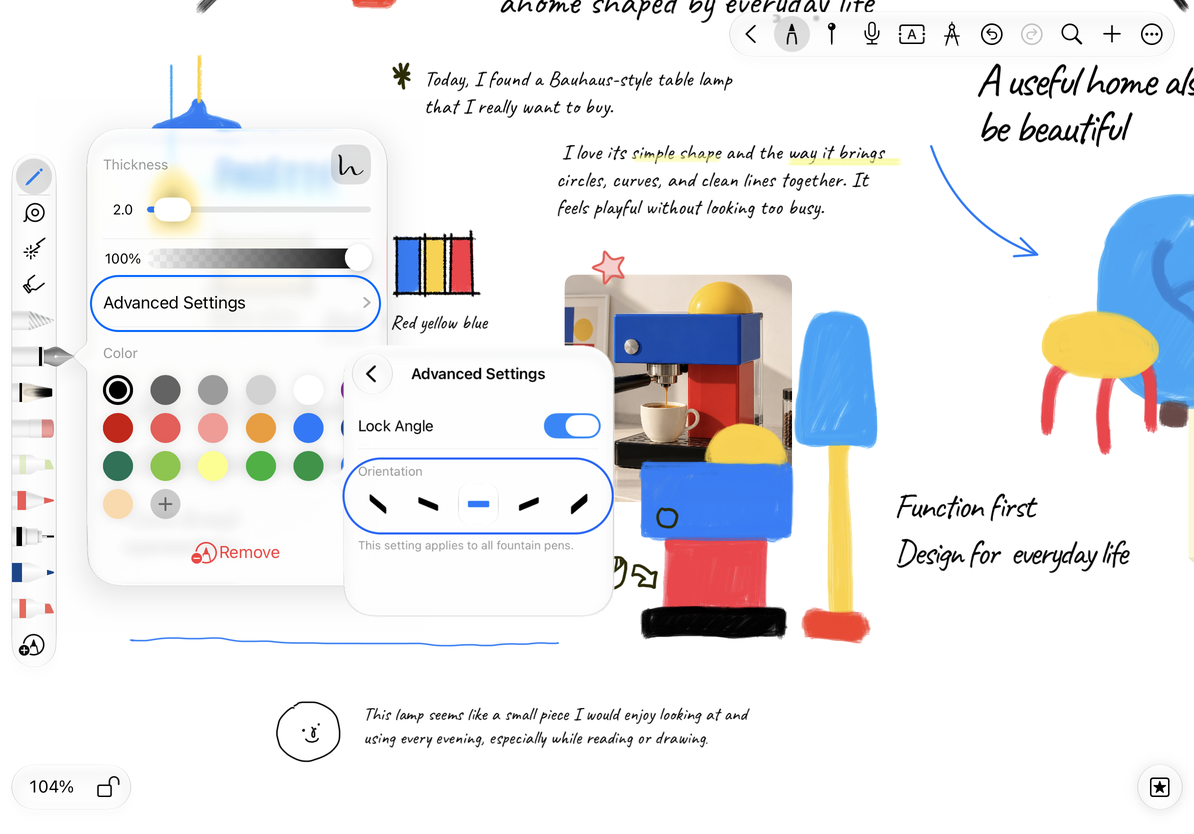
On iPhone and iPad running iOS/iPadOS 26 or later, open Advanced Settings in Fountain Pen properties, turn on Lock Angle, and choose an angle. This applies to all Fountain Pen presets. Turning it off restores the normal angle behavior as you write.
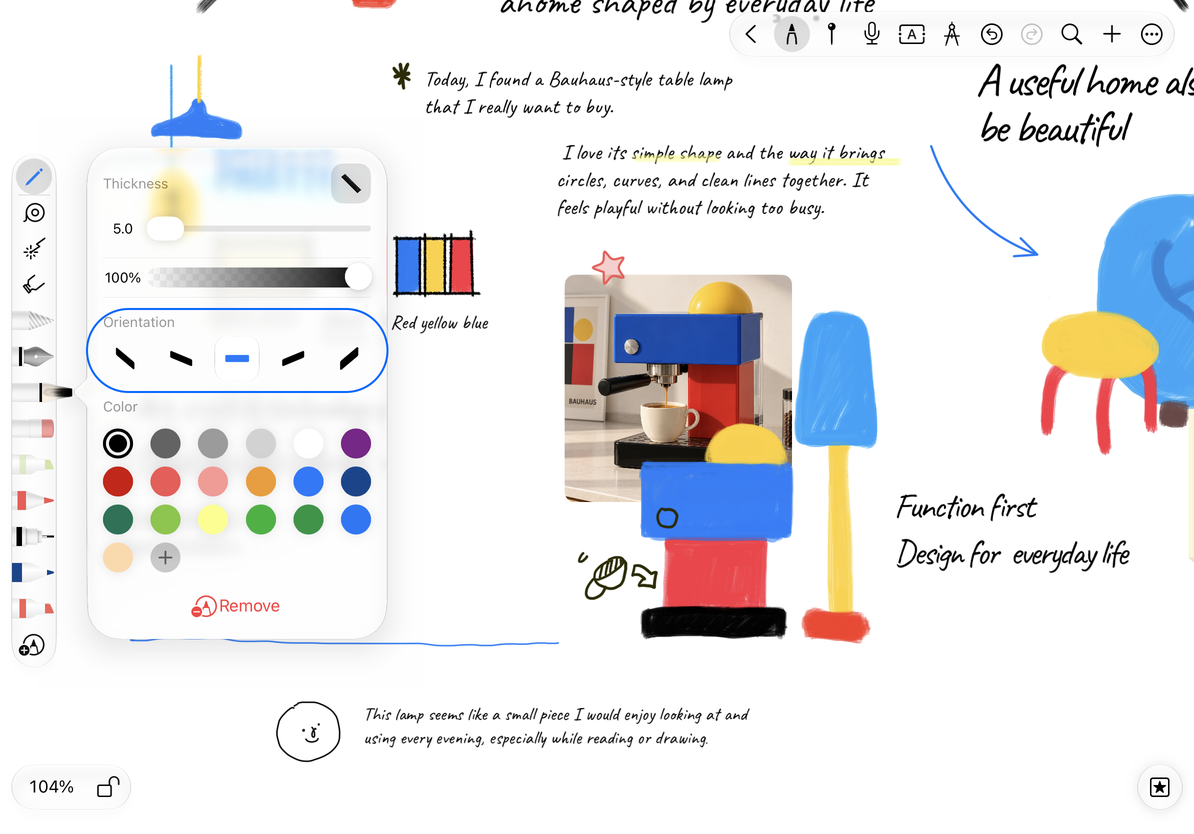
Reed Pen has its own angle adjustment on supported systems. Adjust the angle first, and then try writing horizontal and vertical lines. It is easier to judge the effect than just looking at one stroke. Older systems that do not have these angle options will still be able to use the normal pen properties currently available.
Fountain Pen: Lock nib angle
Reed pen: choose tip direction
Why didn't the original text change color together?
What is edited here is the pen preset; use Lasso to modify existing handwriting.
Why is Remove missing?
Unsaved temporary tools have no presets to remove.
Related guides: Organizing Pen Boxes · Highlighter and Blending Mode