
Export an editable Prodrafts document
Applies to Infinite documents, Vertical documents, Paged notes, and Text documents. You can also package folders or multiple documents together. If prompted for Prodrafts Pro, check your current access first.
Choose the Prodrafts format when the recipient also uses Prodrafts, or if you want to re-import later to continue editing. It saves the original document content and attachments in the package; PDF, image and other reading formats do not retain the same editing structure.
Export a single document
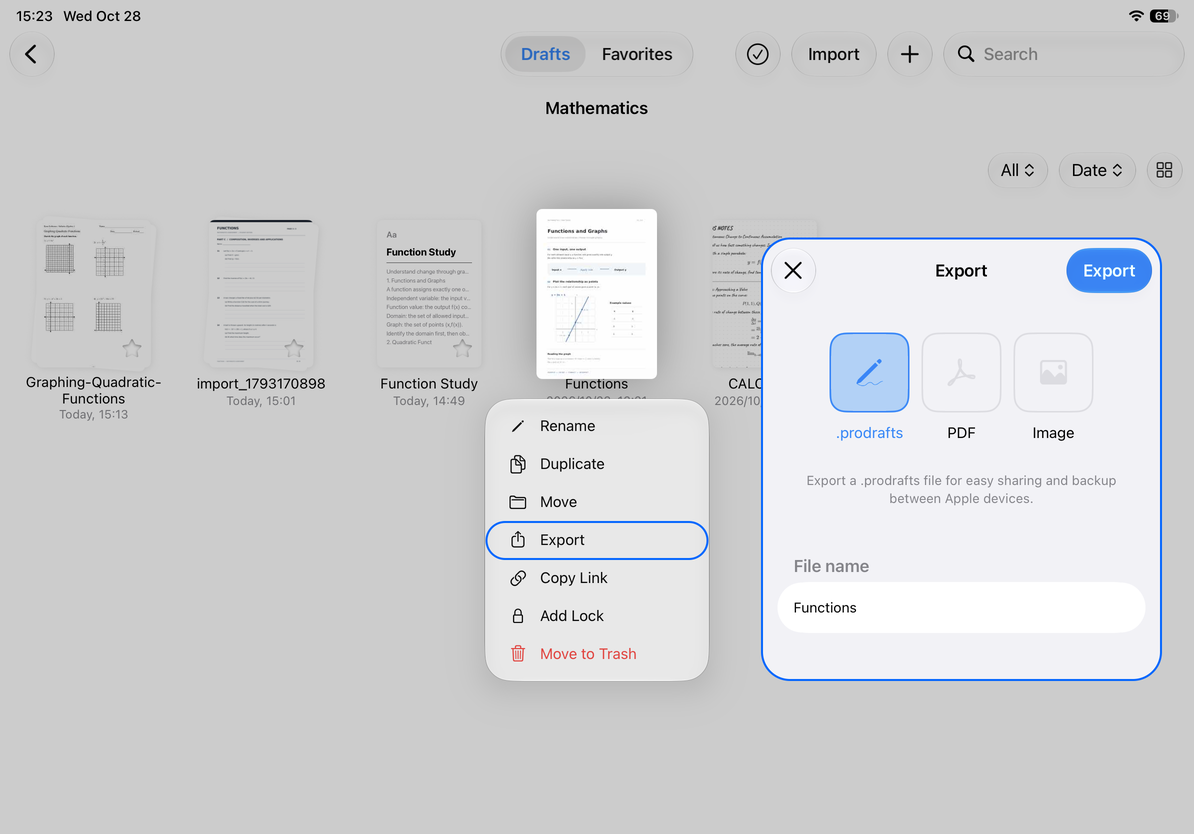
- In the library, press and hold or right-click the document, then choose Export. You can also open Export from the share menu inside the document.
- Select "Prodrafts" in the format list. Check the title first to ensure that the exported document is the one you need.
- Enter a name for easy identification in "File name", such as "Course Notes - Chapter 2".
- Tap "Export" and wait for the processing progress to end. If it is no longer needed, you can use "Cancel" in the progress interface and wait for the operation to end.
- iPhone and iPad will open the system sharing panel, select the save location or receiving app, and complete the saving and sending steps; Mac will open the file saving panel, select the target folder and complete saving.
- Check whether the file exists in the selected location; important deliveries can be re-imported with a copy, checking that pages, text and attachments are available.
Export a single document
Folders and multiple documents
Use "Export" after selecting multiple items in the library, or export in the folder menu. Choosing Prodrafts format will package the selected range, making it easy to save a set of documents that you can continue to edit. There may be subfolders in the folder. After exporting, you should check the extracted document count and folder structure. The contents that have been placed in the trash are not included in this folder export; if they need to be retained, restore them first and then export them.
Native output contains data within the document package, and external web pages or other network resources may still require the original resources to be accessible. Don't judge that all external links have been saved offline based on the file extension alone. The recipient should open the original document or backup package through File Import in Prodrafts.
Export failed or file not found
Cloud documents should be able to be opened normally first and confirm that the required content is readable on this machine. If the export still fails, record the prompt, check the available space, and try again for a single document to avoid repeatedly packaging the entire library.
The completion of the export progress means that the file has been generated; closing or canceling the final sharing and saving panel does not mean that the file has been retained at the target location or has been sent. Return to the expected directory to verify. Do not judge success just by the disappearance of the panel.
For regular library backups, see Create, Cancel and Save Backups. When the recipient only needs to read, you can use PDF and pictures; for batch export of mixed types, see Batch export of different types of documents.
This article is current as of October 12, 2026; menus may vary across devices and versions.