
Get started with Vertical documents
Vertical document is suitable for content that is recorded continuously from top to bottom, such as class notes, problem-solving steps and long meeting minutes. It preserves canvas tools while giving content a clear horizontal scope.
Applies to: Vertical document. It shares many tools with Infinite document, but the vertical layout needs to be considered when browsing and exporting.
Create a Vertical document
- Tap + in the library or destination folder.
- Select Vertical document.
- Write a title at the top of the canvas, such as "Chapter 1 Study Notes."
- Continue recording below the title; add content gradually downward.
After creation, the document will be located in the same library location. You can return to the library and use the rename menu to give it a name.
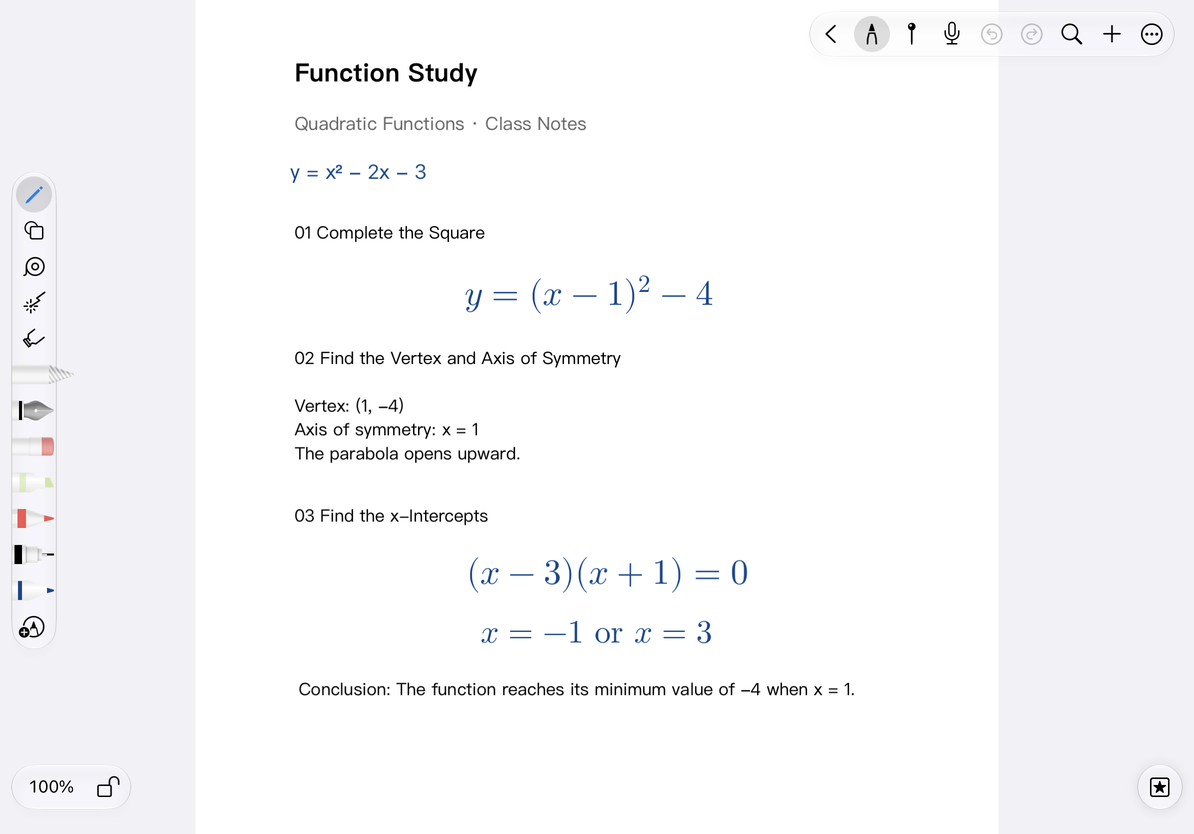
Browse long documents
Go up and down through what you have written. Pinch to zoom in when you need to see details, and then adjust to the appropriate width after writing.
Vertical document zoom controls switch between fitting the width and the available display states, rather than using the Infinite document preset zoom menu. On larger layouts with a vertical slider, use it to move quickly through the long canvas. For detailed instructions, see Canvas Navigation.
If the canvas does not move in the expected direction, check the scrolling direction lock and zoom lock; the scrolling direction lock controls the sliding of the canvas, not the device's horizontal and vertical screen rotation lock.
Arrange text, images and tool content
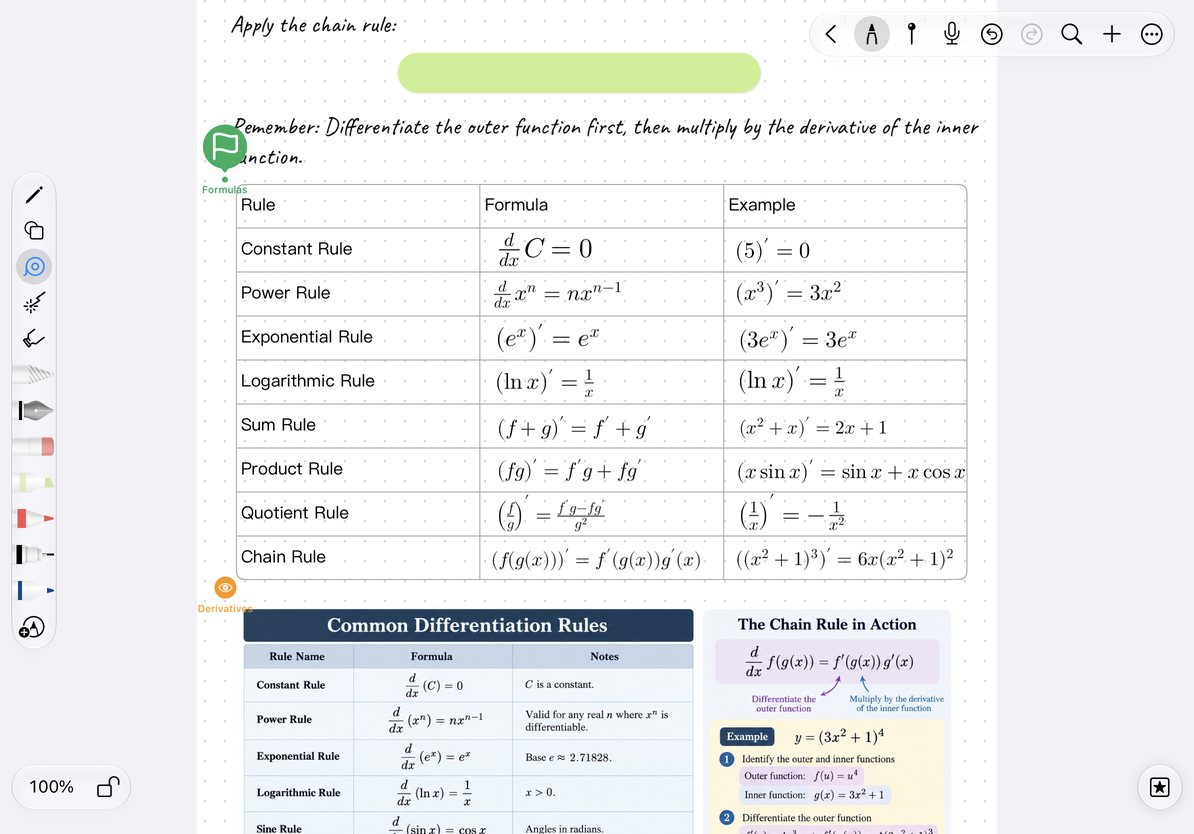
Use the Add menu at the top to insert text boxes, images, tables, mind maps, and other content. After inserting, first check whether the object fits the current horizontal range, and then continue recording.
For example, when organizing a class, you can first write the course title, put a photo of the blackboard below, and then add text descriptions and tables. Objects are still canvas content that can be selected and moved, and will not automatically reformat like body paragraphs.
- Set canvas background and auxiliary lines can help maintain line spacing.
- Pin can mark the beginning of each chapter.
- Canvas tables is suitable for placing comparison content in a certain paragraph.
- Tape can hide answers for self-testing.
Check content range before exporting
Content in long scrolls may be much longer than the screen. When exporting, confirm the scope and output effect. Do not judge the length of the full text by using only one paragraph displayed on the current screen. Especially when pictures, tables or maps are close to the left and right boundaries, you should open the export result to check whether it is complete.
If you need to share a document that can be edited, you can export the native Prodrafts file; for others to read, check PDF and Image Export.
Frequently Asked Questions
Is Vertical document composed of many pages?
It uses continuous vertical canvas as the main recording method. When you need to turn pages independently, rearrange page order or replace a certain page of paper, you should use Paged note.
Can I edit an existing Vertical document as a Text document?
The content organization of the two is different. The text boxes and handwriting in Vertical document will not automatically become continuous text; you can refer to Four Notes Comparison when selecting the type.