
Format fonts and characters in a text box
Applies to text boxes in Infinite documents, Vertical documents, and Paged notes. Enter text editing and select the text to format. With only a cursor and no selection, formatting usually applies to what you type next.
Select font
- Select the words you want to modify in the text box, or select all the text in the box.
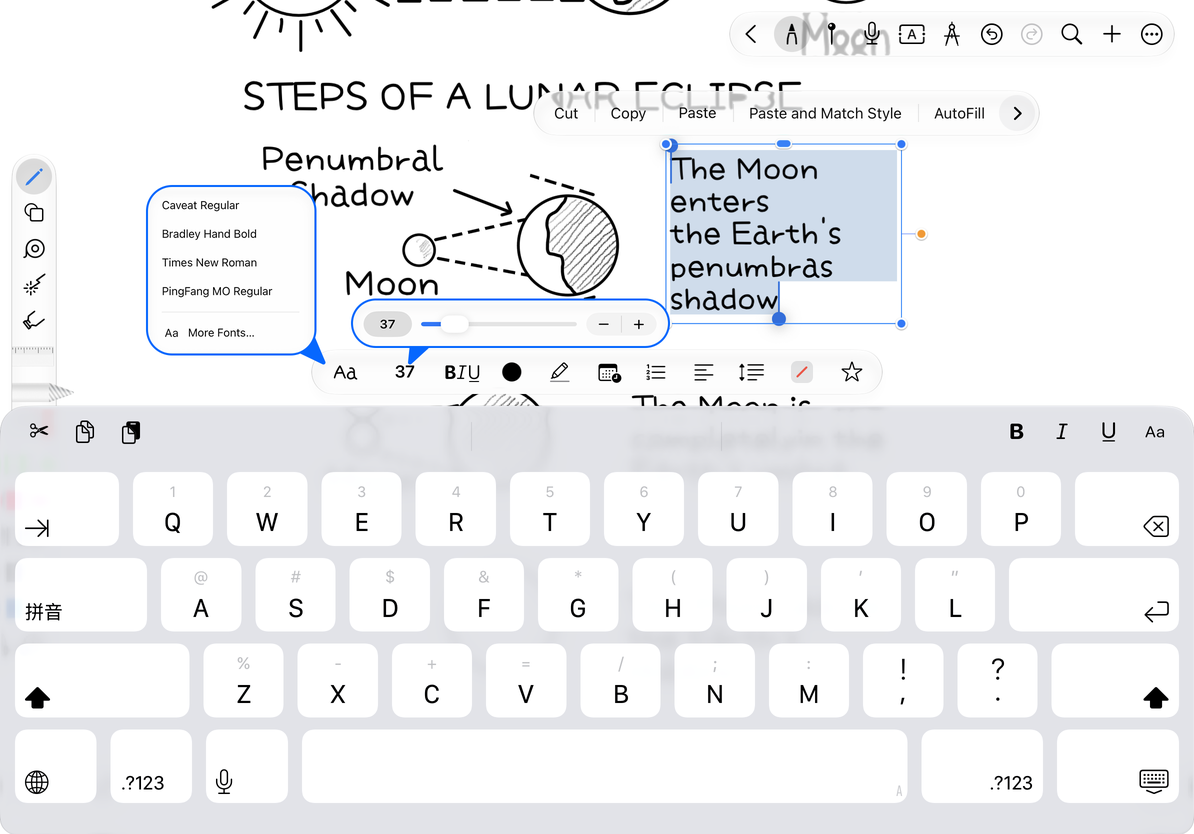
- Tap the Font button on the Text toolbar.
- Choose from recent and frequently used fonts; for a complete list of fonts, open More Fonts.
- Return to the text box to check the effect, especially the mixing of Chinese and English and special symbols.
Common options include system fonts, serifs, rounded fonts, and monospaced fonts. The list is based on the fonts available on the device. Different fonts may not cover all language characters; missing characters may be displayed instead by the system.
Change font size in three ways
Tap the font size button, then drag the slider for a quick adjustment, use the plus and minus buttons for small changes, or enter a value directly. The supported range is 8–200. Finish editing the value to apply it to the current selection.
When the font is enlarged, the width of the original frame may not be enough and the text will wrap. To keep a title on one line, finish editing and widen the text box. Zooming the canvas does not change the font size.
Change font size in three ways
Emphasize text
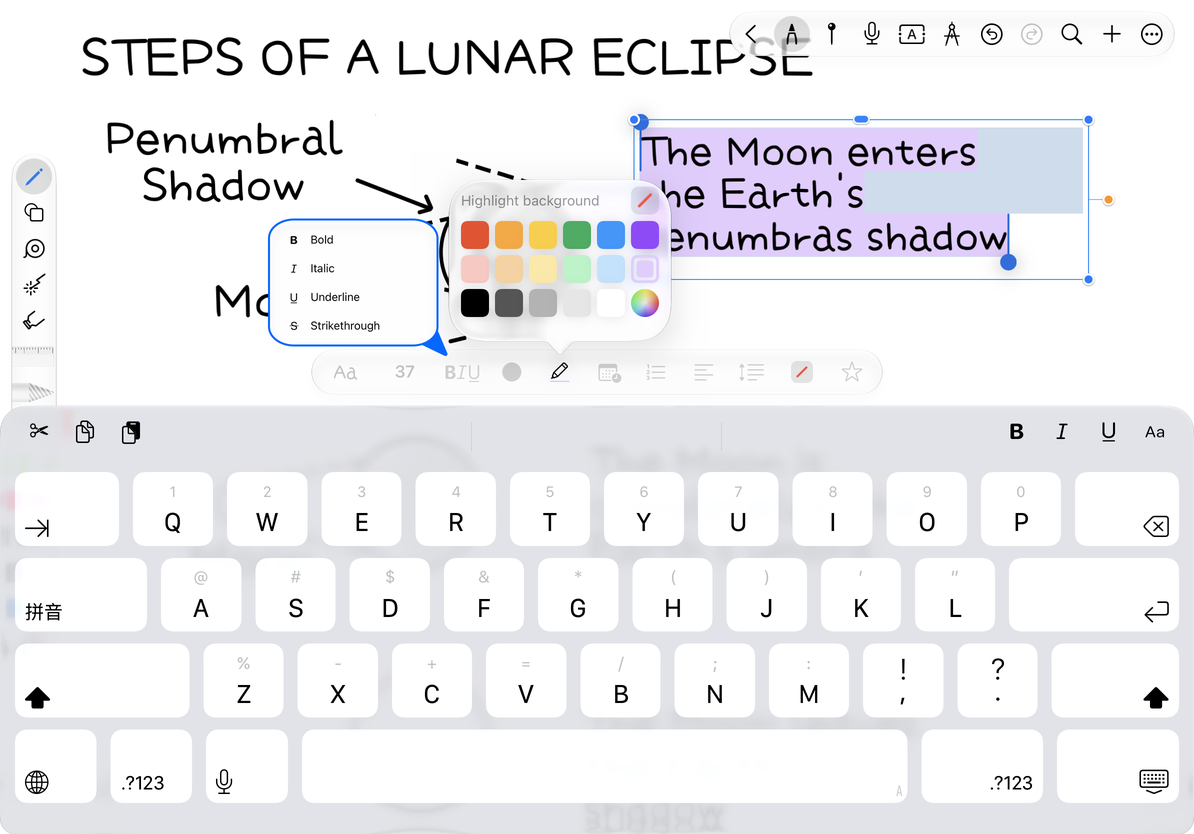
In the Format toolbar or its Format menu, select Bold, Italic, Underline, Strikethrough. Tap the same style again to cancel. Various styles can be combined, but it is recommended to keep only the necessary highlights in a piece of content.
Tap the text color button to change the color of the selection; tap the highlight button to add a background color to the words. The text highlight is attached to the characters, and the background of the text box covers the entire container. They are set separately. To remove highlighting, use the No Color/Clear option available in the Highlight Color panel, or clean up the formatting by restoring the default style.
Character styles and text highlighting
Subsequent modifications
Select the text again to change its formatting. To reuse formatting across text boxes, save a text style. If you apply the wrong format, undo it immediately instead of trying to reconstruct the previous settings.
Why are only the newly entered characters changed?
When modifying, there is only the cursor and no text selected.
Did the entire text box change color at the same time?
You may have used "Text Color" from the Object menu, which targets the entire box.
Don't see the bold effect?
Fonts support different weights. Try a system font to compare.
Related guides: Create a text box · Paragraph Format · Save Style