
Create a Paged note from photos or scans
You can create a new Paged note from the library using up to 10 photos at a time. Scanning is available on supported iPhones and iPads; this scanning workflow is unavailable on Mac. The free document limit may apply.
The result is a note with pages you can read and annotate, useful for collecting photos of classroom boards or paper documents. To add a photo to an open canvas or Text document, use that editor's media insertion options.
Create from photos
- Open the destination folder in the library and tap + → Photo.
- Select up to 10 images in the system photo picker and confirm.
- Wait while Prodrafts converts them to PDF pages and creates a Paged note. Large photos may take longer.
- Open the new note and its page thumbnails. Check the page count, orientation, and order in the result, rather than relying on the order you selected the photos.
- Use page management to reorder, rotate, or add pages. You do not need to import the whole photo set again to change the order.
Create from photos
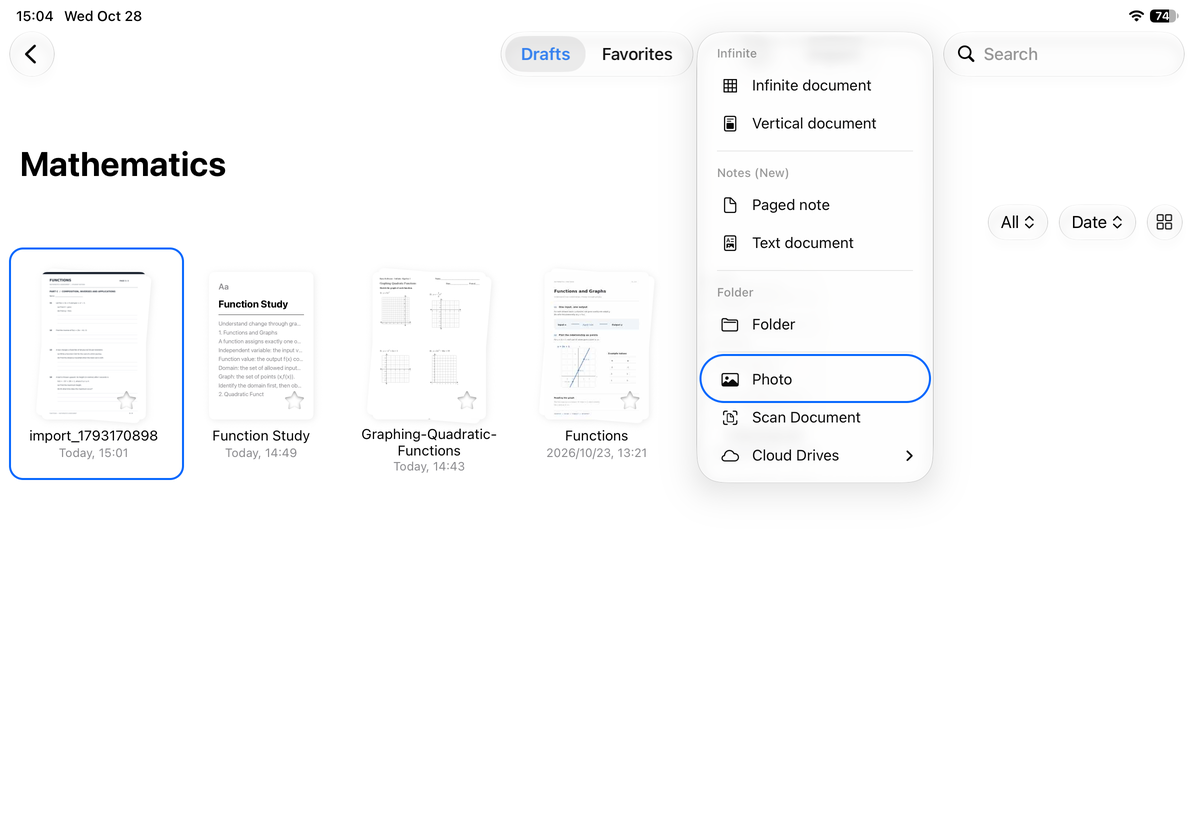
Create from a scan
- On iPhone or iPad, tap + → Scan in the library. Allow camera access if prompted.
- Point the camera at each sheet in the system scanner. Check the edges and readability, adjusting or rescanning as needed.
- Complete the scanning flow. Prodrafts creates a Paged note from the scans.
- Open it and check cropping, orientation, and page count before writing or annotating. Scanned pages are images, not editable body text.
Canceling leaves the scanning flow. If scanning fails, check camera permission, device support, and available storage before trying again. On Mac, you can import a PDF scanned on an iPhone or iPad.
For more than 10 photos, prepare PDFs in batches or add more pages after creating the note. See Reorder, copy, and paste pages and Add pages and change paper. You can also start scanning through Shortcuts.
Last checked: October 12, 2026. Menus may vary by device and version.