
Export PDFs, images and pages
All four document types can export to PDF. Image export is available for an individual Infinite document, Vertical document, Paged note, or selected pages. Text documents use a different set of export options; see Export and print Text documents. Some sharing actions require Prodrafts Pro.
Export an entire document or specific pages
- The entire document can be accessed from the document menu of the library by entering "Export", selecting PDF or the available "Image", and filling in the file name.
- In Paged note, open "More → Share" and select "Export This Page" to process the current page, or "Export All" to process the entire note.
- To select non-consecutive pages, open the page thumbnail, enter the selection state, select the target page and use the export operation. Check the selected quantity and page order before exporting.
- Check the options corresponding to the format, tap "Export" and wait for the result. For iPhone and iPad, save or send in the system sharing panel; for Mac, select the destination location and save in the file saving panel.
- Open the output file and check the page count, paper edges, small print, and pictures; don't just look at the first preview.
Export an entire document or specific pages
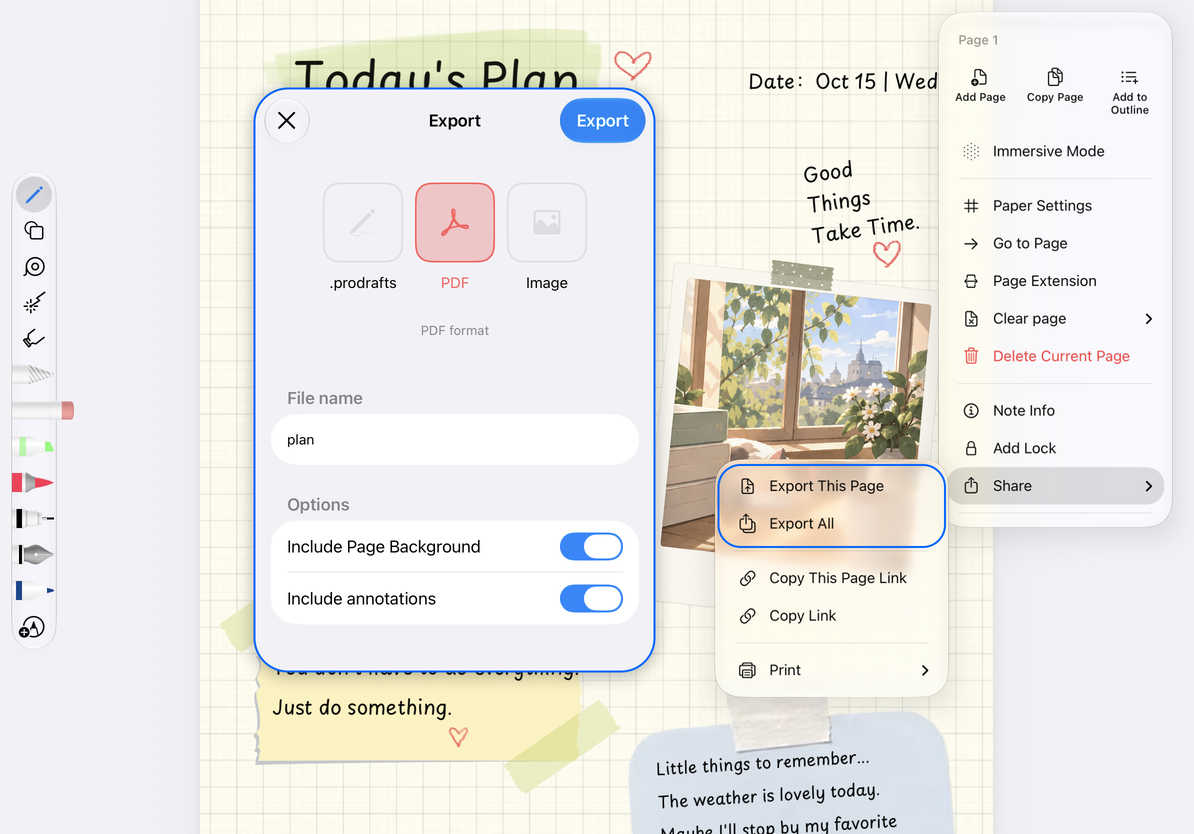
Page background and annotations
When exporting PDF or pictures in a single Paged note or specified page, you can adjust:
| Options | What to decide |
|---|---|
| Include page background | Whether to include the original paper, template, or imported PDF background |
| Include annotations | Whether to output superimposed handwriting and other annotation content |
Keep at least one content layer enabled. After turning off one option, you may not be able to turn off the other. For example, if you just want to hand over the annotation layer, you can keep "Include annotations", turn off the background, and then check whether the export preview meets the purpose. These per-document options are not shown for batch exports and do not apply in the same way to canvas or Text documents.
Export area for Infinite and Vertical documents
Infinite document outputs according to the canvas content. The reading ratio of wide content in the output file may be different from that of the screen. When you only need a certain area, you can use Canvas Screenshot or PPT View to determine the range.
Vertical document has "Paged Export" when exporting pictures: cut according to the A4 ratio after turning it on, and try to generate the entire long picture after turning it off. Very long images may display abnormally or fail to be generated due to limitations of the device and receiving app; in this case, enable paging export and check the connections of each segment.
PDFs and images are static outputs. Recordings, videos, and interactive content do not retain their native behavior. Keep a Prodrafts native file as well if you need those features.
Print and copy links
In "More → Share → Print" for Paged note, select "Print This Page" or "Print All", and then check the paper, orientation and number of pages in the system printing interface. Page operations in thumbnails can also be used to process specific pages.
"Copy This Page Link" (some versions display as "Copy this page URL") is used to locate the current page, and "Copy Link" is used to locate the document. For specific goals, opening and return methods, see Document and location link. These links do not send a PDF, nor do they upload the document to a public page that anyone can read. When you need to make content available to others, export and share the actual file.
Print and copy links
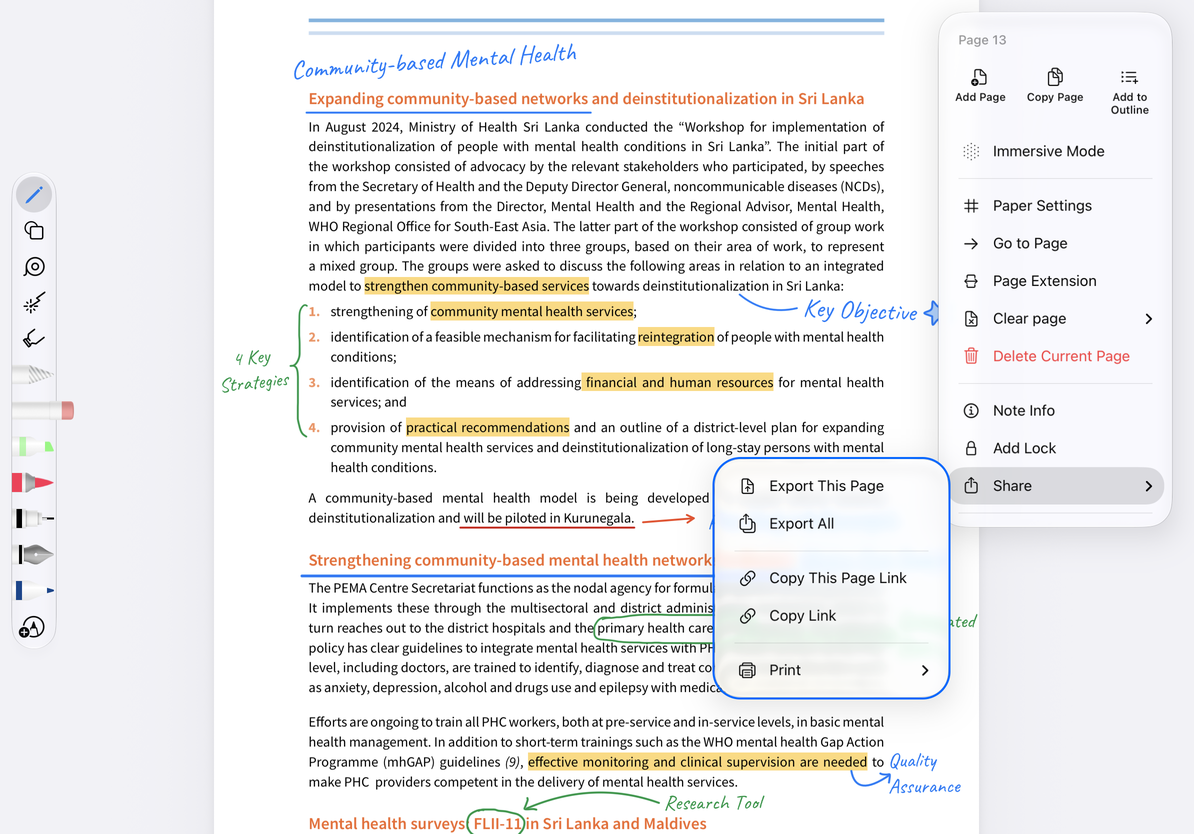
If Image is missing, check whether you selected multiple documents or included a Text document. If the output is missing the background or annotations, check the two content switches. See Batch export for format rules.
This article is current as of October 14, 2026; menus may vary across devices and versions.