
Style and preview objects
These options apply to Infinite documents, Vertical documents, and Paged notes. Controls vary by object type: images, text boxes, shapes, and tables have their own styles, while recordings, files, formulas, and web cards have dedicated menus.
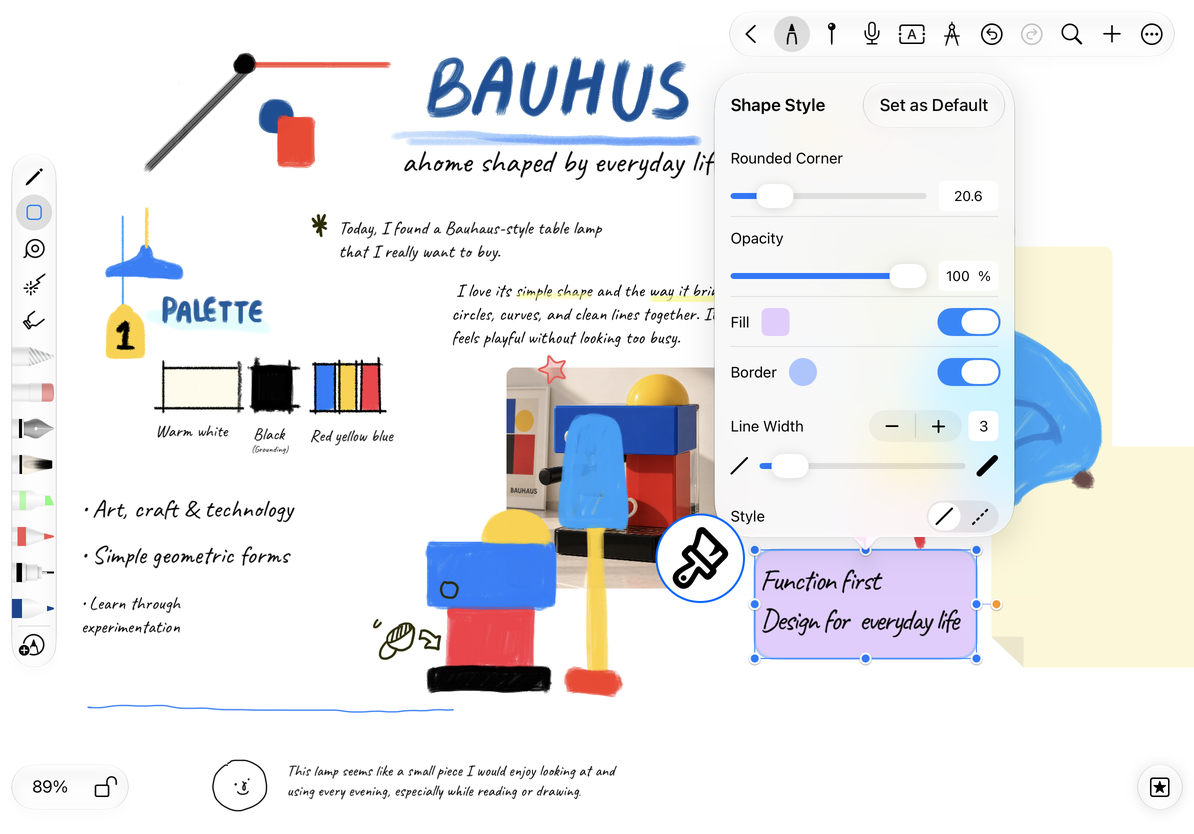
Open the Style panel
- Select an object and tap Style in its floating menu.
- Adjust the available colors, opacity, corners, shadow, or border.
- Check the canvas and tap a blank area to deselect. Undo an unwanted change or restore the previous setting.
| Desired effect | Look for |
|---|---|
| Change the container or background color | Fill / Background Color |
| See content beneath the object | Opacity |
| Soften the corners | Rounded Corners |
| Define the edge | Border Color and Line Width |
| Make the object appear raised | Shadow, where available |
| Mirror an image or supported object | Flip Horizontally / Flip Vertically |
A color control affects the part named in the panel; it does not recolor every pixel in a photo. Flipping is different from rotating: horizontal flip mirrors left and right, while vertical flip mirrors top and bottom.
Open the Style panel
Rename supported objects
Select an artboard, file, or recording, choose Rename, and confirm a clear name. Names such as “Chapter 2 references” or “Interview excerpt” make content easier to recognize later.
Not all objects have a name field. To change the words in a text box, edit its text instead of looking for Rename.
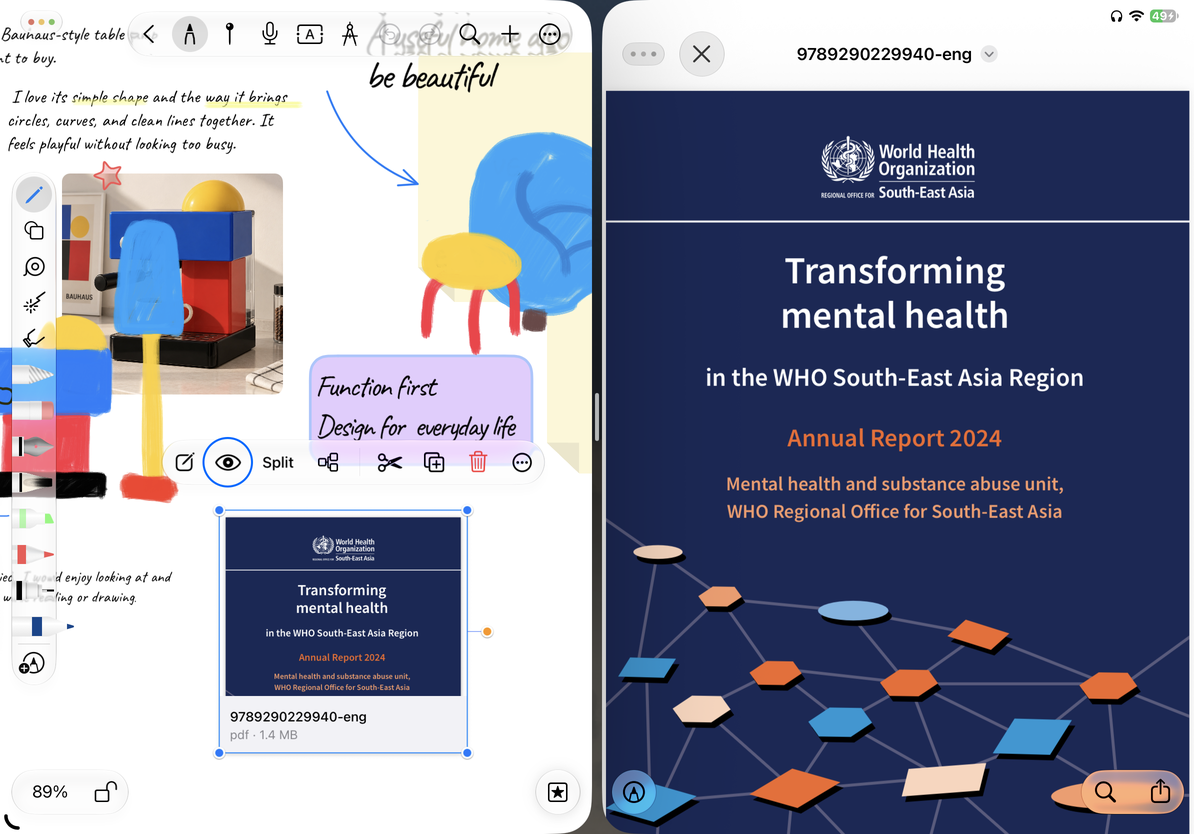
Preview the original content
Select an image, file, recording, or media object and tap Preview. Eligible PDF artboards also offer this option. Preview opens the attachment or its playback controls. Close it to return to arranging the canvas.
Preview does not convert attachments into editable text or shapes. If a file will not open, check that it is complete and that the system supports its format.
Preview the original content
Style is missing
Recordings, files, formulas, and web cards do not use the general Style panel. Use their dedicated menus—for example, to change formula text color.
The text box changed color, but its text did not
Background color and text color are separate settings.
Related guides: Text box styles · Shape styles · Formula styles · Edit images