
Connect objects with smart connectors
Applies to Infinite documents, Vertical documents, and Paged notes. Smart connectors link two objects and update their paths when the objects move. Ordinary lines and arrows do not store this relationship. Mind map connections are managed separately by the map structure.
Connect existing objects
- First place two text boxes, pictures or other objects that support connection.
- Open More → Mind Maps & Flowcharts and confirm that Show Connectors is on.
- Select the starting object and drag from the surrounding connectors to the target object.
- Wait for the connection prompt to appear on the target and release it to confirm that the endpoint is attached to the target object.
- Move any object and check that the connection lines still follow the connection positions.
You can also choose Shapes → Connector in Pen Boxes, draw a line, then attach its endpoints to objects. The Connector option in the shape list has Pro access requirements; follow the prompt shown in the app.
Connect existing objects
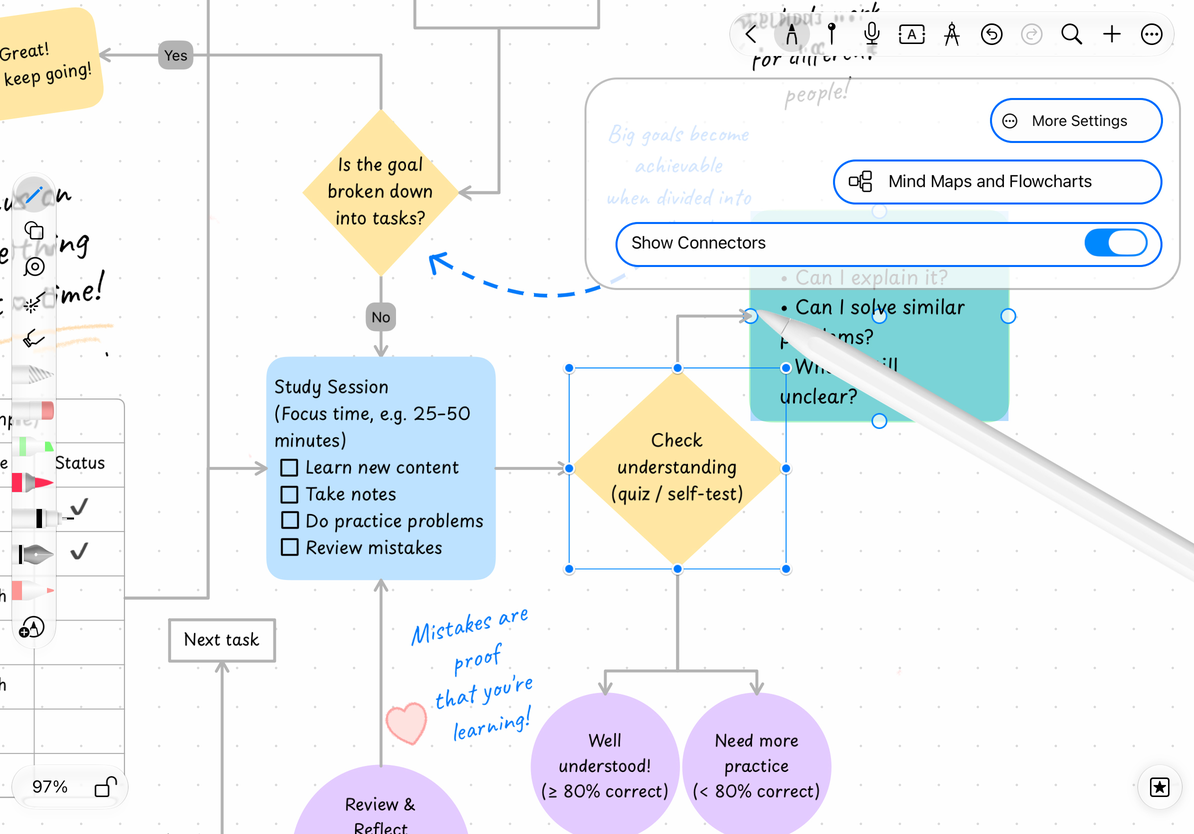
Quickly add the next shape in an empty area
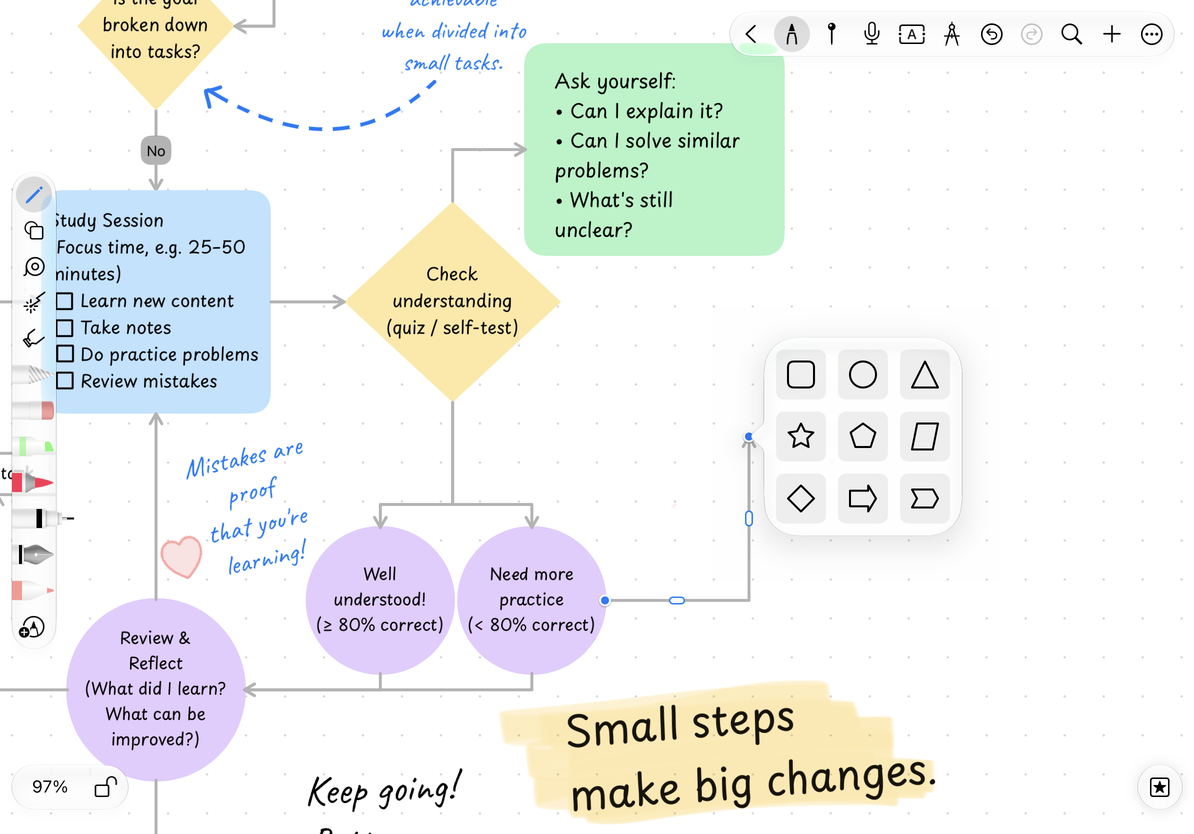
Drag a new connection line from the connector and release it in an empty space. The free endpoint opens a shape picker: select available types such as rounded rectangle, ellipse, triangle, star, polygon, parallelogram, rhombus, double-headed arrow, or angle bracket shape to create and automatically connect at the end.
For example, in the flow chart, first draw "Start", drag the connecting line to the right, select a diamond shape in the blank space, and then add decision text to it. Continue to drag out the next line from the new object, and you will gradually build the structure.
When you don't want to add a new shape, close the selector to retain the free endpoints. Then drag the endpoint to an existing object to establish a connection.
Quickly create next steps in the blank space
Reconnect and Undo
Select the connection line and drag the endpoint to change it to another object. Drag it to a blank space to keep it as a free end. When adjusting the endpoints of existing connection lines, the selector for quickly creating shapes will not pop up again; this process is only used for creating new connection lines.
If you create an end shape by mistake, Undo removes the new shape and its attachment, leaving a free endpoint again. To change the line direction, arrow or detour position, see Connector Styles and Paths.
Connection handles are missing
Check preferences, object lock status and object type, not all objects provide connectors.
The connector does not follow the object
The endpoint may only be visually close to the object. Drag again until the attachment prompt appears and release.
Related guides: Connector Editing · Creating Shapes · Mind Map