
Use typed and handwritten sticky notes
Sticky notes are available in Infinite documents, Vertical documents, and Paged notes on iPhone, iPad, and Mac. Use them for tasks, extra explanations, or short drafts. Creating one from the canvas touch-and-hold menu requires Prodrafts Pro. Handwriting input depends on your device's available tools.
Create and fill in a sticky note
- Touch and hold a blank area of the canvas. In a Paged note, open the target page first.
- Choose Sticky Note.
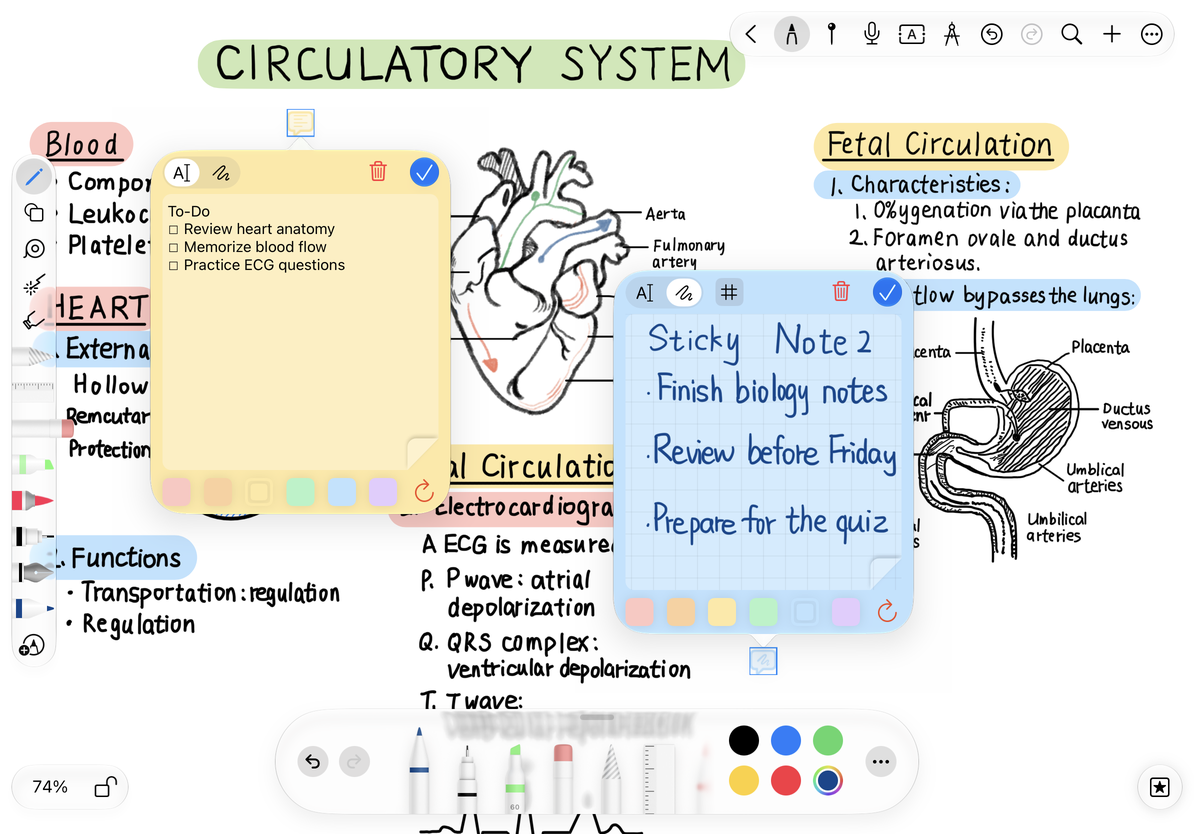
- In the sticky note editor, select text mode and type something such as “Review class questions by Friday.”
- Choose a color, close the editor, and check the note on the canvas.
- Select it to move it, or reopen its editor to change the content.
Text and handwriting are two display modes of the same sticky note. Switching modes shows that mode's content in the editor and sets how the note appears on the canvas.
Use handwriting and background guides
Switch to handwriting mode to write inside the note. Choose None, Lines, Dots, or Grid from the background style menu. These guide settings appear only in handwriting mode. Use preview to check the result, then return to editing if needed.
Use handwriting and background guides
Clear or remove a sticky note
Clear first asks Clear Sticky Note? and warns that the action cannot be undone. Confirming clears both the text and handwriting, even if only one mode is visible. To keep content in either mode, cancel and switch modes to check it before proceeding.
Deleting a sticky note removes the entire object. Clearing it leaves an empty sticky note. Before deleting, make sure only the intended object is selected. Do not rely on canvas Undo to reverse a Clear action that the sticky note editor explicitly marks as irreversible.
Common questions
Content disappeared after switching modes
Switch back to its original mode. Changing the visible mode does not clear the other content.
I only want to rewrite one passage
Select and edit that passage in text mode instead of clearing the whole sticky note.
I want a task in a Text document
Use a task list.
Related guides: Stickers and saved assets · Arrange content with artboards