
Rotate, clear, and delete pages
These actions apply to Paged notes and imported PDFs on iPhone, iPad, and Mac. Go to the intended page, or select pages in thumbnail edit mode, and check the selection count before proceeding.
Rotate one or more pages
For one page, open its thumbnail menu and choose Rotate Page. For several, select them in thumbnail edit mode and use the rotate action. Check the background orientation, handwriting, and attachments afterward. Repeat if needed until the orientation is correct.
Rotation changes page orientation. It does not replace the portrait or landscape template settings in Paper Settings.
Choose what to clear
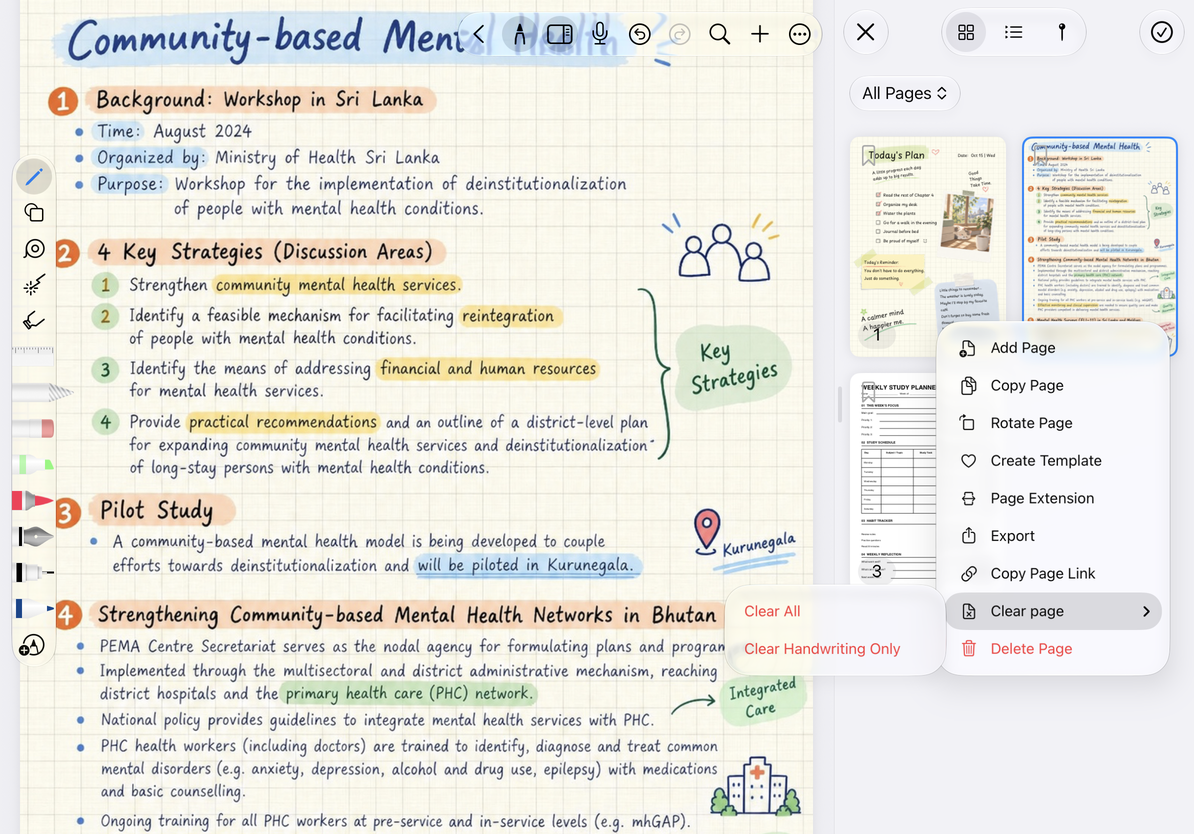
Use the current page's More menu or the thumbnail's clear option:
| Action | Removes | Keeps |
|---|---|---|
| Clear Handwriting Only | Handwritten strokes on selected pages | Original PDF background, attachments, markers, and PDF annotations |
| Clear All | Added handwriting, attachments, markers, PDF annotations, and other page edits | Original PDF background and the page itself |
| Delete Page | The entire selected page or pages | Other, unselected pages in the document |
Clear All does not turn the original PDF into blank paper or delete the page. If you clear the wrong content, use document Undo immediately and check the restored content before continuing.
Choose what to clear
Delete pages
- For one page, use Delete Current Page in More or the page's thumbnail menu. For multiple pages, select them in thumbnail edit mode and use Delete.
- Review the selection in the confirmation, then delete or cancel.
- Check the remaining page order and your current position. After an accidental deletion, use Undo as offered to restore the pages.
If you need a separate copy first, copy the pages or export them, and confirm that the copy is usable. Do not test deletion behavior on the last page of an important note.
Common questions
PDF text is still visible after Clear All
That text belongs to the original PDF background, which Clear All preserves.
I only want to remove one image
Select and delete that image instead of clearing the whole page.
A different page appears after deletion
The previous page was removed. Use thumbnails and page numbers to check what remains.
Why can I not delete every selected page?
A Paged note must keep at least one page. You cannot delete all its pages at once or delete its only remaining page. To keep a blank page, add one first, then delete the others. To remove only edits on the current page, use the clear options above.