
Set up Apple Pencil and input methods
Applies to Infinite documents, Vertical documents, and Paged notes on iPads that support Apple Pencil. Double-tap and squeeze each require an Apple Pencil that supports the corresponding action; iPhone and Mac don't offer the same Pencil settings.
Let your fingers move and Pencil write
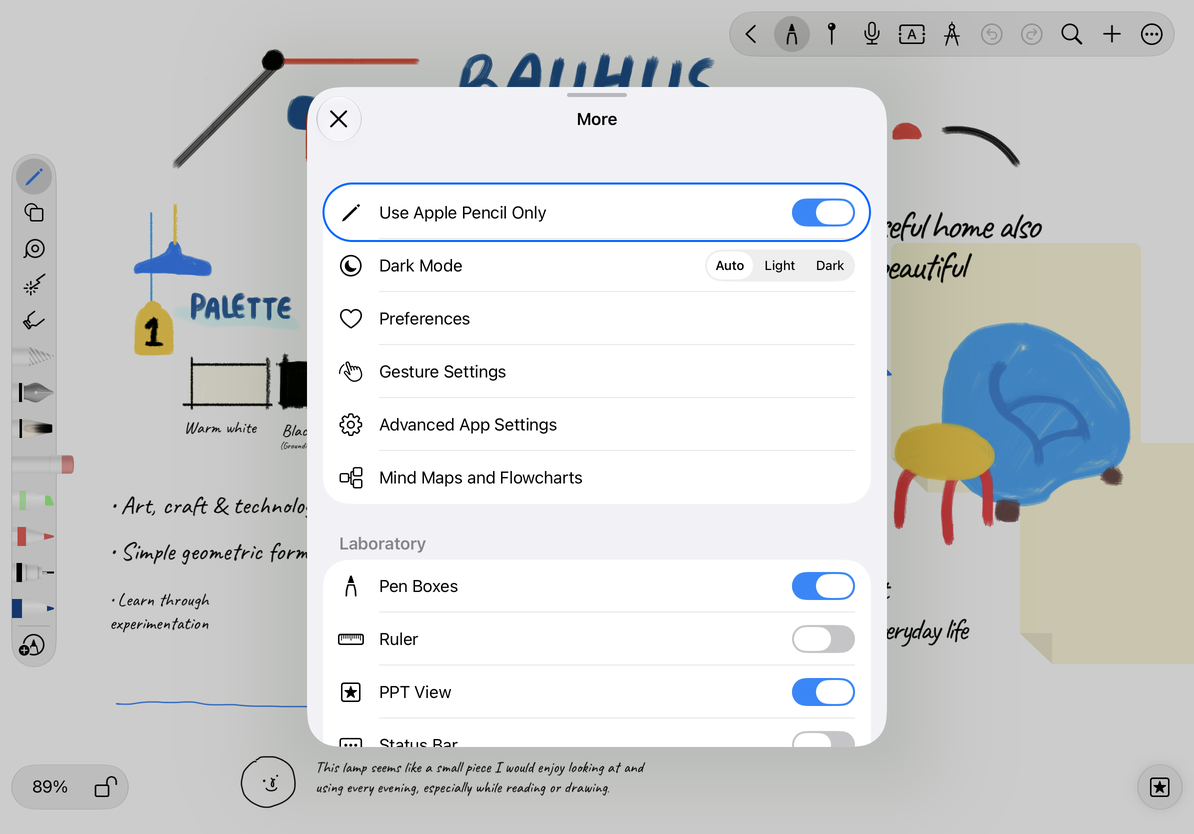
- Open the More menu in your note.
- Turn on Use Apple Pencil only.
- Write with Pencil, then use your fingers to move or zoom the canvas.
After turning this off, you can use your finger or other writing input recognized by the system. Whether your finger can move an object is also related to the current tool, object lock status, and editing mode; "Use Apple Pencil only" does not lock all touch operations.
Use double-tap and squeeze
First select a double-tap or squeeze action for Apple Pencil in iPad's system settings, then return to Prodrafts. Custom Pen Boxes follows supported system preferences, such as switching between the current tool and the eraser, switching back to the previous tool, or opening color/tool properties.
Select a pen to write a short paragraph of text, then perform the gesture and observe the currently selected item of Pen Boxes or the pop-up property panel. After switching to the eraser, perform the gesture according to the original settings to return to the writing tool. With the system Pencil toolbar, interactions are handled by the system and the pop-up appearance may differ.
Only use Apple Pencil
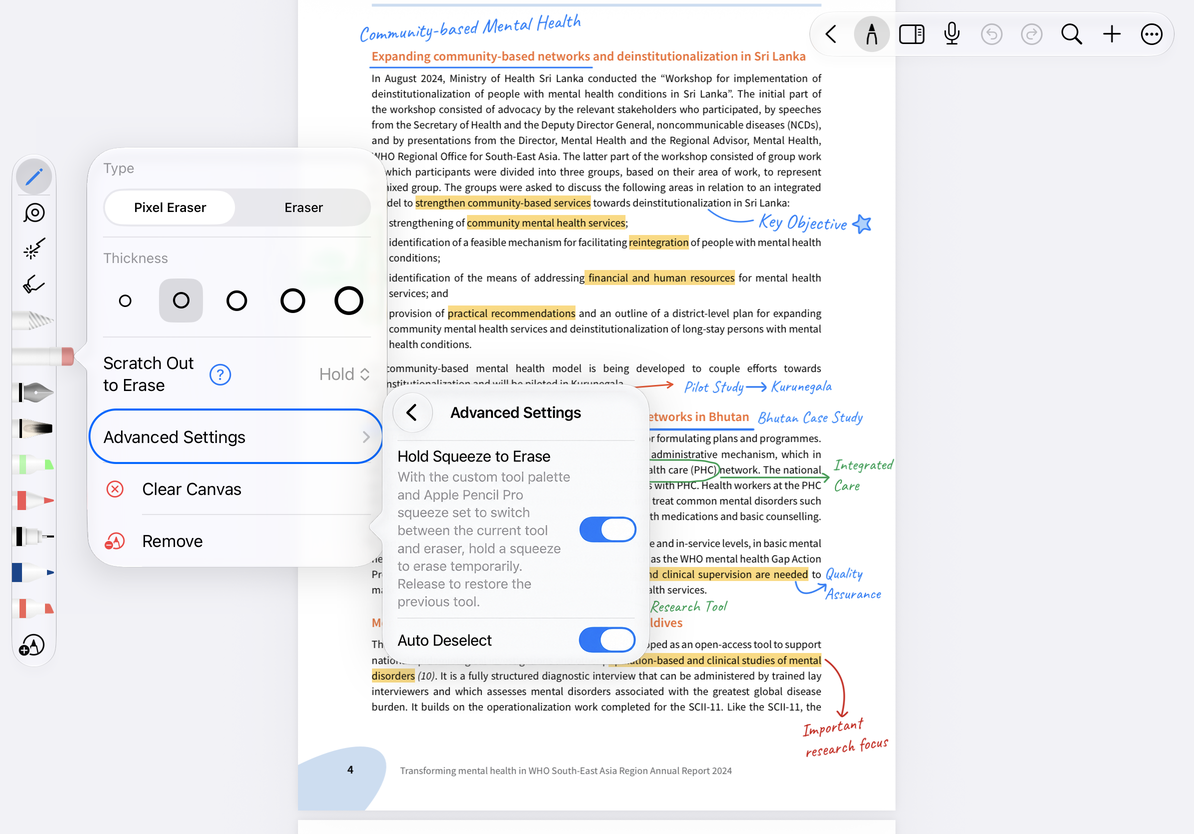
Hold Squeeze to Erase
This feature requires Apple Pencil Pro, iPadOS 17.5 or above and custom Pen Boxes; the system squeeze action must be set to Switch to Eraser.
- Select the eraser on Pen Boxes and tap again to open the properties.
- Go to Advanced Settings and turn on Hold Squeeze to Erase.
- Select the pen again. Keep squeezing the Pencil while swiping over the handwriting you want to delete.
- Release the squeeze, return to the original writing instrument, and continue writing.
To return to normal squeeze switching, turn off the switch. This setting changes the state of the tool while holding a squeeze, and does not change the type and size of the eraser itself.
Turn on Hold Squeeze to Erase
Gestures have no effect?
Check the Pencil model, system gesture preferences and whether you are using custom Pen Boxes.
Still eraser after temporary erasure?
Confirm that the writing pen was originally selected and released the squeeze; you can also directly tap back to the pen in Pen Boxes.
Related guides: Setup Pen Boxes · Eraser type · Gestures and accidental touch prevention