
Get started with Text documents
Text documents are designed for continuous typing: articles, course summaries, meeting notes, or plans with tasks. Text flows as you write, so you do not need to position separate boxes on a canvas.
Application: Text document; iPhone, iPad and Mac. Both on-screen keyboards and external keyboards can be used for text input, and the toolbar layout changes with the device and window width.
Create title and first paragraph
- Tap + → Text document in the library or target folder.
- With the document open, enter a name in the title area, such as "Weekly Meeting Minutes."
- Tap the text area and enter the first paragraph.
- Start the next paragraph with a newline and continue typing.
Document titles are associated with names in the library. The first-level and second-level headings in the text are used for article structure and are not equivalent to the title of the document.
Create structure for content
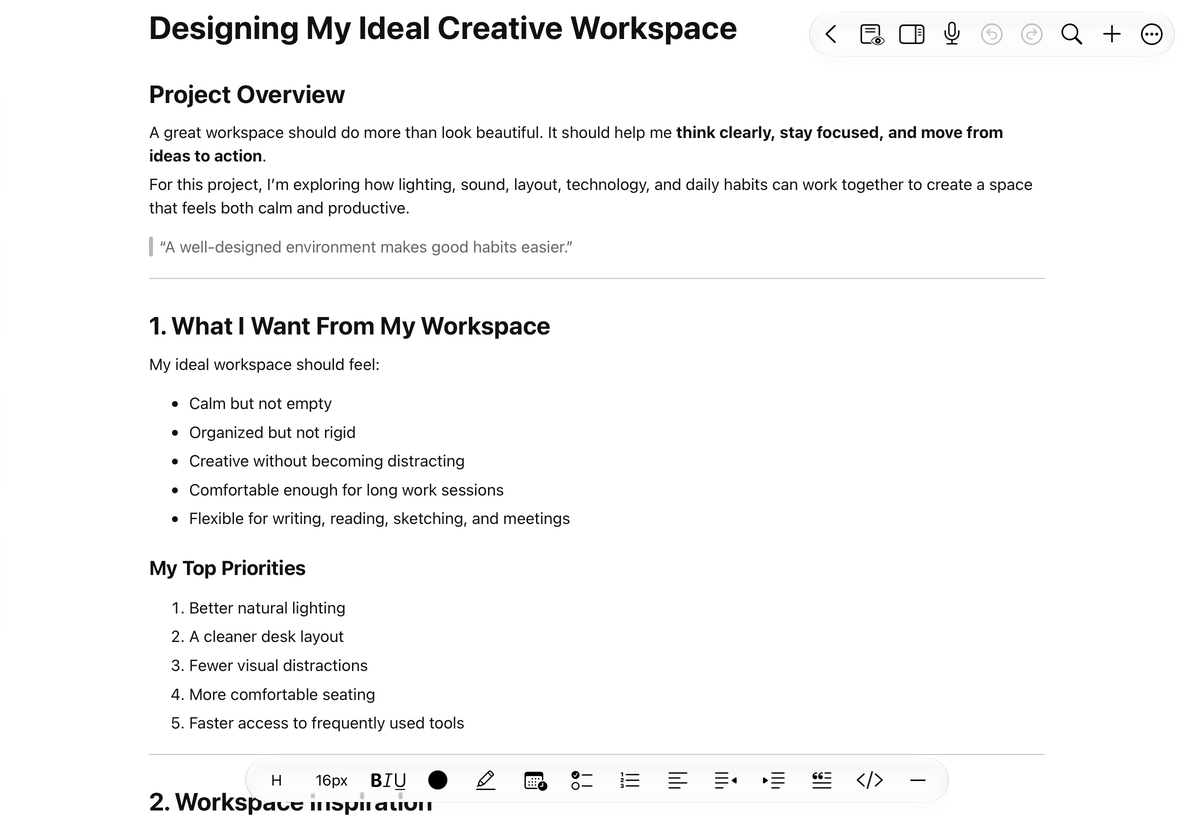
Enter the content first, then format it according to its purpose:
- Format chapter names as headings to generate Automatic Outline.
- Use bulleted or numbered lists for related points.
- Set things that need to be done as a to-do list.
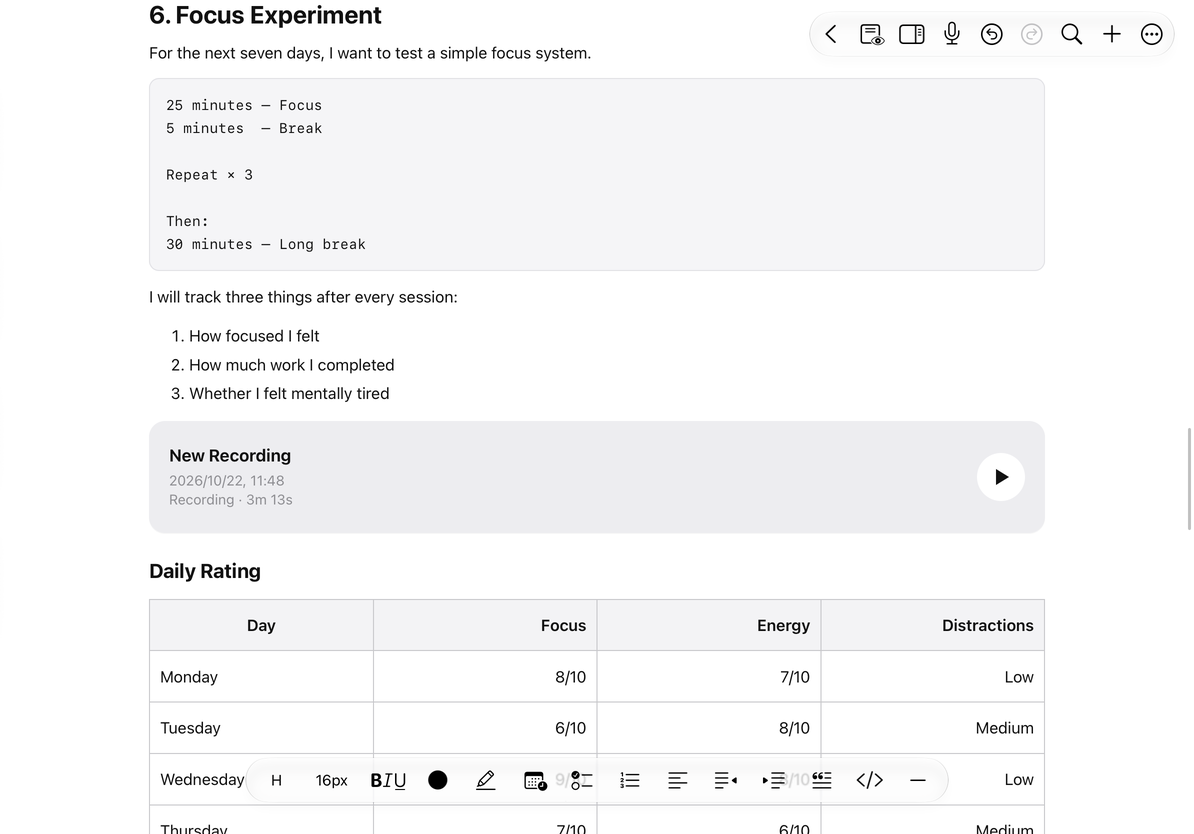
- When you need to compare data, insert text table.
- Formulas can be used as inline content or as independent blocks, see Mathematical Formulas in Text.
The row and column editing and size control of text tables and canvas tables are different. Please use the tutorials in the "Text document" category when learning.
Use selection and formatting tools
- Select the text you want to change.
- Select bold, font size, color, or other desired formatting from the formatting tools.
- Check whether the change affects selected text or subsequent input.
- Tap elsewhere to cancel the selection and continue typing.
When you need to insert quickly, you can use the Add menu or Slash Quick Insert. If there are no commonly used operations on the toolbar, you can adjust the Shortcut Toolbar.
Add photos, audio recordings and information
Insert images or videos at appropriate locations in the text so that they line up with the article paragraphs. Recordings appear as cards in the text. Recording requires microphone permission and the appropriate feature access. Don't think of the media block's position as a free coordinate in the canvas.
Existing Markdown content can be inserted into the current text or import as a new document. These two entries affect the current article and new files in the library respectively.
Save, leave and open again
After stopping typing, the app will automatically save the main text; when switching documents or leaving the editing page, it will also process the saving of the current content. There is no need to export the file first to preserve edits.
After completing a piece of content, return to the library through the normal Back control, open the same document again, and check the title and body. If a read or save error message appears, handle the message first. Do not interpret the blank page as meaning that the original text has been cleared by you.
Local saving and multi-device syncing are different processes. When you need to confirm whether another device has the latest content, check iCloud sync status.
Find, read and export
For long articles, you can use Text Search and Replace, and the title outline is used to jump by chapters. While reading, adjust page appearance and preview.
When you need to share, select PDF, HTML, Markdown, TXT or DOCX according to the recipient's purpose, see Text document Export. Different formats preserve tables, formulas, and media to varying degrees.
Frequently Asked Questions
Why are Pen Boxes and canvas mind map buttons missing?
Text documents organize tools around body text. For freehand writing and canvas mind maps, use an Infinite document, Vertical document, or Paged note. The same canvas menus are not available inside the text editor.
Will changing the document name change the text title?
When changing the name from the note information page, the document title associated with the first line of the text will be updated; the title at the beginning of the text is also used to identify the document name. Other section titles in the article are still edited separately in the main text and will not be completely replaced due to the name change.