
Align objects with guides
Alignment guides work with canvas objects in Infinite documents, Vertical documents, and Paged notes. They appear while you drag; they are separate from paper lines, grids, and the drawing ruler.
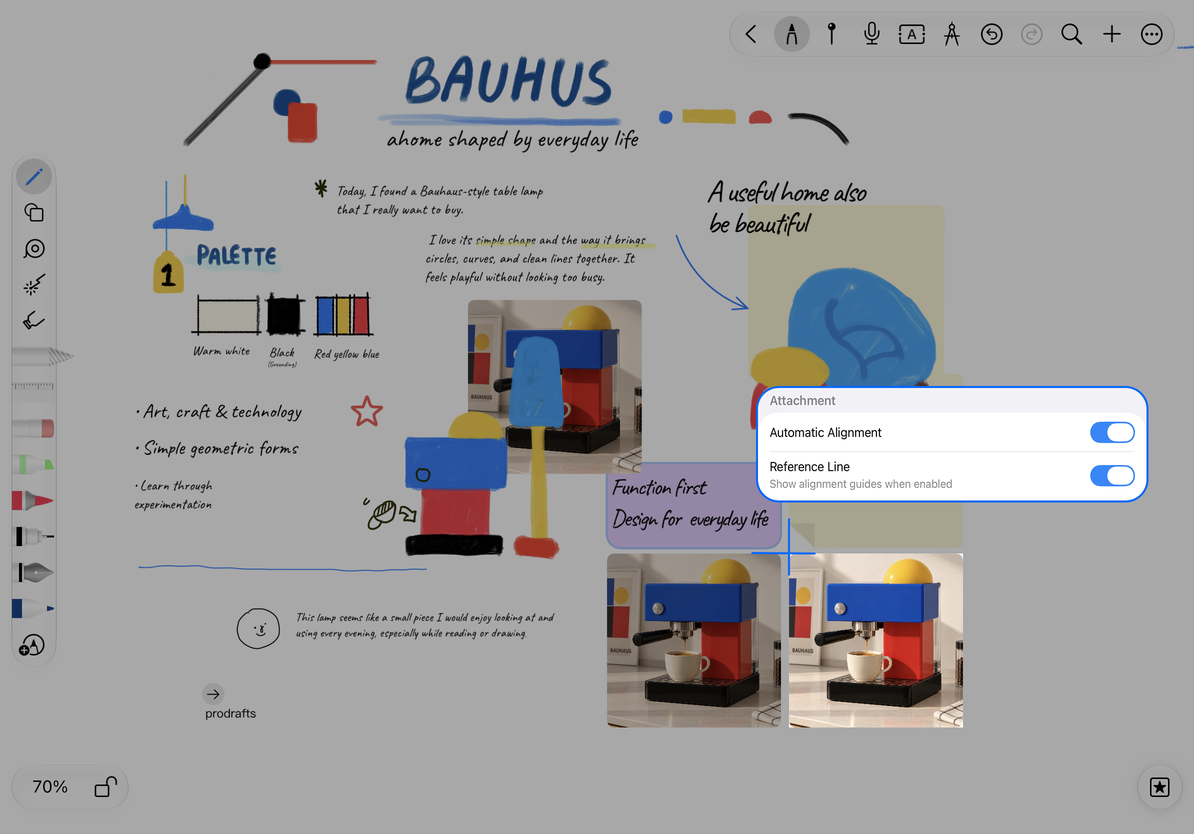
Enable alignment assistance
- Open More → Preferences and find the Attachment section.
- Enable Automatic Alignment.
- Enable the Reference Line option that appears to show alignment guides.
- Return to the canvas with two text boxes, images, or other movable objects.
The guide setting appears only after Automatic Alignment is enabled. If you see only the alignment switch, turn it on to reveal the additional setting.
Enable alignment, then show guides
Align while dragging
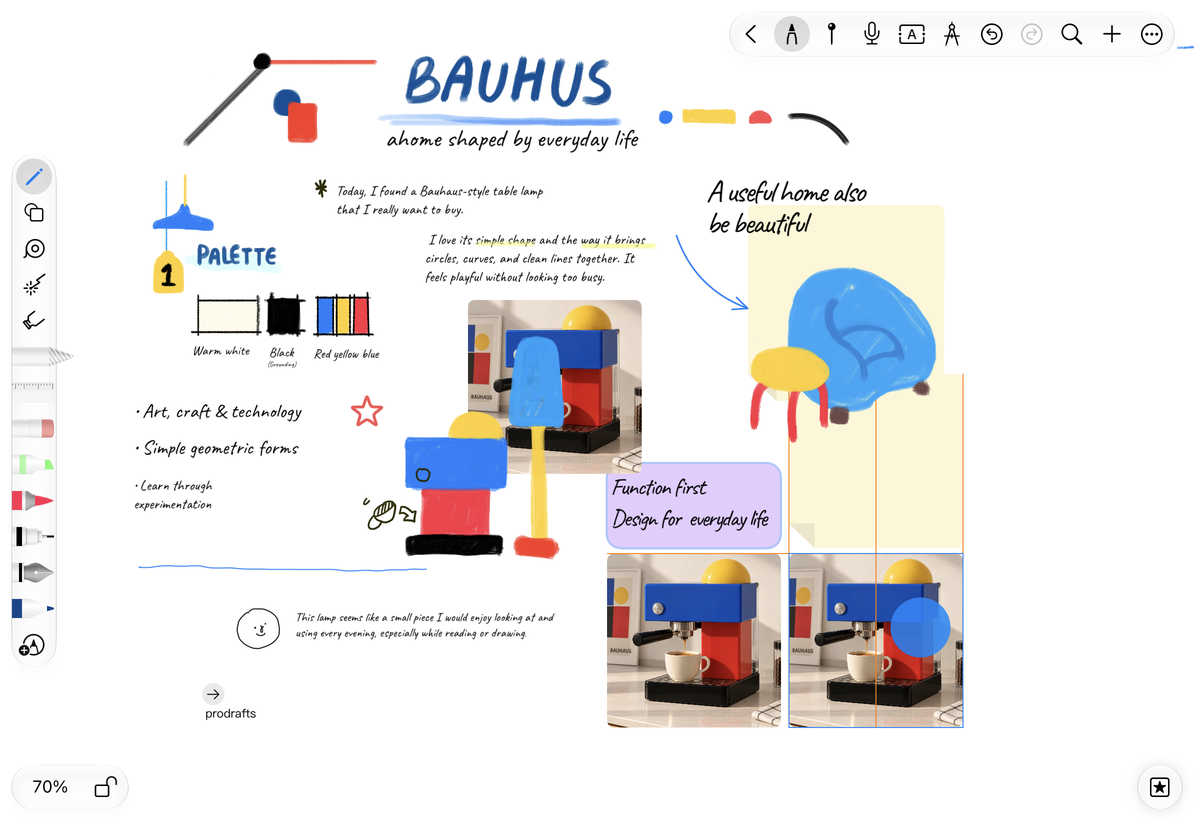
Select an object and slowly drag it toward the edge or center of another. When a guide appears, adjust the position and release. Check the overall layout—for example, align the tops of three images or the left edges of a heading and its content.
Snapping helps when an object is close to an alignment position. It does not work from every distance or rearrange the whole canvas. Place objects roughly where you want them, then make small adjustments.
Align images with guides
Turn snapping off temporarily
To position objects freely, turn off Automatic Alignment in Attachment preferences. To keep snapping but hide its visual hints, turn off Reference Line instead. These settings affect future moves and do not reposition existing objects.
No guides appear while dragging
Check both settings. Make sure you are moving an editable object, rather than panning the canvas, and that it is close to an alignment position.
An object will not move
Check whether it is locked.
I want handwriting to sit on the paper lines
Paper lines provide a visual guide for writing. Object snapping does not align individual handwritten characters.
Related guides: Move objects · Top ruler · Straighten handwriting