
Fill hand-drawn shapes
Available for handwriting in infinite documents, vertical documents, and paged notes. The fill tool works with ink on the canvas. For a separate shape object, set its fill in Shape Style. Areas within a PDF or image are not recognized hand-drawn outlines.
Use the fill tool
- Draw a clear, closed outline. A simple circle or rectangle is a good starting point.
- Choose Paint in the pen box, open its settings, and choose a color and opacity.
- Tap the hand-drawn area to check the detected outline and resulting fill. You can also draw the area you want to fill with the tool.
- If needed, undo, adjust the color or outline, and try again.
Enable the option to use the stroke’s ink color during automatic detection if you want the fill to match the original handwriting. With it off, the tool uses your selected color. A lighter, more transparent fill can highlight an area while keeping its outline visible.
Fill with your own color
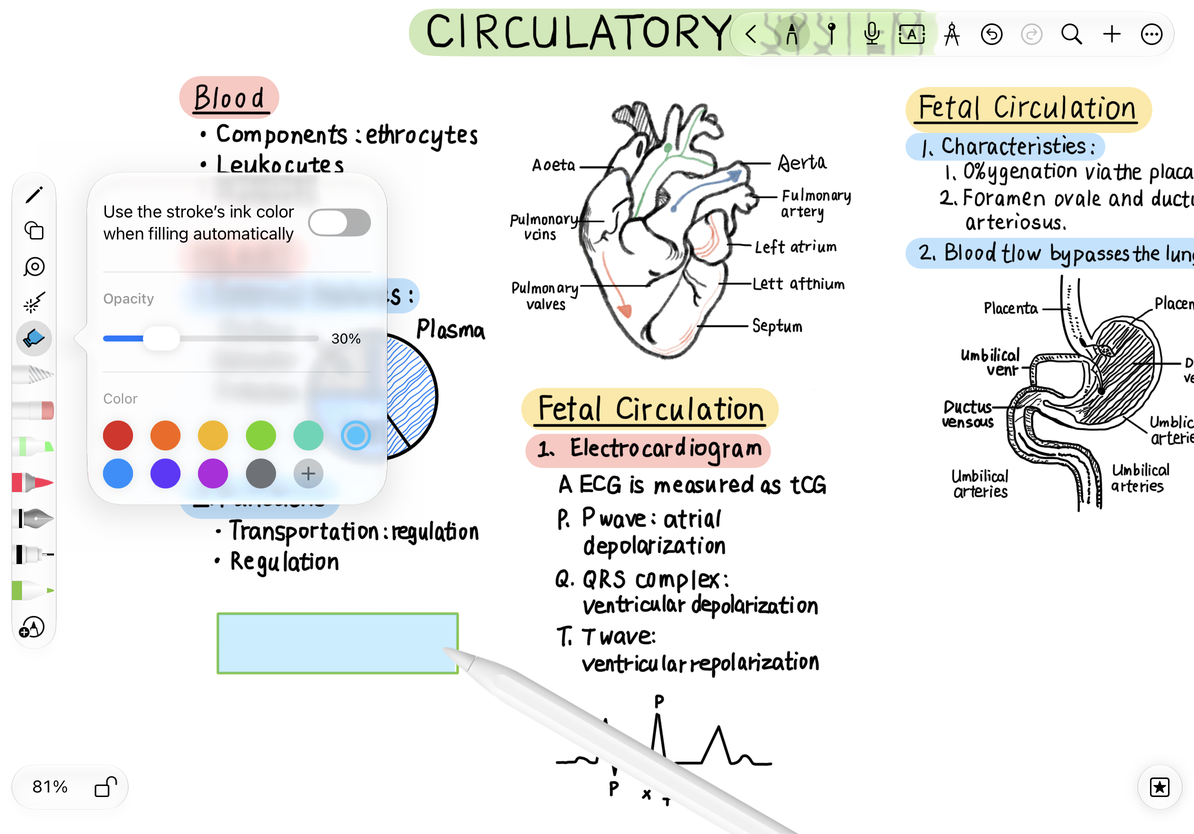
Fill automatically after drawing
Turn on Auto Fill Color under Handwriting Settings → Perfect Shape → Advanced Options. Supported recognized closed shapes receive a light fill automatically. Draw the shape, hold for recognition, and check the result.
Automatic fill applies to specific recognized shapes. It does not fill lines or every freehand doodle. The automatic color follows the shape’s ink; it is separate from the color and opacity you choose in the manual fill panel.
Make changes and troubleshoot
Undo an incorrect fill, then choose another color. Before changing only the fill, check whether you are editing handwriting or a separate shape object so you do not accidentally delete the whole group.
No color appears
Check that the outline is closed and recognizable, the opacity is not too low, and automatic fill is enabled if you are using it.
I want to color a PDF illustration
Use a light highlighter or draw a filled shape over it. The fill tool is not a general image paint bucket.
Related guides: Draw and hold · Shape fills and borders · Highlighter