
Clear handwriting and canvas content
Applies to canvas content in Infinite documents, Vertical documents, and Paged notes. To remove a small area, use the eraser or Lasso. Use Clear Canvas to clear content in bulk.
Clear from the eraser panel
- Return to the canvas you want to work on and end text input or object editing.
- Select the eraser and tap again to open properties.
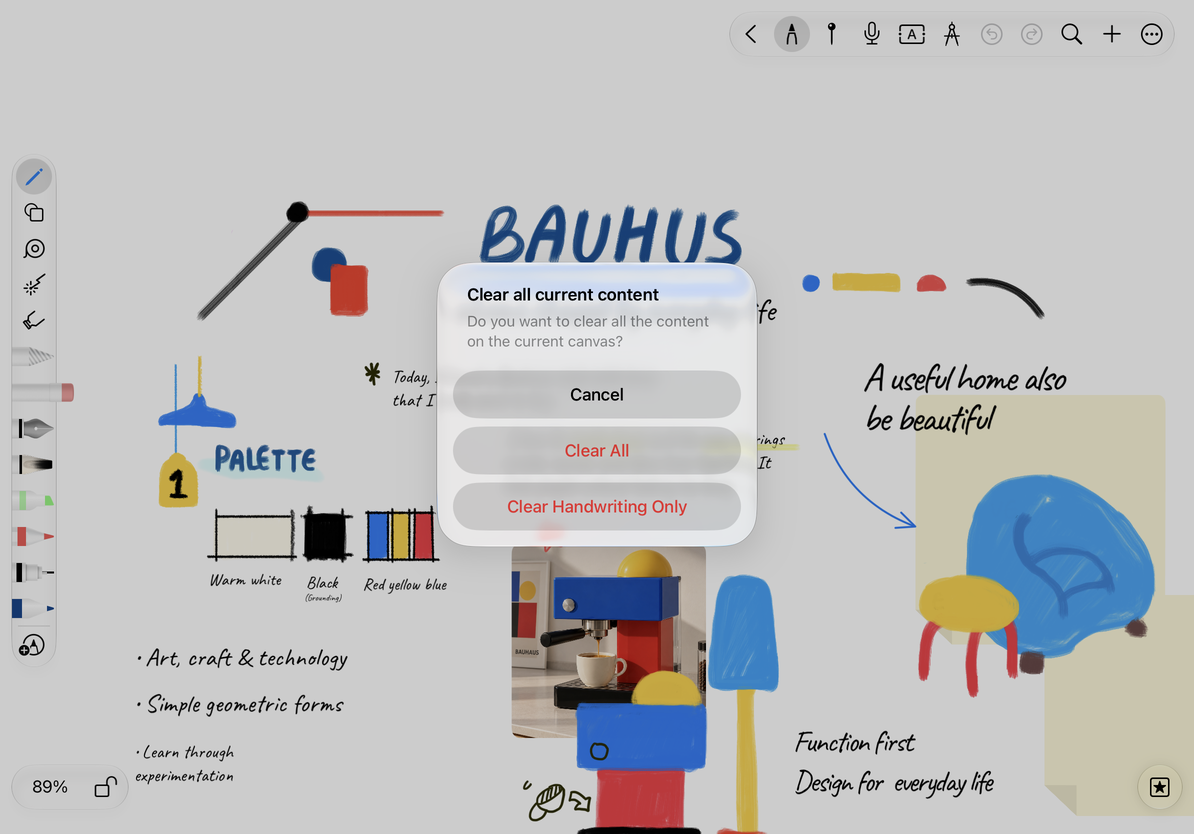
- Tap Clear Canvas. The confirmation panel will prompt "Clear all current content".
- Select Clear handwriting only, Clear all, or Cancel as appropriate.
| Choices | Usage and Results |
|---|---|
| Clear handwriting only | Delete handwriting on the canvas, retain text boxes, pictures and other objects |
| Clear all | Also clears handwriting, editable objects, and pins; tape is also an object and falls under this scope |
| Cancel | Close the confirmation panel and keep the content unchanged |
Decide first what to keep
What gets cleared in each note type
In Infinite and Vertical documents, “current canvas” does not mean only the rectangle visible on screen. Panning or zooming does not select the area to clear.
Paged notes have separate page-clearing controls. To clear specific pages, select them in the page thumbnails and use the page menu; see Rotate, clear, and delete pages. Clearing from the eraser panel does not delete the entire note or erase the original text of an imported PDF.
In a Text document, select and delete text with its text editing tools. This panel does not apply.
Check and undo a clear action
Check the result immediately. If you cleared content by mistake, tap Undo. Clearing handwriting and multiple objects may involve several editing actions, so undo and check each result before writing again. Closing or reopening the document does not restore cleared content.
Just want to remove the tape?
Select and remove the tape without clearing the canvas.
Want to keep images but rewrite the handwriting?
Select "Clear Handwriting Only".
Want to clear an area?
Use Lasso to select the area you want to remove, check the selection, then delete it.
Related guides: Lasso Selection · Removing Tape · Deleting and Recovering Documents