
Delete, restore, and empty Trash
Move to Trash removes an item from the normal library while keeping it available to restore. Permanently Delete removes the selected content so it can no longer be restored from Trash.
Applies to: All four document types and folders. Check a folder's contents before deleting it, because it may contain other items.
Move a document to Trash
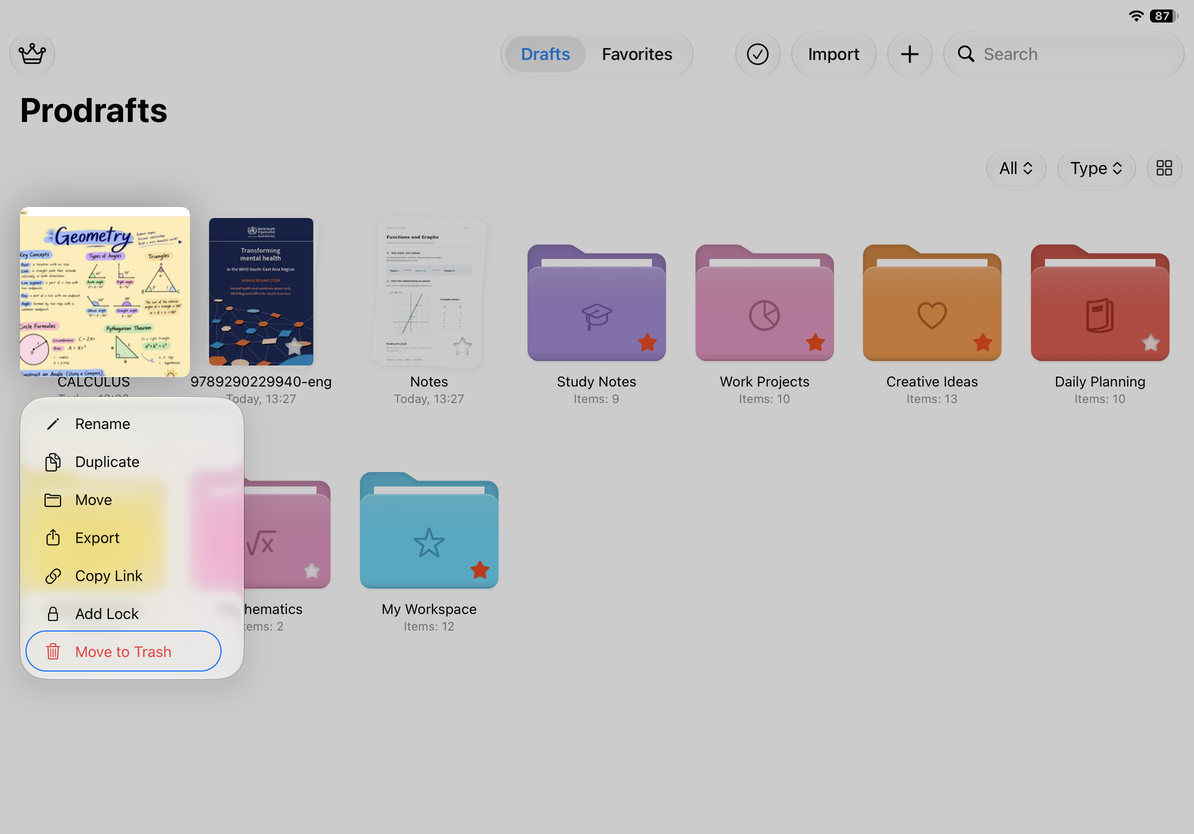
- Find the document in the library. Touch and hold it to open its menu, or right-click on Mac.
- Choose Move to Trash.
- Read the confirmation and check that this is the intended document.
- Confirm to remove it from the normal library.
If the document is locked, unlock it when prompted. Canceling leaves it unchanged.
For multiple items, enter Select mode, select the intended items, and tap the Trash button. A batch action may proceed directly, so check the selection before tapping.
Move a document to Trash
Restore from Trash
- Return to the library and open Settings → Trash.
- Find the item you want to restore.
- Touch and hold it and choose Restore. For multiple items, select them first and use the restore action.
- Check the library. If the item is not visible, check its original folder and the current type filter.
You cannot open items in Trash as ordinary documents. Restore them first, then open them in the library to check their contents.
If a document's parent folder was also moved to Trash, check that folder's status too. Restoring an item from Trash is different from recovering a permanently deleted file.
Permanently delete selected items
- In Trash, select only the items you no longer need.
- Tap Permanently Delete.
- Review the confirmation and selection before continuing.
- After deletion, those items can no longer be restored from Trash.
When deleting a folder, consider all its contents. For documents using iCloud, deletion also enters the sync process. It removes content, not merely a thumbnail on the current screen.
Empty all of Trash
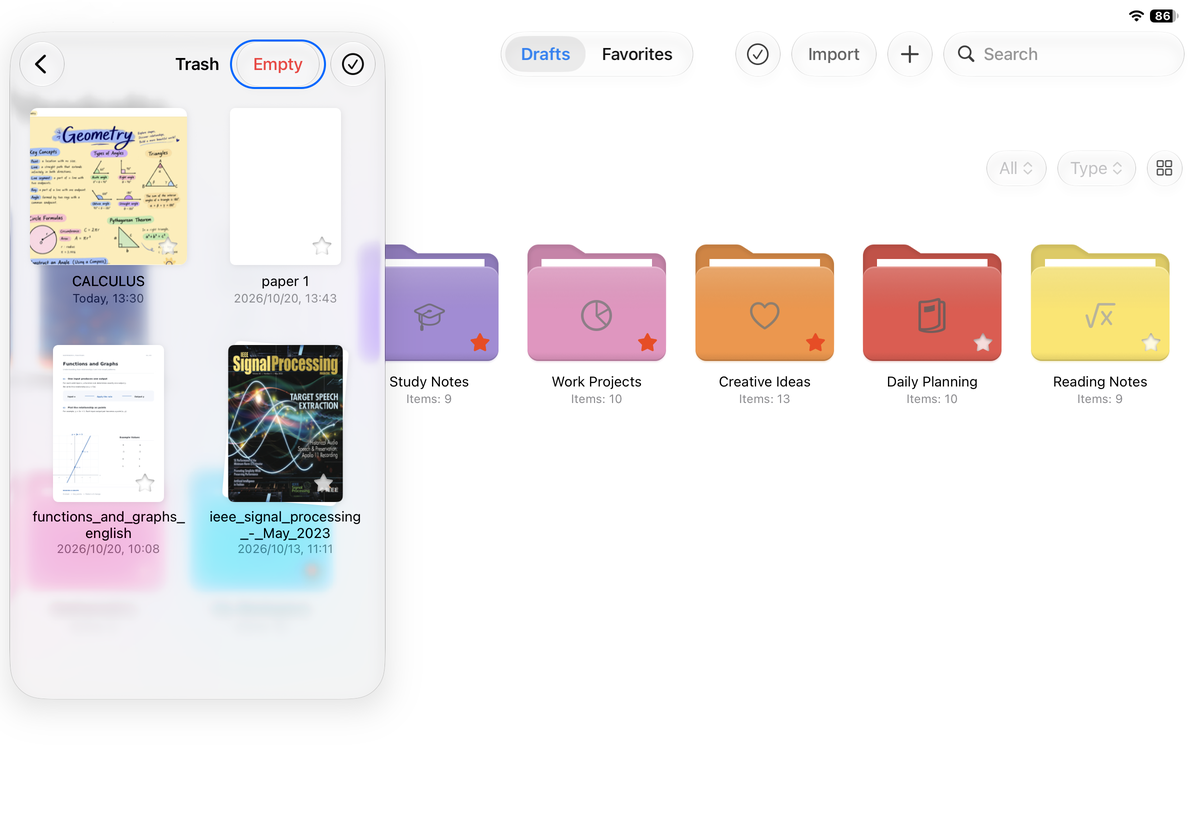
Tap Empty in Trash and read the confirmation. Clear All in that confirmation applies to everything in Trash. Cancel if you are unsure, and restore anything you want to keep before emptying it.
Empty all of Trash
Common questions
Can Restore recover something permanently deleted?
Restore works only for items still in Trash. If you have a separate backup, see Import a backup to check for a usable copy. The feature for recovering documents missing from the library does not guarantee recovery of permanently deleted data.
Why did deletion affect my other devices?
iCloud syncs document state. To keep an independent copy, first confirm that native export or a backup has finished. A thumbnail still visible on another device is not a backup.
The action reported a failure
Keep the error message and check which items remain in the list. Do not repeatedly empty Trash just to make the list appear empty. If needed, include the message when contacting Help and feedback.