
Change object stacking order and lock objects
These controls apply to canvas objects in Infinite documents, Vertical documents, and Paged notes. Stacking order determines which object appears in front when objects overlap. Locking limits moving and editing.
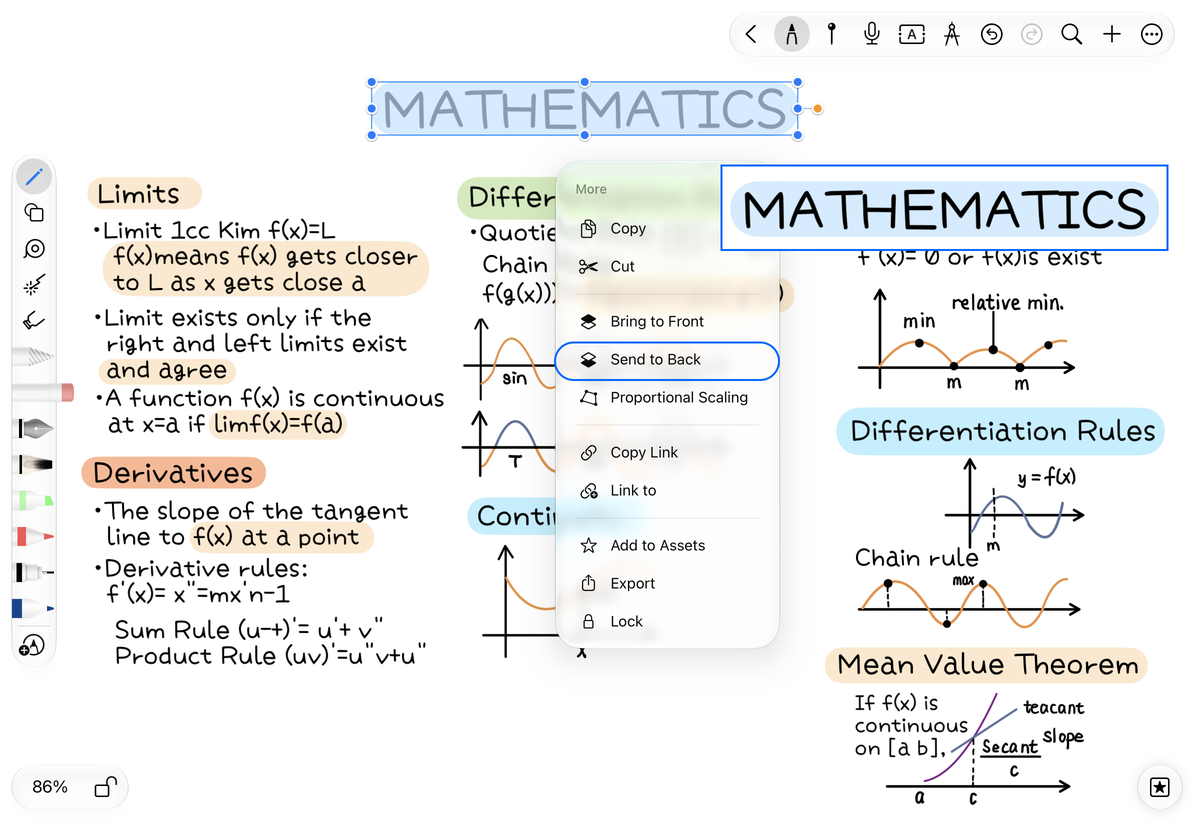
Change front-to-back order
- Select the object and open More.
- Choose Bring to Front or Send to Back to place it in front of or behind other objects.
- Tap a blank area to deselect and inspect the overlap.
- Undo an unwanted change or adjust the stacking order again.
For example, create a pale shape and send it behind a text box to make a background panel. In a Paged note, added objects are separate from the underlying PDF. Send to Back does not merge an object into the PDF background.
Place a shape behind text
Lock and unlock
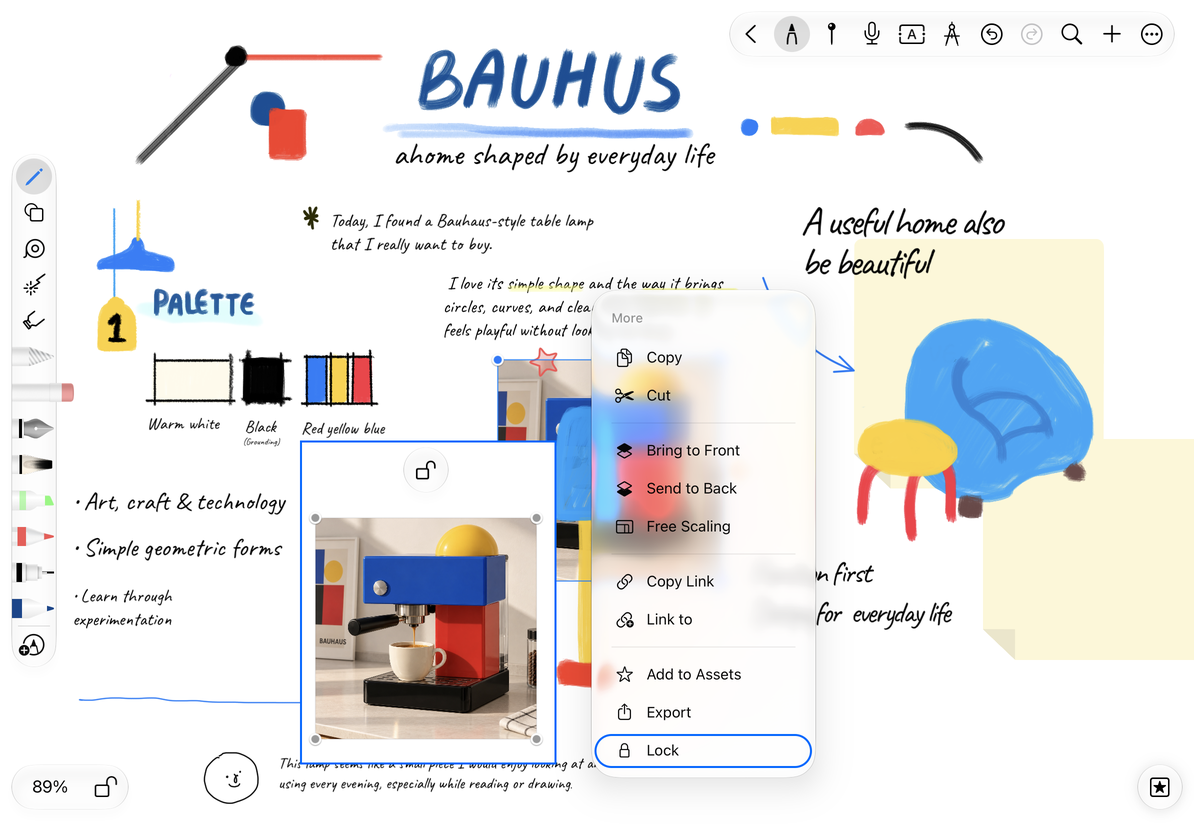
- Select an object you have finished positioning and choose More → Lock.
- Selecting it again shows Unlock instead of the usual editing controls.
- Tap Unlock when you want to move, resize, or edit it again.
Locking helps protect reference images, headings, and fixed layouts from accidental changes. It does not make content private: anyone who can open the document can still see it. Use a document password lock to control access.
Lock an object and find Unlock
Select an object hidden behind another
Temporarily move the covering object aside or send it to the back, then restore its position afterward. Do not repeatedly delete objects to find the one underneath. Lasso filters can help select a particular type, though locked objects still have editing restrictions.
Why is locked content still visible?
Object locking prevents accidental editing; it does not hide content.
Why does an object still cover the PDF after Send to Back?
Added objects stay on the page's annotation layer. Adjust their color or opacity to improve readability.
Can new shapes start at the back?
Enable Send New Shapes to Back in shape preferences.
Related guides: Select and transform objects · Shape preferences · Document password locks