
Select and annotate PDF text
These tools work in Paged notes containing PDFs with selectable text, on iPhone, iPad, and Mac. They attach annotations precisely to a text selection. Scanned images do not provide the same text selection.
Select and highlight text
- Open the PDF page and zoom to a readable size.
- Select text and adjust the system selection handles to include the intended sentence.
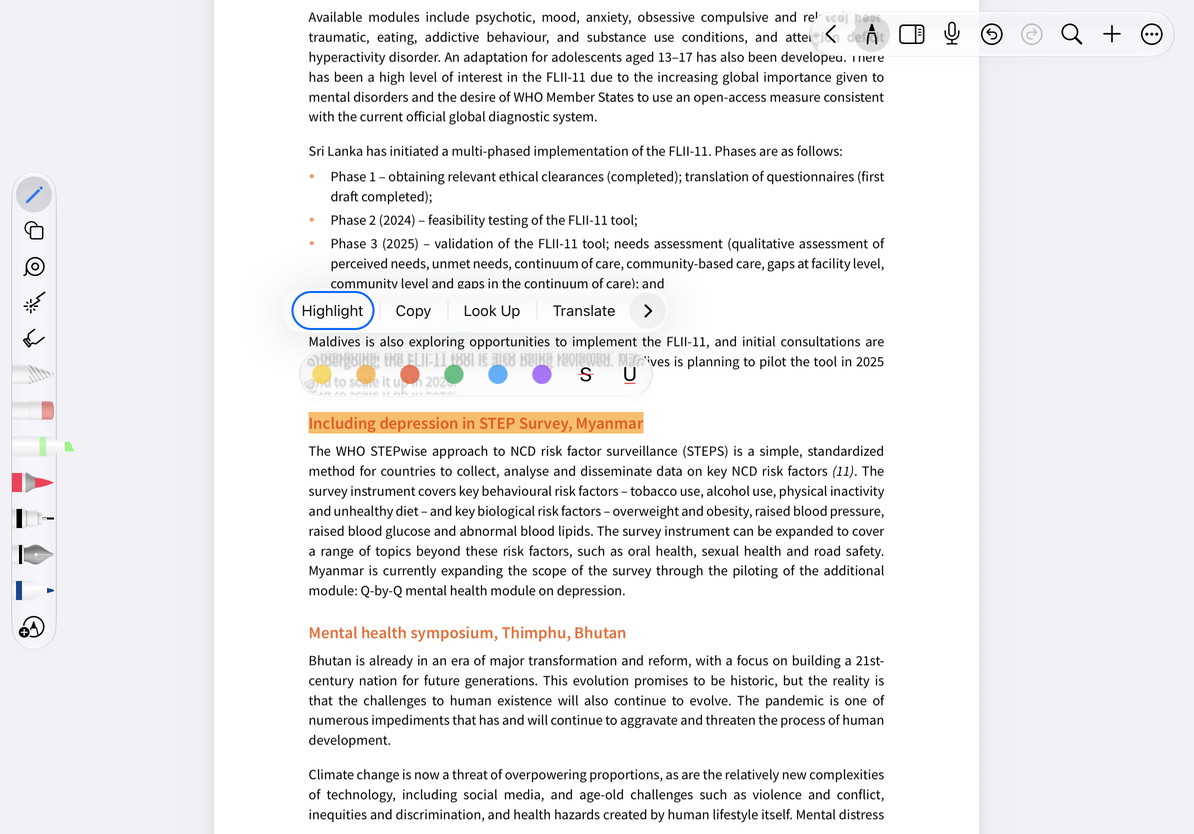
- Choose Highlight in the selection menu.
- Choose a color from the annotation style menu: yellow, orange, red, green, blue, or purple.
- Tap outside the selection and check that the highlight covers the intended text.
Select and highlight PDF text
Use strikethrough or underline
After choosing Highlight, use Strikethrough or Underline in the style menu to change the annotation type. These draw a line through or beneath the selected text. Neither changes or deletes the original PDF text.
If you selected the wrong range, cancel and select again. If you already added the wrong annotation, Undo immediately and annotate the correct text. Before clearing many annotations at once, read What clearing a page removes so you do not also remove attachments and handwriting unintentionally.
How this differs from the highlighter pen
PDF text highlighting follows a text selection and is useful for whole sentences. The highlighter in Pen Boxes draws freehand strokes anywhere, including over scanned images. It does not add a text layer to an image. For character highlighting in Text documents, see Text formatting.
Common questions
I cannot select text
Check that the PDF has native text, rather than scanned pages, image attachments, or JPEGs made by splitting a PDF.
Too much text was highlighted
Adjust the selection and apply the annotation again. Zoom in if needed.
Does strikethrough hide the original text?
No. It is only an annotation style. The original text can still be read or extracted, so strikethrough is not a way to remove sensitive information.
Related guides: PDF search · Read Paged notes · Export PDFs