
Set a password, document locks, and biometric access
Available for all four document types. Document locks require authentication when opening documents and performing certain actions. Folders do not have an equivalent lock that applies to all contents. Face ID and Touch ID options appear on supported iPhones and iPads, but not on Mac.
Set your first password
- Open Settings → Privacy Password and turn on Document Encryption.
- Enter a new password and confirm it. Add a hint that helps you remember it without revealing it.
- Read the password confirmation notice. If you forget the password, Prodrafts cannot reset it or recover access to locked documents through a reset.
- Choose Okay, Create Password when you are ready, or cancel to leave it unset.
- Return to the Privacy Password page, then add locks to the individual documents you want to protect.
Set your first password
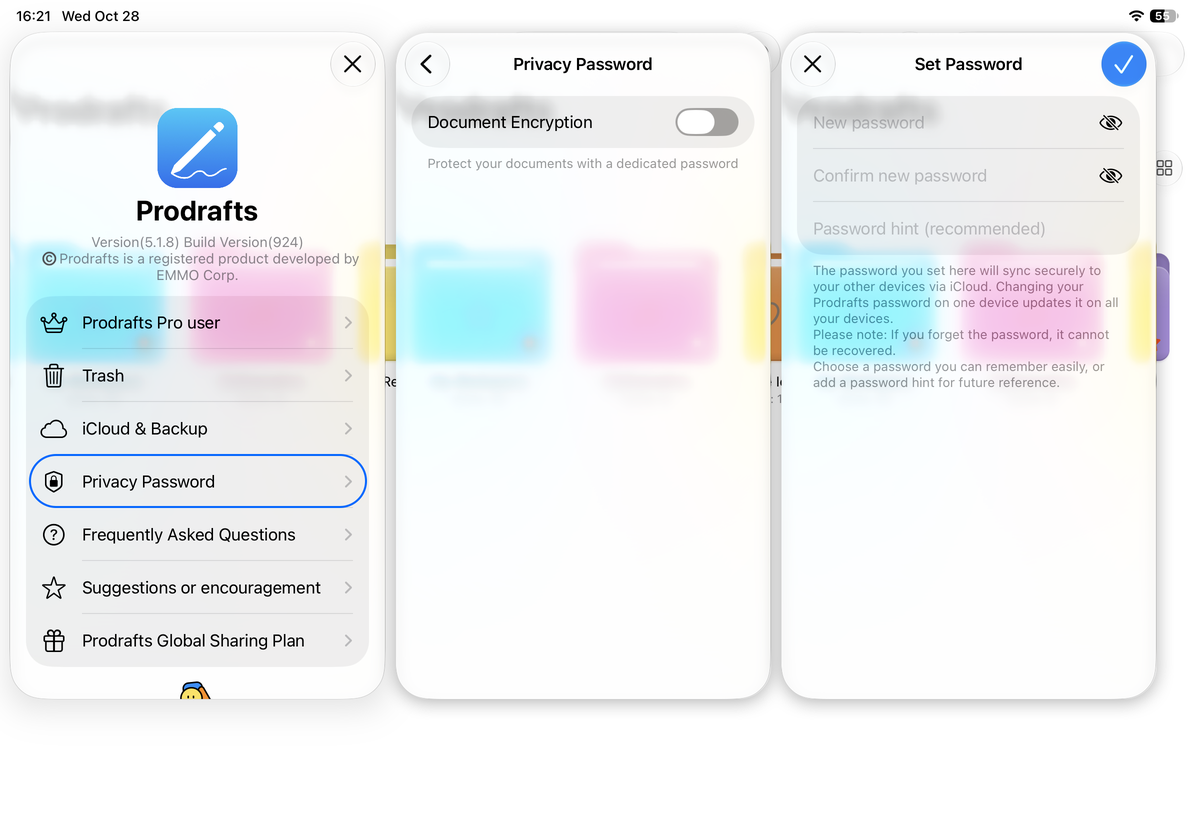
Although the menu is named Document Encryption, this guide describes the app’s password and document access locks. It does not establish a particular encryption method for document packages, cloud transfers, or every exported file.
Add or remove a document lock
In the library, touch and hold or right-click a document and choose Add Lock. If you have not set a password, you will be prompted to do so first. Opening the locked document requires authentication; exporting, copying, or moving it may also require authentication.
To unlock a particular document permanently, choose Remove Lock in its menu and authenticate. This affects only that document, unlike deleting the privacy password in Settings.
Use biometrics and auto-lock
After you set a password, Face ID or Touch ID appears on supported devices. Turn it on and complete authentication, or return here to turn it off. If biometrics are unavailable or authentication fails, use the password option shown on screen.
Open Auto-lock Documents After This Time and choose 2, 5, 10, 15, or 30 minutes, or 1 hour. Return and check the displayed interval. This controls how long the unlocked state lasts; it is not a separate countdown for each document.
Set biometric access and auto-lock
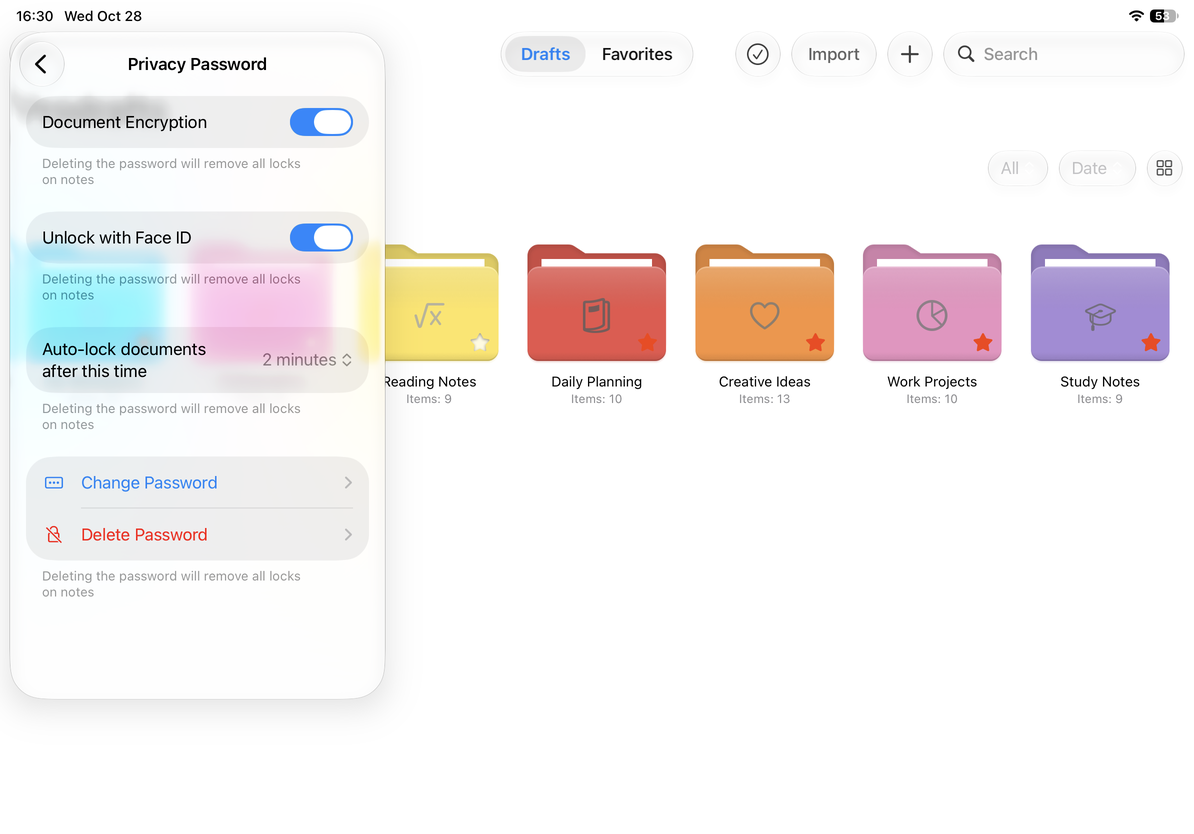
Change, delete, or recover a forgotten password
Choose Change Password, verify the current password, then enter and confirm the new one and save your hint. Delete Password also requires authentication. Deleting it removes locks from all notes, not just the document currently open.
If you enter the wrong password, check your hint. Reinstalling the app, deleting local files, or switching iCloud accounts is not a password recovery method. For help understanding your situation, use Get help, but do not send your password.
To keep a document file, see Export a native document. For copies of a group of documents, see Create a backup.
This article is current as of October 12, 2026; menus may vary across devices and versions.