
Straighten and refine handwriting
These features work in Infinite documents, Vertical documents, and Paged notes when supported by your system. Straighten adjusts handwriting you have already selected. Refine Handwriting automatically improves new strokes as you write. They are separate features.
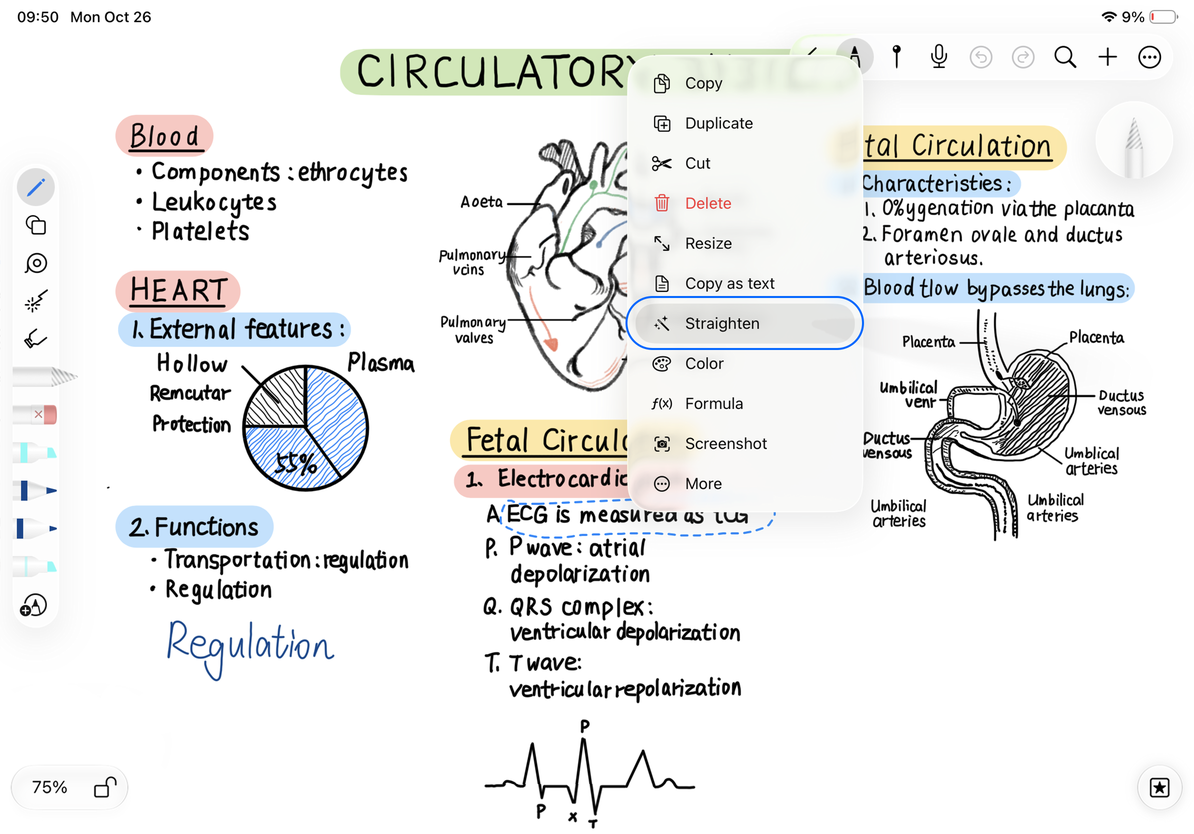
Straighten existing handwriting
- Enable recognition for the current note type in More → Handwriting Recognition and Search.
- Use the Lasso to select a line or short passage of handwriting. Avoid including images or other objects.
- If Straighten appears in the selection menu, tap it and check the alignment.
- If the result is unsuitable, tap Undo immediately. Try a smaller selection or keep the original handwriting.
Straighten requires system support for handwriting refinement. Repeatedly selecting the text will not enable a missing command. You can still move the whole line with the Lasso or convert it to a text box.
Straighten existing handwriting
Automatically refine new handwriting
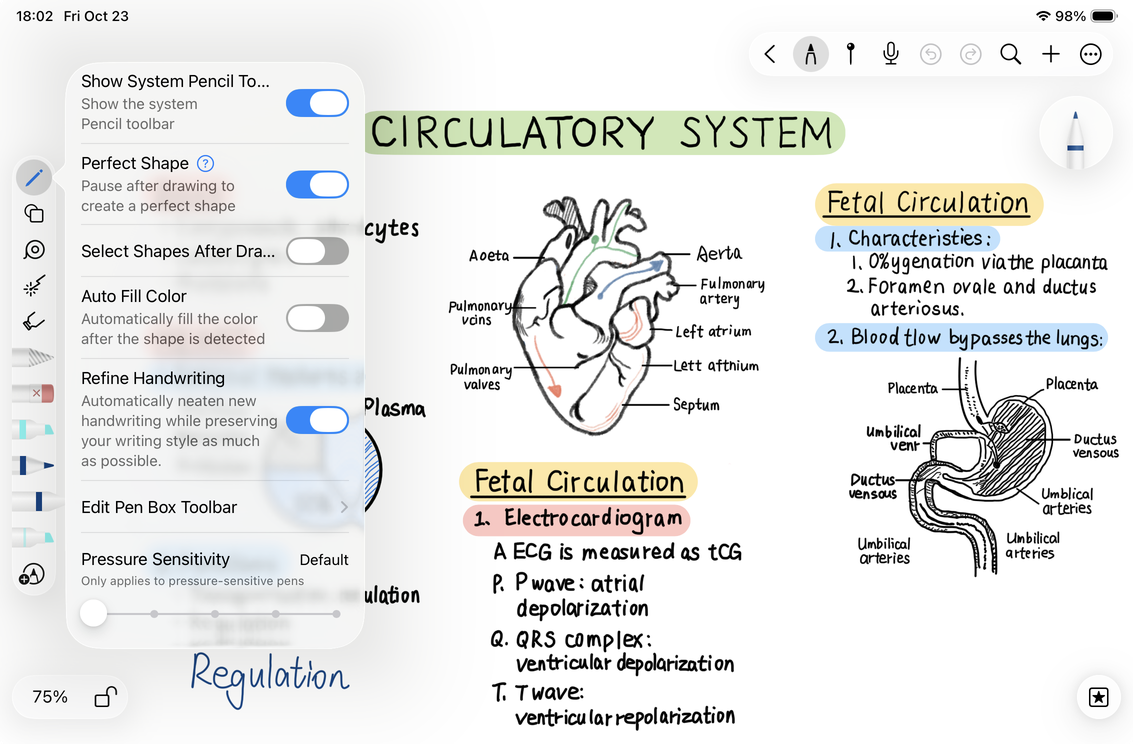
On a supported iPad, open Handwriting Settings → Refine Handwriting.
- Turn on Refine Handwriting.
- Return to the canvas and write a short sentence at your normal speed.
- Check the strokes after you finish. For supported languages, the system makes new handwriting neater while trying to preserve your style.
- Turn off the same setting when you no longer want automatic refinement.
This setting is unavailable on iPhone and Mac. It may also be absent on iPad if the current system or language model does not support it. Enabling it does not rewrite all existing handwriting in the document.
Enable Refine Handwriting
Want to tidy up a hand-drawn rectangle?
Use draw and hold. Straighten is for handwriting, not geometric shapes.
Will turning refinement off restore earlier strokes?
Turning it off affects future writing. Use the current undo history to reverse edits that have already been made.
Related guides: Handwriting recognition · Select and edit handwriting