
Recover documents missing from the library
Applies to all four document types. Use this feature when a document's files still exist but its entry is missing from the library. It cannot restore a version from an arbitrary past date or recover file contents that no longer exist.
Recover local documents
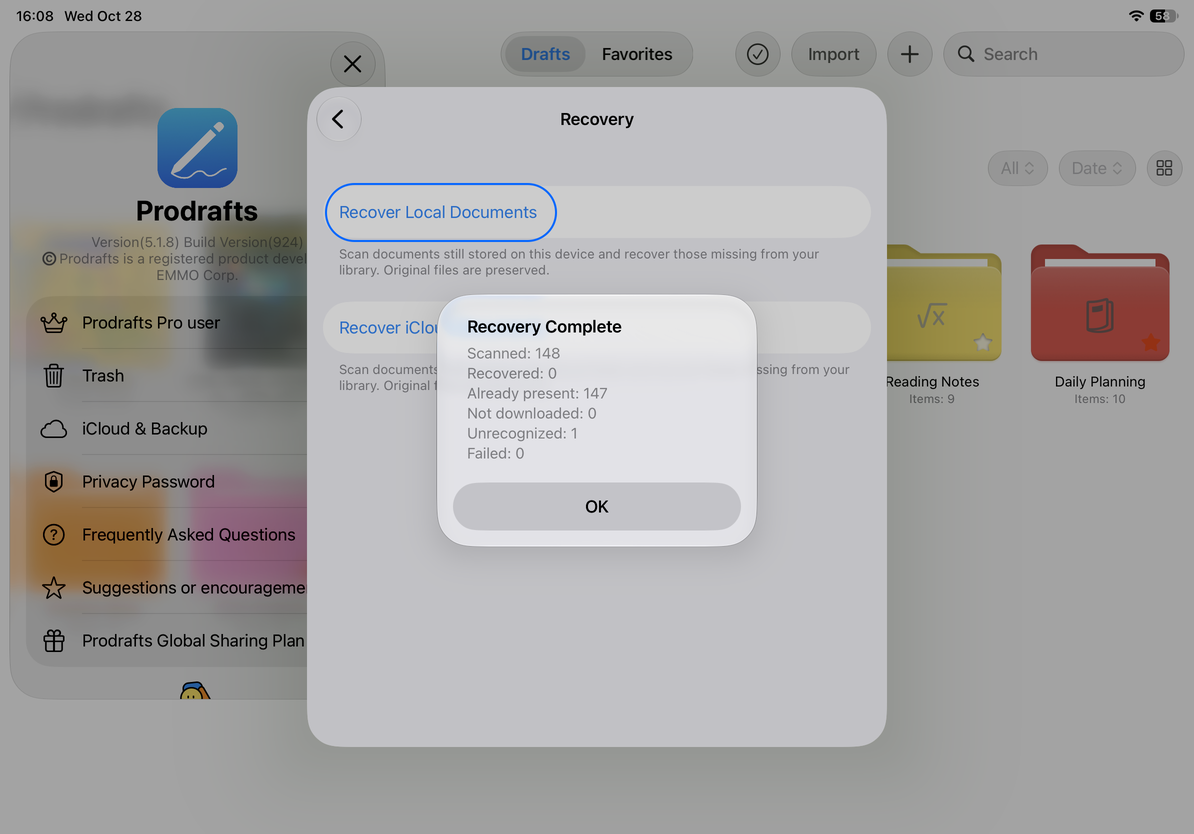
- From the library, open Settings → iCloud & Backup → Recovery.
- Select Recover Local Documents and wait for the scan to finish. Going back and starting another recovery may be temporarily unavailable during the scan.
- Read the counts for scanned, recovered, existing, unrecognized, and failed items.
- Return to the library and open each recovered document to check its type, pages, text, and attachments.
- Make a separate backup of important content you have successfully recovered.
Recovery restores missing or invisible library entries without changing the original files. Existing entries are counted separately. Repeating this scan is not the same as importing an entire ZIP again.
Recover local documents
Recover iCloud documents
- Sign in to the original iCloud account that holds the documents and turn on Use iCloud in Prodrafts. If it is off, Recovery asks you to go back and enable it first.
- On the Recovery page, select Recover iCloud Documents and wait for the scan results.
- If any documents are listed as not downloaded, download them in the Files app, then return and run recovery again.
- If the account changes, recovery stops. Switch back to the original account, confirm that iCloud is available, and retry. Do not treat files from different accounts as one batch.
- Return to the library and check each recovered document, especially those that were not downloaded during the earlier scan.
Understand the results
Recovered means a library entry was restored; open the document to verify its contents. Existing means it did not need to be added again. Unrecognized means the scanned item could not be identified as a supported document. For Failed items, keep the error message and investigate further. Not downloaded does not count as a successful recovery.
To restore a previously exported ZIP, use Import PDFs, native documents, and other files. If you just moved a document to the Trash, restore it from there first; file scanning does not replace the normal Trash restore action.
If the scan still cannot find a document, check the selected source, original account, and whether its files actually exist. Keep existing files in place; do not move or delete them to experiment. If recovery keeps failing, use Get help and include the scan counts and what happened.
Verified on October 12, 2026. Menus may vary by device and app version.