
Create shapes and adjust their style
Available in infinite documents, vertical documents, and paged notes. Shape tools create objects you can select and edit again, useful for flowcharts, highlighted areas, and geometric diagrams. For shapes recognized from handwriting, see Draw and hold.
Create a shape
- Open Shape in the pen box. If the category is hidden, enable it in Handwriting Settings → Edit Pen Box Toolbar.
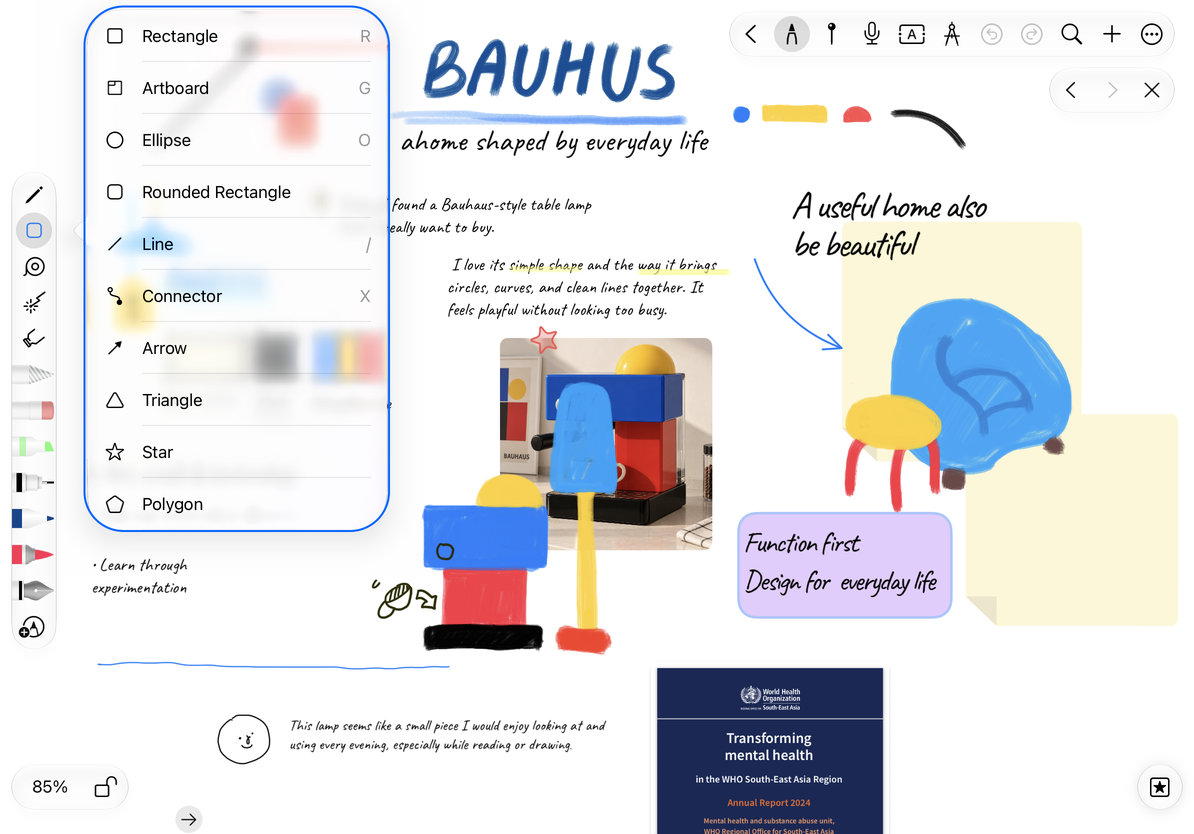
- Choose a rectangle, artboard, ellipse, rounded rectangle, line, connector, arrow, triangle, star, or polygon.
- Drag on the canvas to set the shape’s size, then release.
- Select the new shape and use its controls to refine its position and size.
In the shape picker, types other than Rectangle require a Prodrafts Pro access check. Follow the lock or purchase prompt shown. Artboards contain groups of content, while connectors maintain relationships between objects; they have their own behavior despite appearing in the same picker.
Choose a shape
Set appearance and shape-specific options
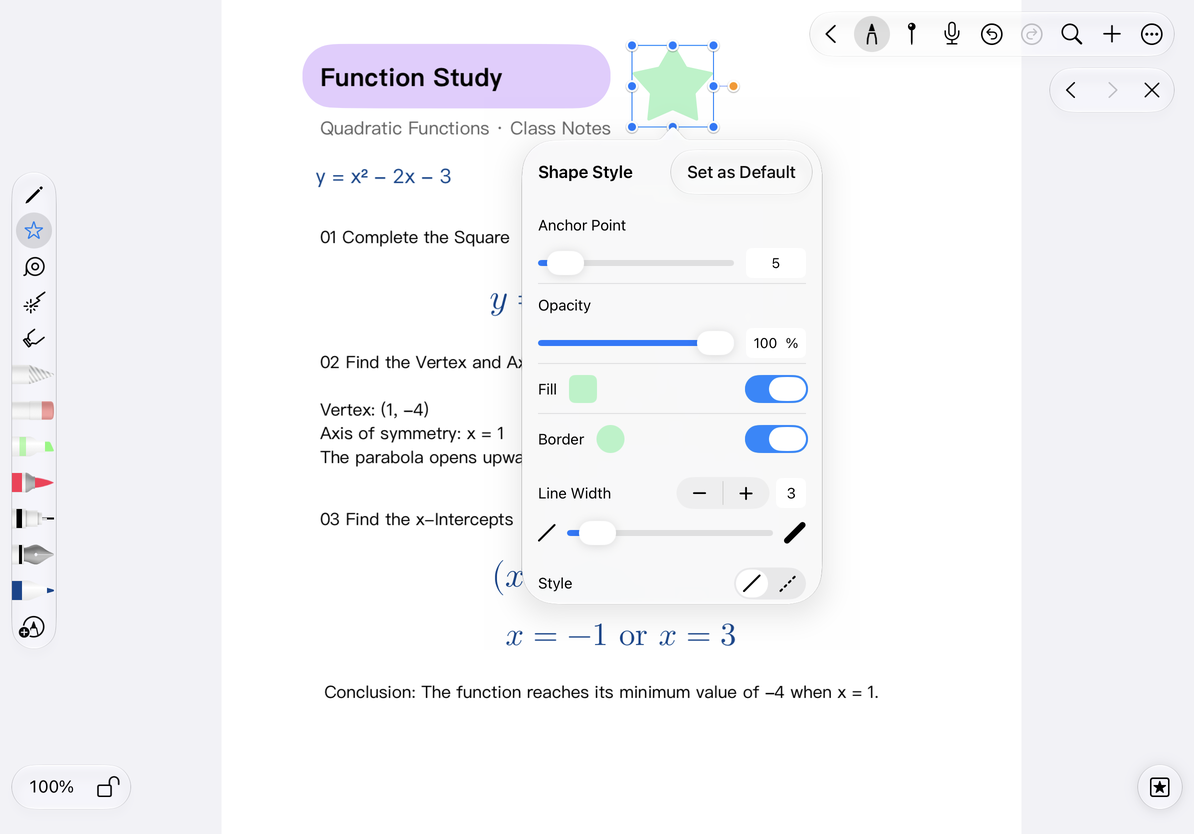
Select a shape and choose Style. Set the fill color, border color, and border thickness, then adjust opacity. To draw only an outline, choose No Fill where available.
Controls vary by shape: rectangles and rounded rectangles offer corner radius; polygons use Sides for the number of sides; stars use Anchor Point for the number of points; triangles offer a Type choice; and lines and arrows use Endpoint Type for their end styles. Line objects with no enclosed area do not have a normal fill.
Choose Set as Default to use this style for future shapes of the same type. Existing shapes on the canvas are not changed.
Adjust a shape’s style
Draw continuously and set the layer for new shapes
Open Shape Selection → Edit → Shape Preferences. Turn off Stop After Drawing to keep drawing the same shape type; with it on, drawing ends after one shape. Enable Send New Shapes to Back to place new shapes on a lower layer, which is useful for backgrounds.
Select Shapes After Drawing controls whether editing handles appear immediately after drawing. Find it under Handwriting Settings → Perfect Shape → Advanced Options, or under the Shape group in More → Preferences. This setting is shared with Perfect Shape. Turning it off does not prevent shape creation. The shape picker’s Edit page offers only Stop After Drawing and the default layer option.
To reuse a shape, choose Copy in its floating menu to create a duplicate immediately, or use More → Copy and paste. Export a lasso area to share the finished diagram, or export a native document to preserve editing.
A shape is covering my text
Send it to the back or reduce its opacity.
I want a line that follows a moving box
Use a connector. A regular line is simply a graphic and does not maintain that connection.
Related guides: Smart connectors · Artboards · Object layers