
Set panel position and presentation
Applies to workspace panels shared by all four document types. Window Settings appears in More when the window is wide enough. Narrow phone layouts or smaller windows may not show the same menu.
“Window” here describes how lists and tools appear as panels. To open another document alongside the current one, see Multiple windows and split screen.
Choose how panels open
- Open a document and use a layout with enough horizontal space.
- Open More → Window Settings.
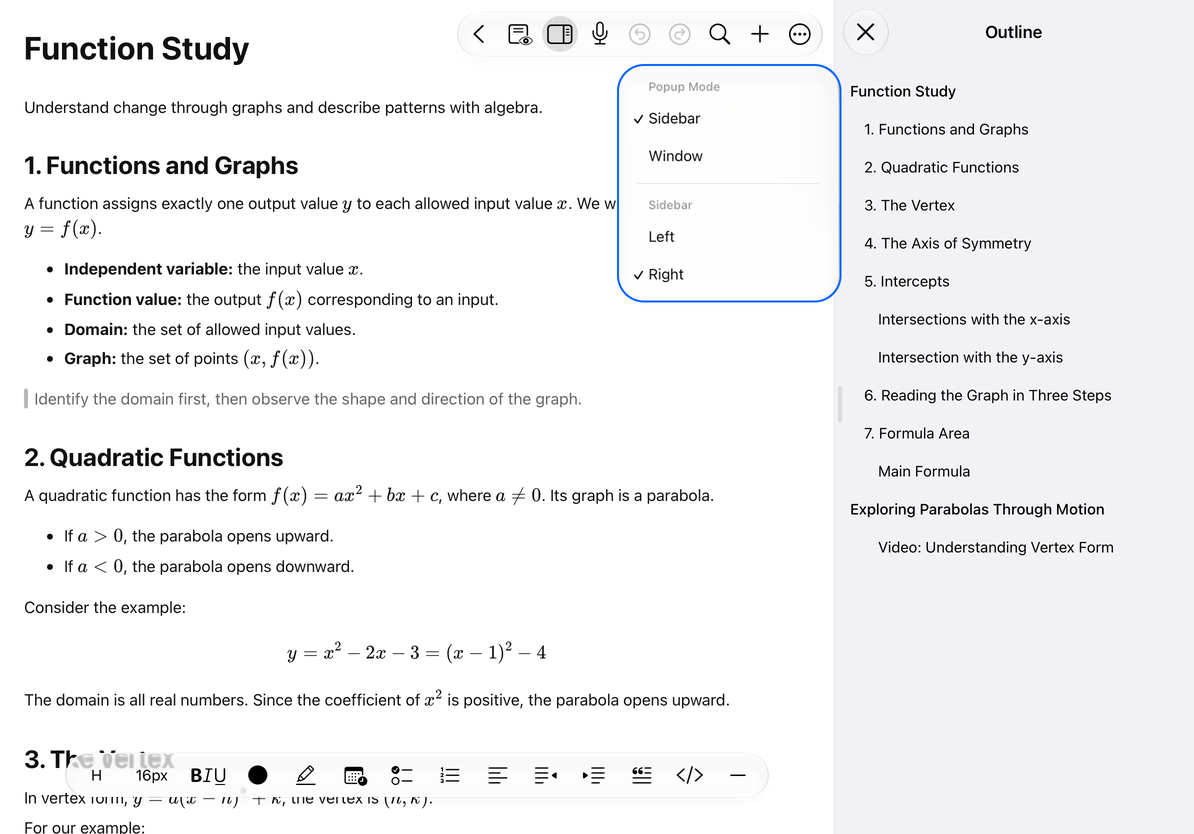
- Under Popup Mode, choose Sidebar or Window. A checkmark shows the current choice.
- For Sidebar, choose Left or Right.
- Reopen the panel and check its presentation. Different panels may have different sizes.
Window presentation
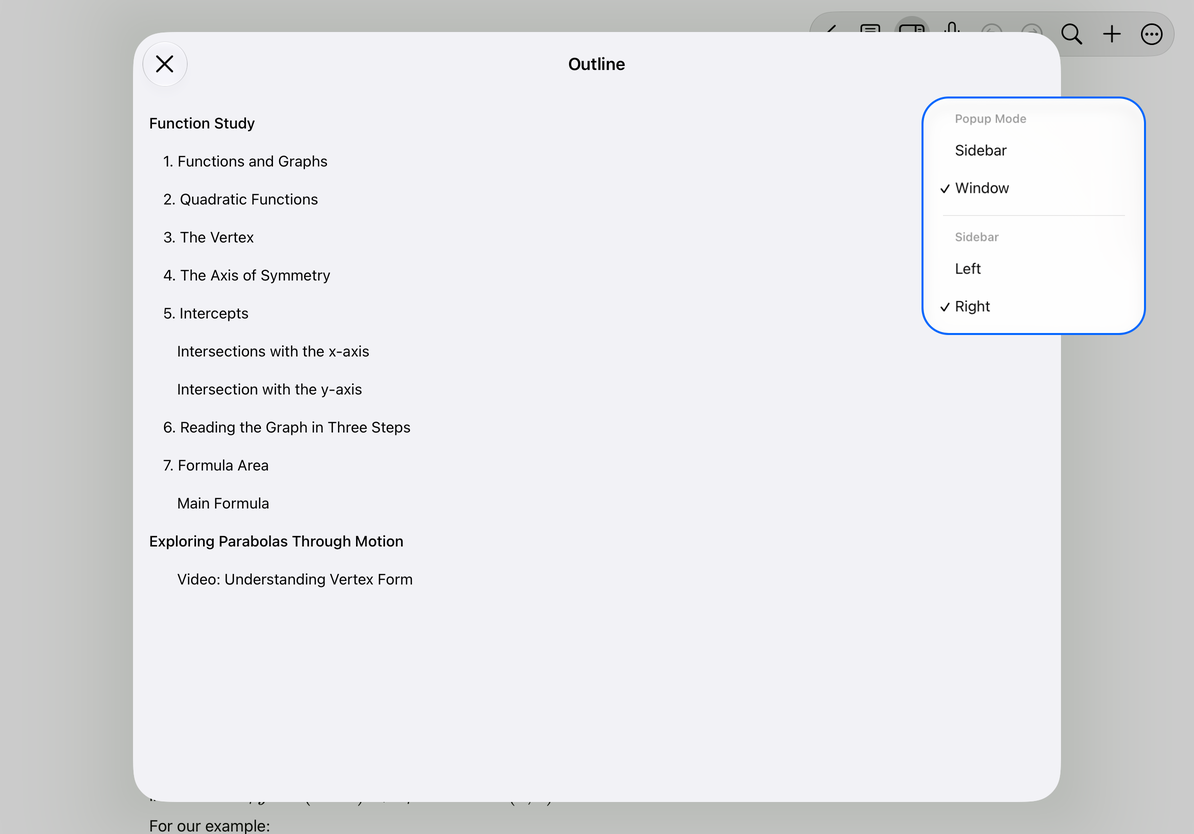
Right sidebar
Adjust sidebar width
Drag the handle on a resizable sidebar’s edge inward or outward. Its width is limited by the window size and the space needed for the editor; it cannot freely cover the whole editing area.
Leave enough room for writing when keeping a list open. If you only need to choose one item, close the panel afterward. Narrowing the window or rotating the device may collapse the sidebar. Reopening it uses the currently available space.
Use panels in narrow layouts
A narrow layout may use an overlay or another adapted presentation rather than two persistent columns. Use the panel’s close or back control to return to the document. Closing a panel does not delete listed notes, pages, or objects.
If Window Settings is missing, check the window width. Where supported, widen the window or rotate to landscape, then look in More again. If resizing does not work, check that you are using a resize handle and that the editor has not reached its minimum usable width.
See Customize the toolbar for top-toolbar actions and App appearance for reading appearance settings.
This article is current as of October 12, 2026; menus may vary across devices and versions.