
Import PDFs, native documents, and other files
This guide covers importing into the library. PDFs become Paged notes, .prodrafts files retain their original document type, and backup ZIPs may contain several documents and folders. Creating or importing documents may trigger a free document limit message; see Prodrafts Pro and free limits.
Import one or more files
- Return to the library and open the folder where you want to store the files.
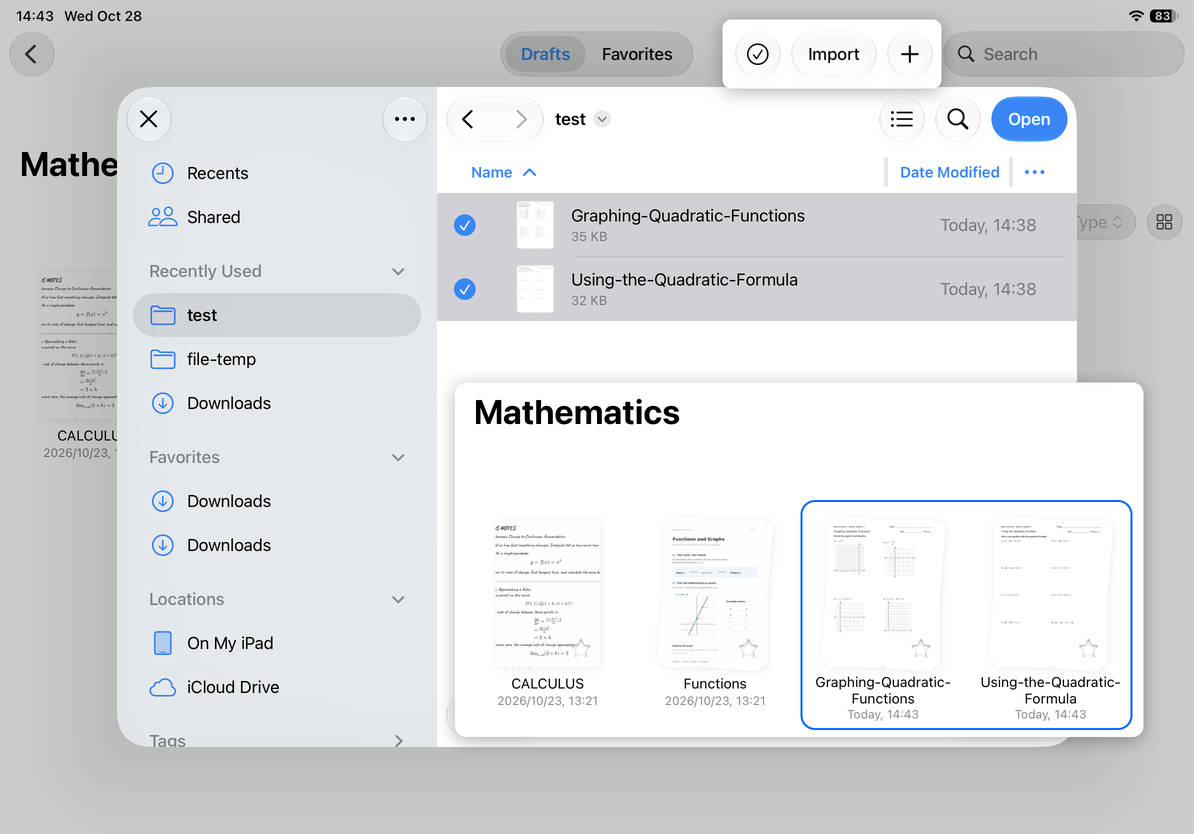
- Choose Import and find the files in the system file picker. Make sure files in cloud storage are downloaded and readable.
- Select one or more files, confirm, and wait for the import to finish. They will be imported into the current folder.
- For a password-protected PDF, follow the password check prompts. A file that fails this check cannot be imported as an unencrypted file.
- Check the names, number of documents, and types in the library. Open each document to verify its pages, text, or attachments. If only some files failed, check what succeeded before retrying just the failed files.
Import one or more files
How each format is imported
| Input | Result and next steps |
|---|---|
| Creates a Paged note for reading and annotation. It does not become editable body text. | |
| Native Prodrafts document | Restores the original Infinite document, Vertical document, Paged note, or Text document, with its editing tools. |
| Prodrafts backup ZIP | Imports the documents and folders the app recognizes. Check the folder structure and item counts afterward. |
.md, .markdown | Creates a Text document. See Import Markdown. |
| Other formats allowed by the picker | Attempts to convert the file to PDF and create a Paged note. Being selectable does not guarantee a lossless conversion. |
Files such as DOCX imported through this process do not become editable Word documents. The file picker may allow different formats on iPhone, iPad, and Mac. To keep editing the text, export Markdown from the original app if possible, or work with the text directly.
Check a restored backup ZIP
Choose a backup ZIP created by Prodrafts and follow the steps above. Wait for its documents and folders to import. Completion does not guarantee that every file in the ZIP was recognized. Read any failure messages and keep the original ZIP until you have checked all the documents and attachments you need.
If import fails, open the source in Files or the original app and confirm that it is fully downloaded, readable, and has the correct password. If a PDF has missing pages or layout problems, compare it with the source. For conversion problems with other formats, export a PDF from the original app and import that instead. Changing a filename extension does not convert a file.
To add material to an existing document, see Import from other apps and add to the current note. To create a separate backup, see Create, cancel, and save a backup.
Last checked: October 12, 2026. Menus may vary by device and version.