
Copy, cut, and drag objects
These steps apply to editable objects in Infinite documents, Vertical documents, and Paged notes. Before copying an image, text box, or shape, finish editing any text inside it and select the whole object.
Copy to another location
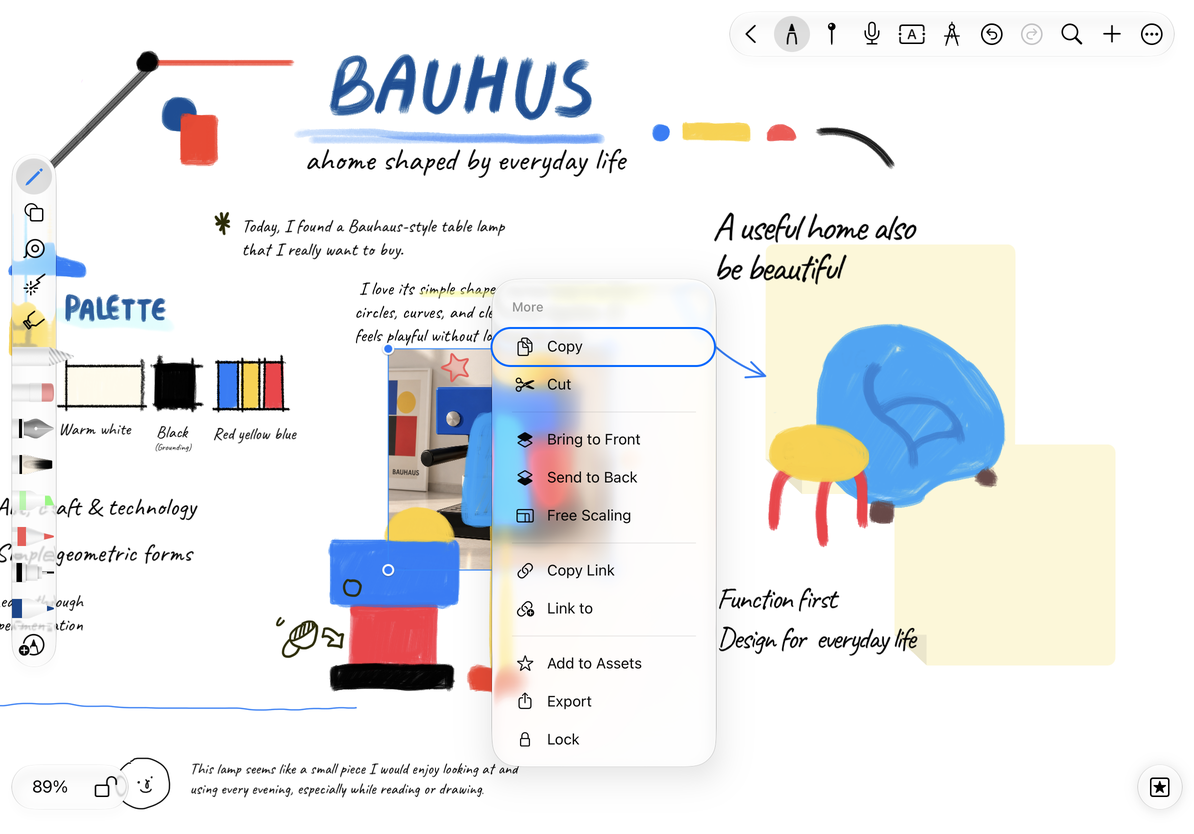
- Select the object and choose More → Copy.
- Go to the destination canvas or page and open the blank-area menu where you want it.
- Choose Paste and check the new object's position and size.
- Move the new object if needed. The original stays in place.
More → Copy puts content on the clipboard. The Copy action in the object's floating menu creates a duplicate immediately. To make another identical card in place, select it, tap Copy in that floating menu, and drag the new copy aside.
Cut or delete
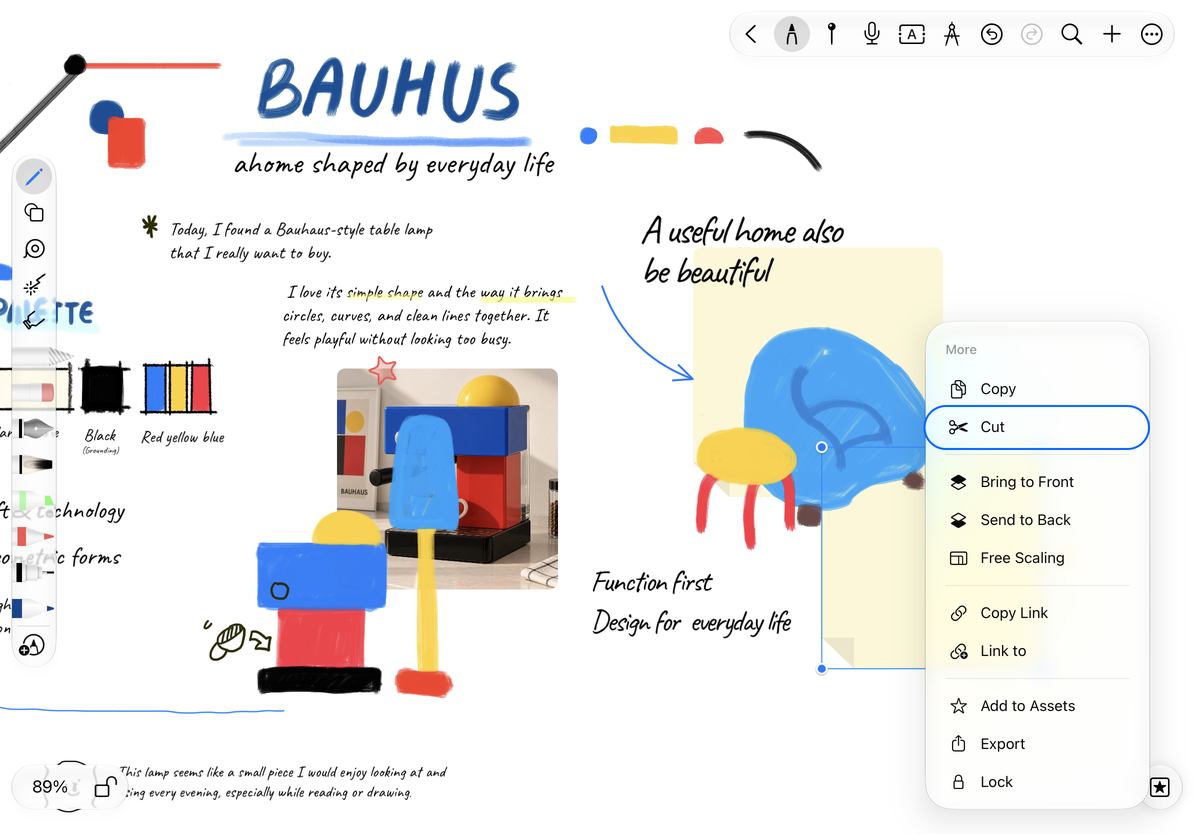
Cut removes the object from its original position and puts it on the clipboard. Paste at the destination and check the result. Delete removes it without preparing it for pasting. Undo immediately after an accidental cut or deletion.
Cutting a mind map node may also affect relationships and branches; it is not the same as cutting a standalone image. See Organize mind maps.
Copy an object
Cut an object
Drag content in from another app
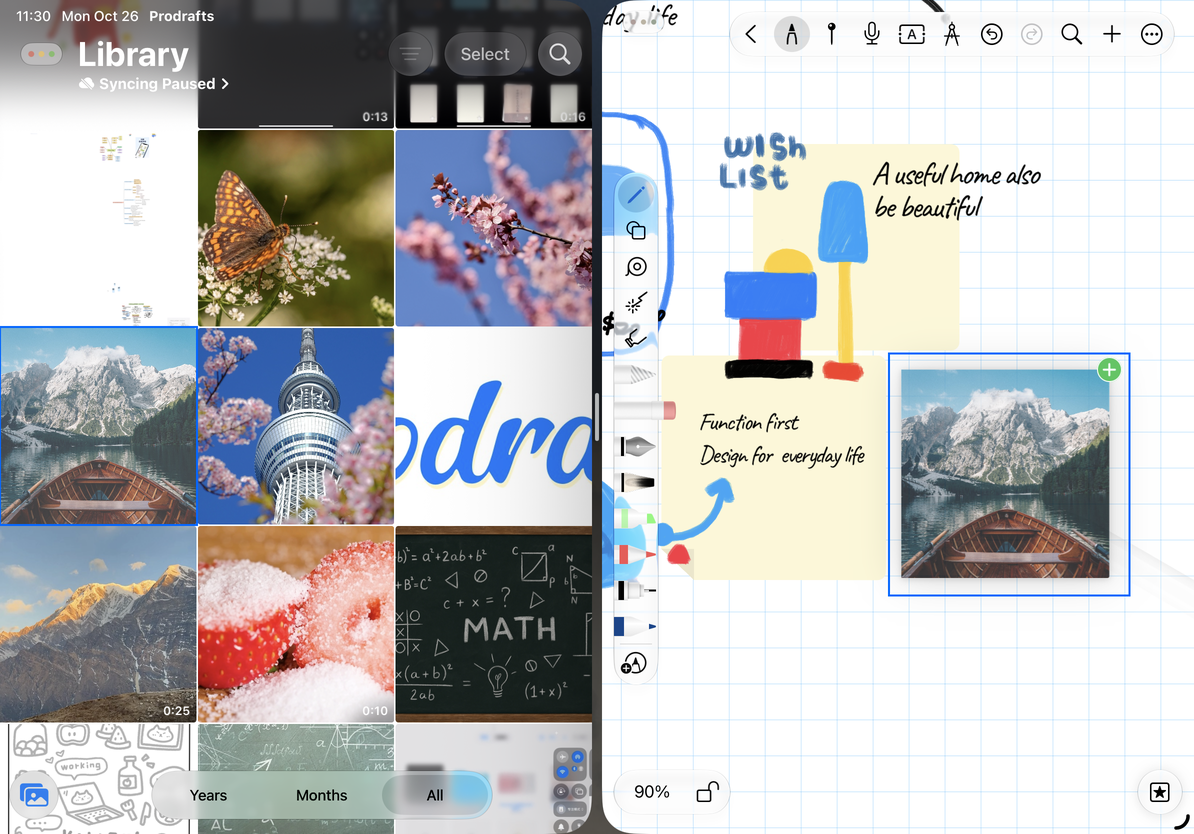
In a multitasking layout that supports drag-and-drop, show Prodrafts and the source app side by side. Drag an image, text, link, or supported file onto the destination canvas or current page, then release and check the result.
The format supplied by the source determines whether it becomes text, an image, a link, or an attachment. Not every file becomes an editable drawing, and complex layouts from other apps may not remain identical.
Drag out or reuse across documents
Finish editing text, then touch and hold a supported object and drag it to the destination app. That app's supported formats determine what it receives—possibly an image, text, or file rather than the full Prodrafts object structure.
Dragging within a document usually changes position. For copying or dragging between documents or apps, check both the result and whether the source remains. Cross-document dragging does not always mean moving the original. Native document export is better suited to preserving the complete editing structure.
Drag an image between apps
Why can I not drag an object out?
It may not offer a supported export representation, or you may still be editing its text. Finish editing, then try Copy or Export.
Paste is missing
Check that the clipboard contains content supported by the current canvas.
Related guides: Export a selection · Multiple windows and Split View · Export native documents