
Insert with slash commands and undo edits
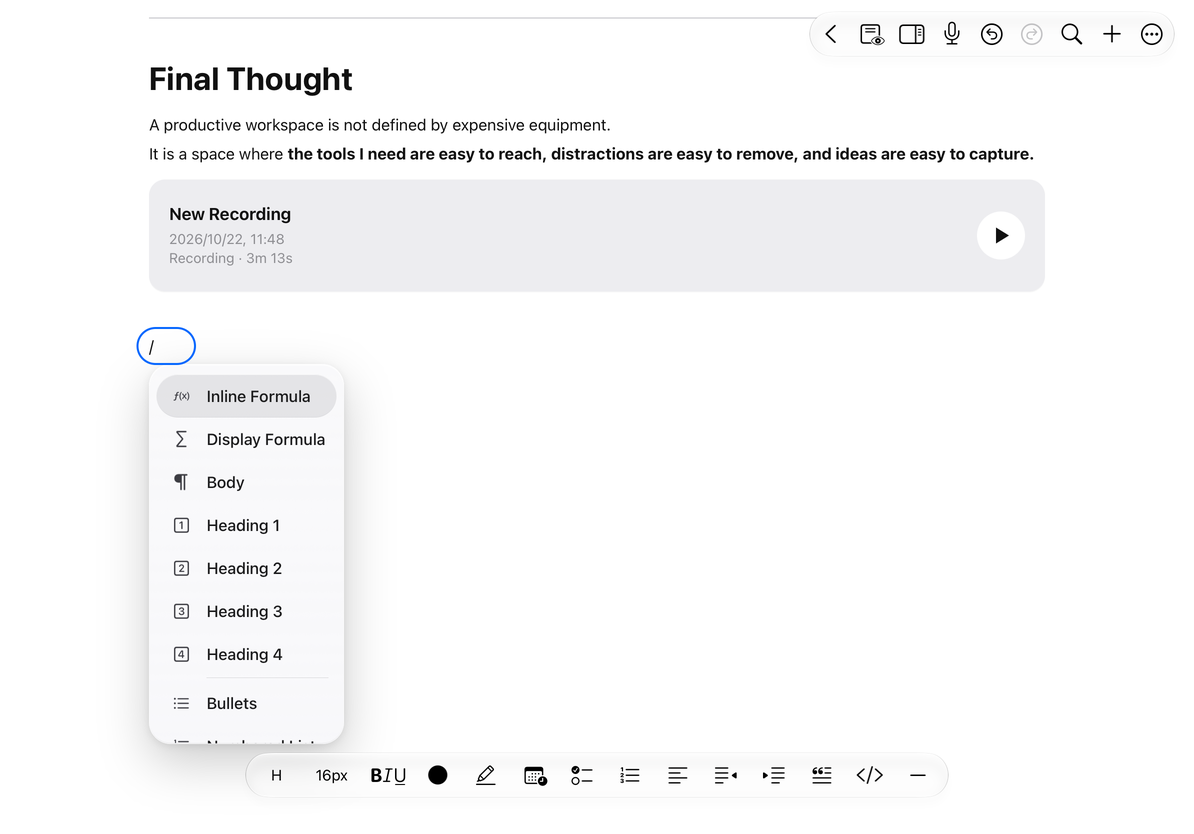
Available in text documents on iPhone, iPad, and Mac. The slash menu makes it easy to switch content blocks while typing. It opens at the start of an editable body paragraph, rather than acting as a canvas shortcut.
Open and filter the slash menu
- Leave preview mode and place the cursor at the beginning of a new body paragraph.
- Type
/and wait for the menu to appear. - Continue typing keywords to filter by command name or related terms.
- Select a command. It replaces the slash and search text, so you can continue entering content.
The menu offers inline and block formulas; body text; heading levels 1–4; bulleted and numbered lists; checklists; quotes; code blocks; and solid or dashed dividers.
Open the slash menu
Cancel or use the toolbar
To leave without choosing a command, delete the slash and search text, or dismiss the menu and continue typing. If it does not open, check that you are at the start of a body paragraph, used / rather than a full-width slash, and are not in a code block or preview mode.
The same content is usually available from the formatting toolbar or add menu. With an input method such as Chinese, confirm the current candidate text before selecting a command so the search uses committed text.
Undo and redo
Use Undo at the top to reverse the latest available text edit. Redo reapplies an edit you just undid. A dimmed button means no corresponding history step is available.
For example, undo an accidental heading conversion or choose Body from the H menu. To change an inserted formula, edit the formula again without undoing and rewriting the whole paragraph.
Common questions
The slash remains in the text
It may have been typed in an unsupported position. Try at the beginning of a new body paragraph.
I typed again after using Undo
A new edit may change the available redo history. Check the current text before continuing.