
Present with the laser pointer and touch indicators
Available in infinite documents, vertical documents, and paged notes. The laser pointer is a canvas tool; text documents do not use these pen tools. Its appearance on an external display also depends on the device and display mode.
Use the laser pointer to point at a formula or circle a key detail without leaving permanent ink to erase later. Touch indicators help your audience see taps and gestures.
Set up and use the laser pointer
- Open the canvas or page and choose the laser pointer in the pen box. Expand the pen box or open the tool list if it is not visible.
- Open its properties and choose Dot, Short Trail, or Line. A dot works well for pointing; trails show movement or trace a path.
- Adjust the thickness and color. Test the pointer on light paper and dark images to check visibility.
- Turn the white glowing core on or off as needed. Check that the white center remains visible against the background.
- Use the laser pointer while presenting. Switch to a regular writing tool when you want to leave a permanent annotation.
Set up the laser pointer
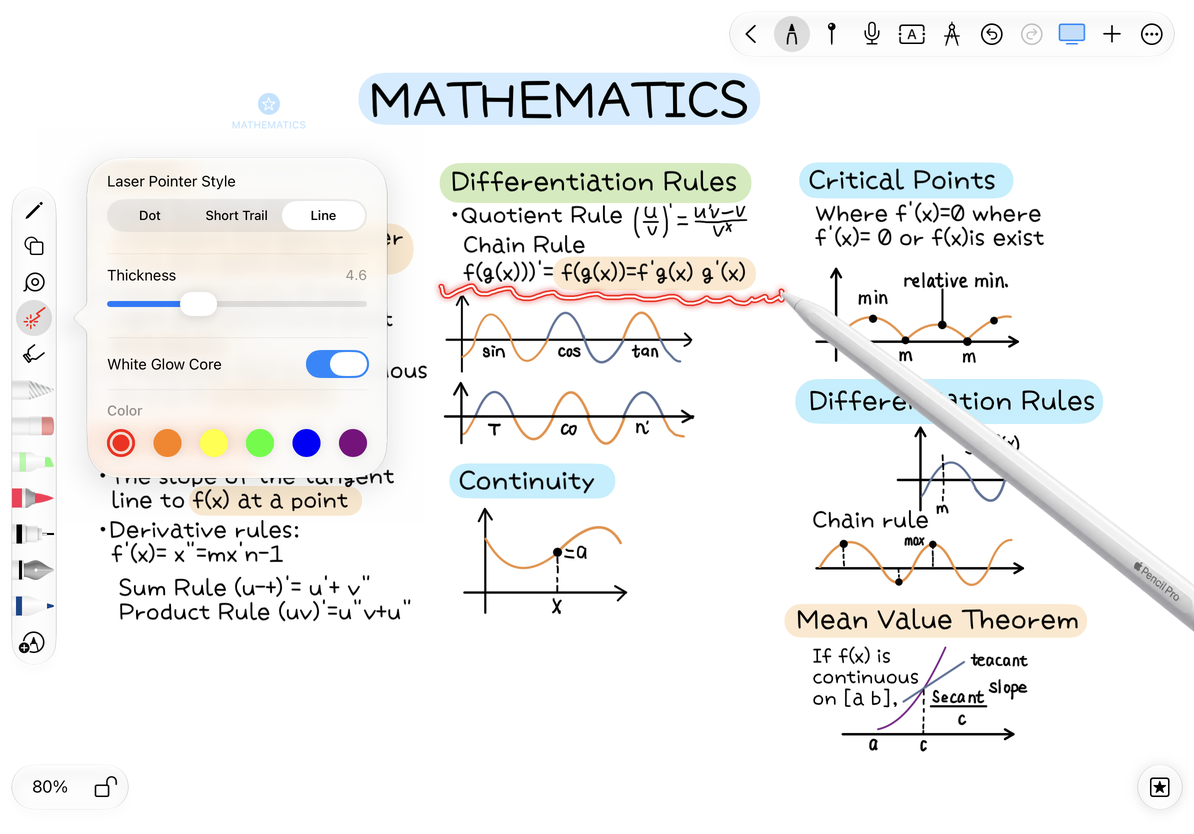
Laser marks are temporary presentation aids. Do not rely on PDF or image export to preserve them. To share lasting highlights, use a regular pen, highlighter, or another permanent annotation before exporting.
Show touch indicators
Open More → More Settings → Gesture Settings and turn on Demo Mode. Tap and drag on the canvas to check the touch or pointer feedback. Return here to turn it off when finished.
This setting does not connect AirPlay or choose external display content. If a display is connected, check the touch indicators on both screens. See Use an external display and AirPlay for display settings.
If the pointer is not visible
Check that the laser pointer is selected, rather than a regular pen of a similar color. Then check its thickness, color, and contrast against the background. If taps show an indicator but the laser does not behave as expected, check the laser properties and Demo Mode separately.
After turning a page in a paged note, test the pointer on the new page before continuing. For a fixed presentation sequence in an infinite or vertical document, use PPT views.
This article is current as of October 12, 2026; menus may vary across devices and versions.