
Use a ruler to draw straight lines
Applies to Infinite documents, Vertical documents, and Paged notes. The drawing ruler guides your strokes. It is separate from the coordinate ruler at the top of the screen.
Show and hide rulers
- In custom Pen Boxes, tap + → Ruler to add the ruler tool.
- Tap the ruler in Pen Boxes to display the system drawing ruler.
- Select a writing pen, set the color and thickness, and leave the ruler displayed.
- After using it, tap the ruler tool to close it.
Only one ruler is required in Pen Boxes. It is a drawing aid and does not itself become a picture or shape in the note.
Adjust direction and draw lines
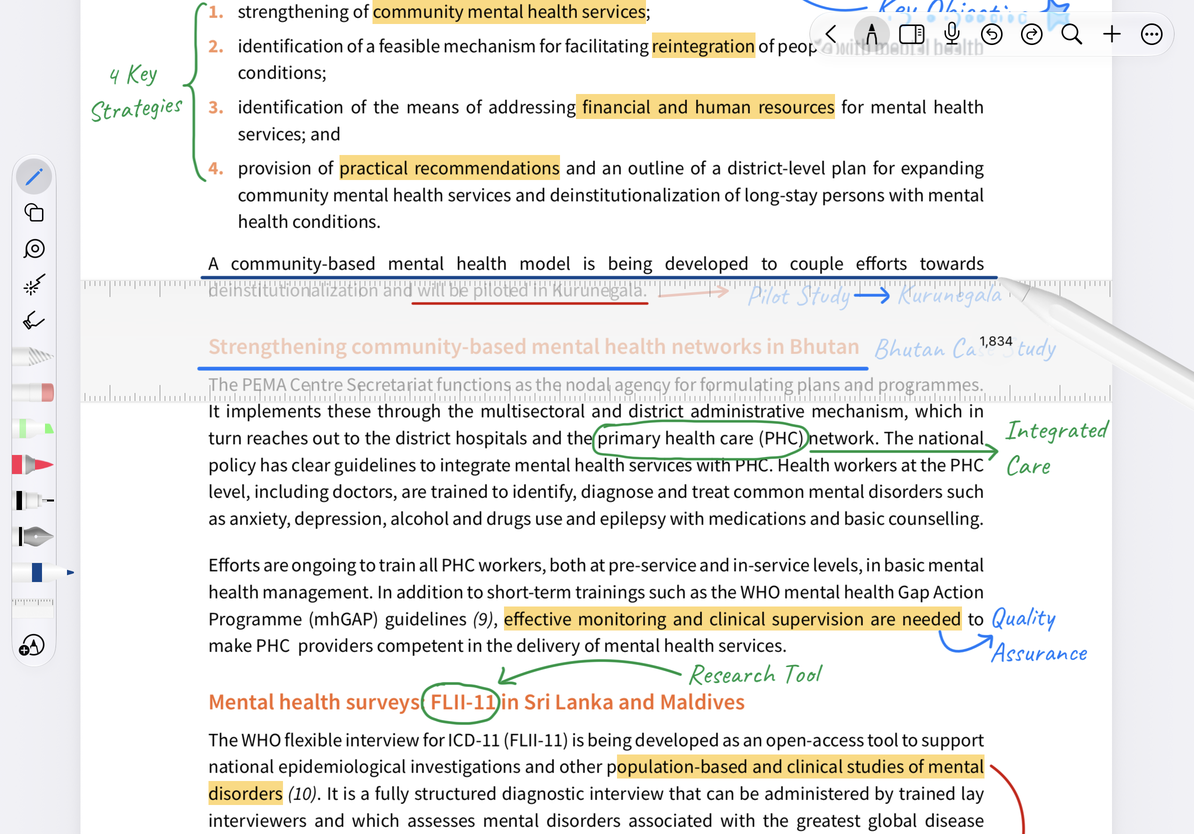
Move the ruler to the desired position and use the system operations on the ruler to adjust the angle; touch devices can usually change the direction by rotating the ruler with two fingers. Observe the angle shown and then write along the edge of the ruler to get a line assisted by a ruler.
For example, to underline a handwritten title: first place the ruler, then select the pen, draw a line from left to right along the edge of the ruler, and finally hide the ruler to check the position. Line color and thickness come from the current pen. If you make a mistake, you can undo the handwriting without deleting the ruler.
Draw a straight line along the edge of the ruler
Scope and FAQ
In Infinite and Vertical documents, enabling the ruler may increase a very low zoom level to a usable range. Zoom into the area first to make drawing easier.
There is already a scale on the top, why is the line still not straight?
The top ruler is for positional reference and does not constrain handwriting; a drawing ruler is required here.
Is the line still there after hiding the ruler?
The written lines are ordinary handwriting and remain in the canvas, which can be modified with eraser and Lasso.
Want to draw a line that will follow an object?
Use smart connectors.
Related guides: Top Ruler · Compass · Draw-and-hold straight lines