
Adjust table rows and columns and merge cells
Applies to canvas tables in infinite documents, vertical documents, and paged notes. Finish typing in a cell before selecting a whole row, whole column, or contiguous cell range.
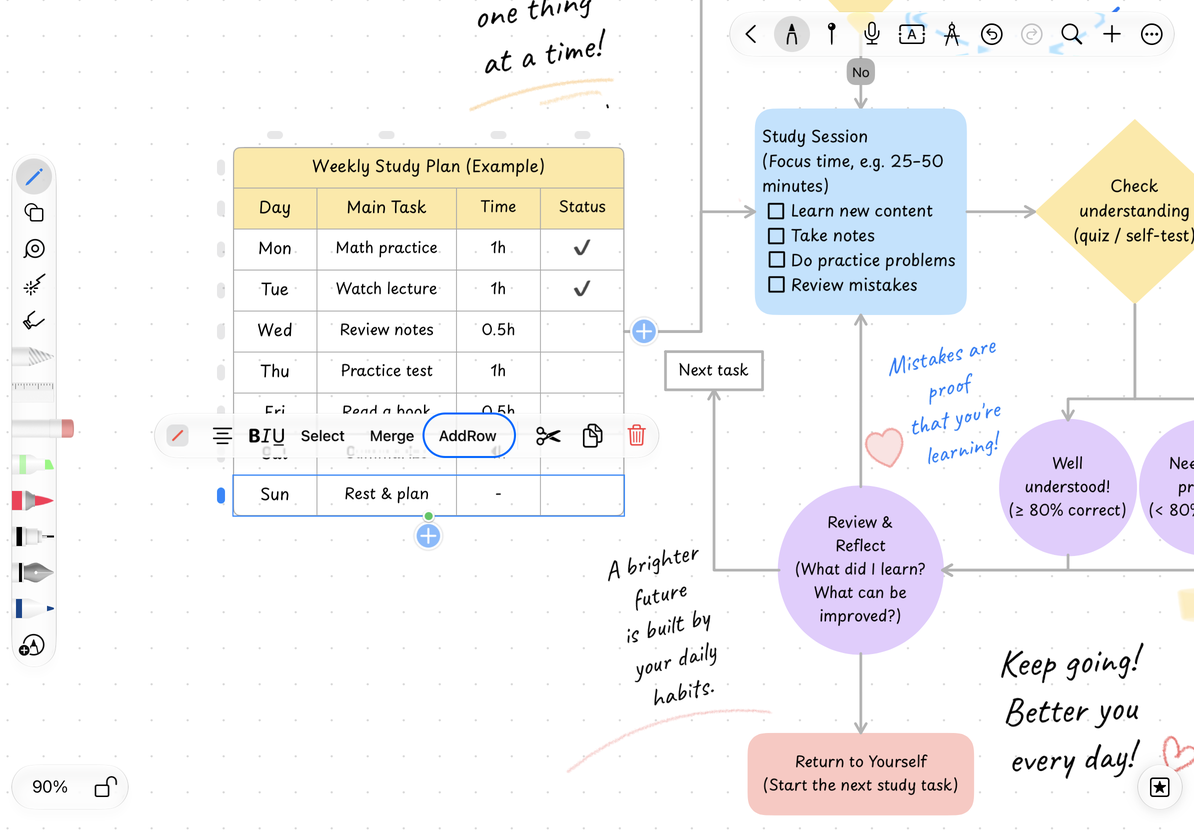
Add or delete rows and columns
- Tap a row marker at the side or a column marker at the top to select it.
- Open its menu and choose Add Row or Add Column.
- For a cell-range selection, Add offers Add Row Below and Add Column to the Right, positioned after the selected range.
- Before deleting, check whether the menu refers to one row or column, or several.
Deleting rows or columns removes their cells and contents, rather than only clearing the text. For multiple rows or columns, the menu shows the count. This menu cannot remove every row or every column. To delete the whole table, finish the internal selection and delete the table object.
Add a row
Merge and split cells
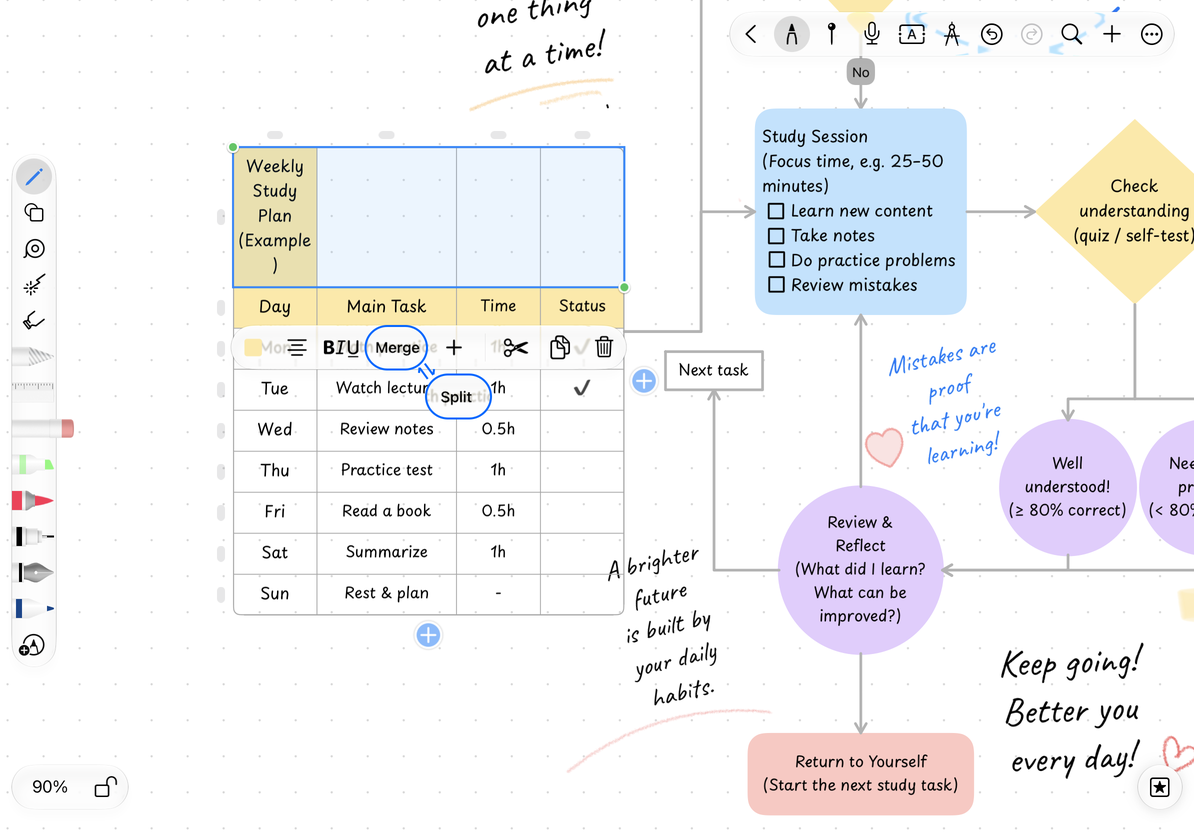
Touch and hold, then drag to select a contiguous range and choose Merge. It becomes one cell spanning that range, useful for a heading across several columns.
To restore the grid, select a range containing merged cells and choose Split. Available actions depend on whether the range can be merged or contains merged cells. Splitting restores the cell structure, but does not necessarily restore each cell’s original text arrangement. If you just merged incorrectly, use Undo first.
Merge and split cells
Copy, cut, and paste
- Select a cell range or whole rows or columns and choose Copy.
- Select the destination, open its menu, and choose Paste when available.
- Check the resulting text, formatting, and merged cells.
- To move content instead, choose Cut. Check both source and destination afterward; use Undo for mistakes.
Cutting a cell range clears its contents while keeping the grid. Cutting through a row or column marker’s menu usually removes those rows or columns. If this would remove the last row or column, an empty table remains instead of a table with zero rows or columns; its text and merges are cleared. A copied range remains selected, so check the destination again before pasting to avoid overwriting existing content.
The table clipboard supports native table content. Pasting from Excel, a web table, or tab-separated text does not guarantee the same rows, columns, and formatting. To paste plain text, enter text editing within a cell first.
Paste is missing
The clipboard may not contain a supported table range.
I cannot merge cells
Check that the selection is contiguous and does not cross incompatible merged cells.
I deleted the wrong rows
Undo immediately, then select a smaller range.
Related guides: Select cells · Style and size · Copy objects