
Create mind maps and add nodes
Mind maps are available in Infinite documents, Vertical documents, and Paged notes. A central node and its branches show a hierarchy, with connections and node positions managed automatically. Text documents do not have this native mind map tool.
Insert a map and edit the example
- In edit mode, choose Add → Mind Map, or use a configured toolbar button.
- A central node and example branches appear on the canvas.
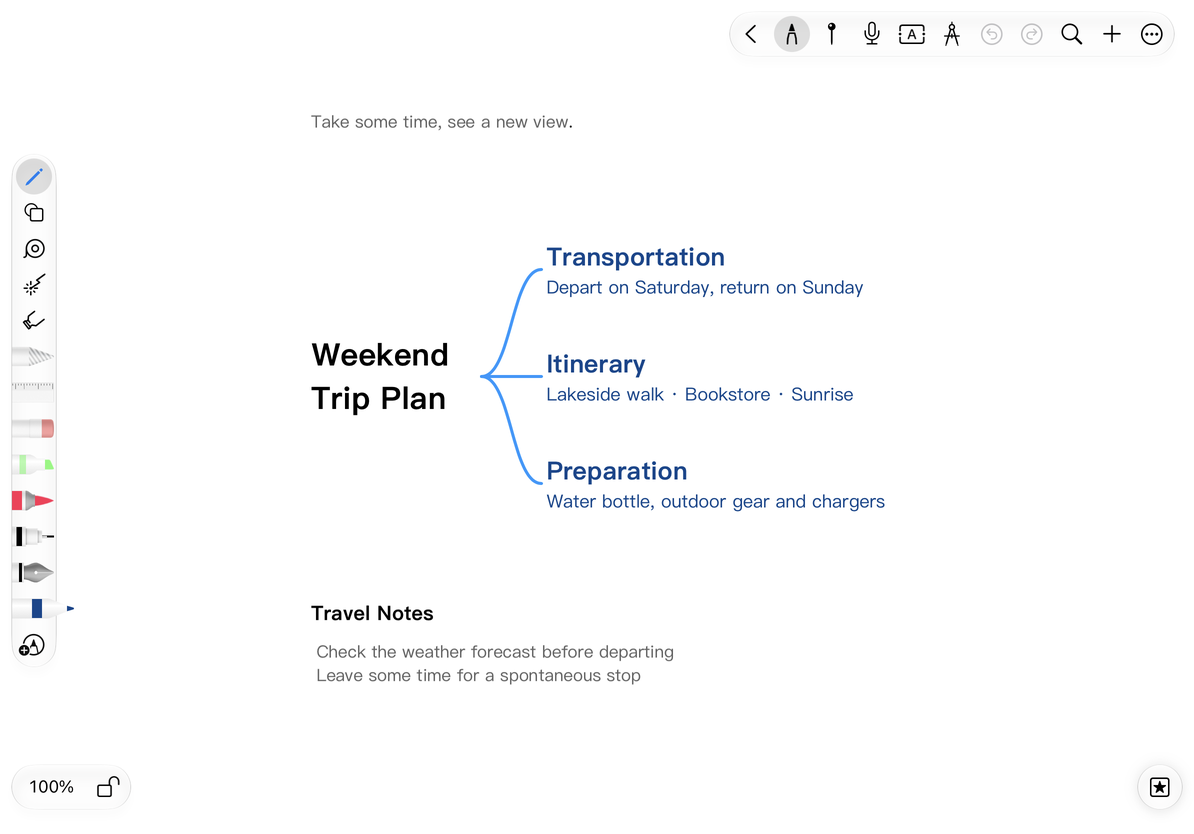
- Tap the central text and change it to your topic, such as “Trip preparation.”
- Rename the branches—for example, “Transport,” “Accommodation,” and “Packing”—then finish editing and check the structure.
The main insertion option in Infinite and Vertical documents requires Prodrafts Pro; follow the access conditions shown for other entry points. In a Paged note, the map belongs to the current page, so leave enough room. Consider the horizontal boundaries in a Vertical document too.
One central topic and three branches
Add child and sibling nodes
Select or edit a node and use the add controls around it or the add-node buttons in the text toolbar. Adding outward along a branch creates a child node. Adding a sibling creates another item under the same parent.
For example, select “Packing” and add a child called “Documents.” Add “Clothes” as a sibling of “Documents.” New text nodes open ready for typing. The root has no ordinary sibling; its left and right controls create branches on either side.
On Mac or an iPad with a keyboard, press ⌘Return while a node is selected or its text is being edited to add a child. Press ⇧⌘Return on a non-root node to add a sibling. The current text is saved, and a new text node opens ready for typing. Plain Return still inserts a line break. Finish composing text with your input method before using an add-node shortcut. Other text fields do not use the mind map selection to add nodes. See Keyboard shortcuts.
Start a map from an existing object
- Select a supported text box, image, shape, or formula.
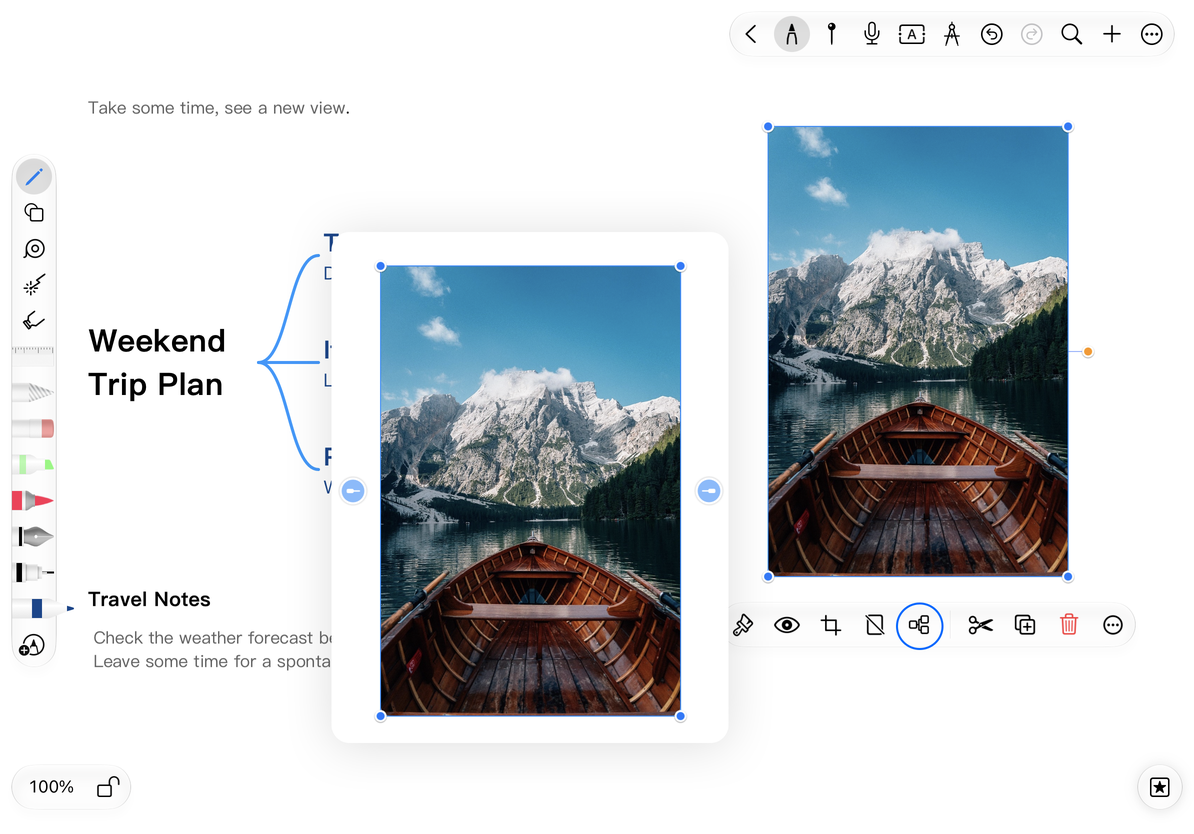
- Choose Mind Map in its object menu to make it the root while keeping its content.
- Use the add-node controls to create branches.
Line objects, artboards, tape, and sticky notes cannot serve as ordinary mind map roots. If Mind Map is unavailable for an object, use a text node for the topic and keep the object nearby as reference material.
Use an image as the root
Set the default for new nodes
Under More → More Settings → Mind Maps and Flowcharts → Add Node Style, choose Text or Copy Node. Text creates text nodes. Copy Node tries to retain the current object's type and appearance, though additions from text or formula nodes still create text nodes. New text inherits the related node's text style and can be edited separately afterward.
Want to reuse an entire branch?
Copy the node and use Paste as Node. See Organize mind maps.
Want a relationship line between two independent items?
Use a smart connector.
Related guides: Structure and collapsing · Mind map styles · Export mind maps