
Save and manage paper templates
Available in paged notes on iPhone, iPad, and Mac. Favorite templates let you reuse paper backgrounds or PDF pages. They serve a different purpose from copying a full page of notes or backing up a document.
Add a page to your favorites
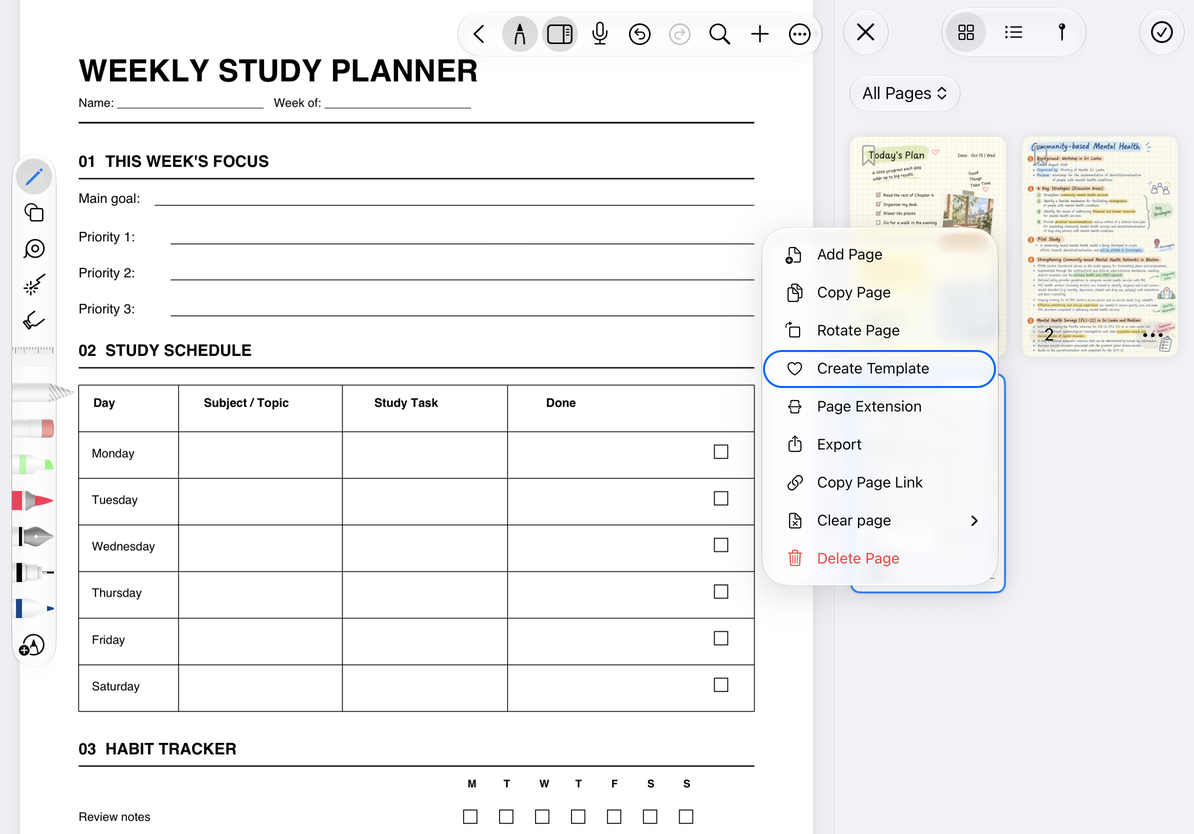
- Open the thumbnail sidebar and find the page you want to reuse.
- Open its menu and choose Create Template.
- Check the preview in Set Template Title and enter a descriptive name, such as “Weekly Planner”.
- Confirm to add the template to My Favorites, or cancel to return without saving it.
This saves the selected PDF page as a template, rather than preserving all editable handwriting and objects on the page. For a complete page copy, use Copy Page.
Save a page as a template
Use a favorite template
Open the template picker when adding a page or from the current page’s Paper Settings. Choose My Favorites, then select a template. Check the insertion position when adding a page. When changing the current page’s background, check how it affects the existing layout.
Paper, common templates, and My Favorites are separate categories in the picker. Look for templates you saved under My Favorites. Including a purpose and size in the name helps distinguish templates with similar previews.
Move a template to the front or delete it
Open a template’s menu in My Favorites and choose Move to the Front to make it easier to find. Before choosing Delete, check the name and preview. This manages the template library; it does not delete a page from a document.
For templates you want to keep, retain a copy of the original PDF or document. A favorite template should not be your only backup.
Common questions
I cannot confirm the template title
The name cannot be empty.
My saved template does not include all the handwriting
Templates reuse the page background. To keep a complete copy of your notes, copy the page or export the native document.
I just want another page with the same paper
Choose Current Template when adding a page.