
Enter and edit canvas math formulas
Applies to Infinite documents, Vertical documents, and Paged notes. A canvas formula is a freely placeable typesetting object; it does not automatically evaluate, nor is it an inline or block formula in Text document.
Enter the first formula
- Open Add → Formula in edit mode, or use the configured formula toolbar button. In a Paged note, first navigate to a valid page.
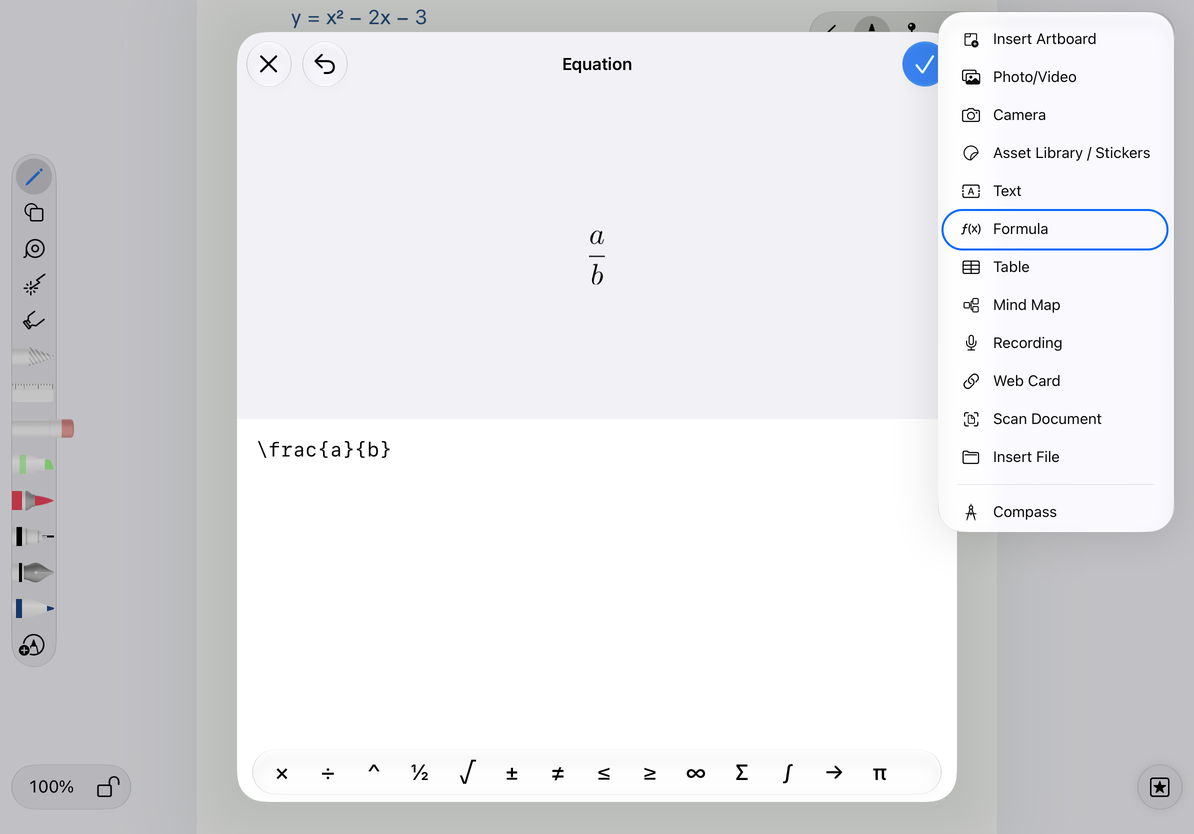
- Type or paste LaTeX into the input area of the equation editor. Usually the outer
$or$$is not needed. - View a live preview to confirm that symbols, fractions, and subscripts and superscripts are correct.
- Tap Done on the editor to insert the formula into the canvas; tap Cancel if it is not needed.
You can try E=mc^2 first, then \frac{a}{b} or x_1+x_2. The input area retains the formula source text, and the preview displays the typesetting results. Blank or unformatable content will not be inserted as a valid formula. Please correct it according to the prompts before completing.
Check formula in preview
Modify content again
Select the formula, tap Edit Formula, and the original LaTeX will reopen. After modification, check the preview and complete it. The content will still be updated on the original object and the original color and font settings will be retained; if canceled, the original formula will be retained.
For example, if E=mc^2 is changed to E_k=\frac{1}{2}mv^2, the width and height occupied by the formula will change with the content. If the formula is already a mind map node, the layout will also adjust the spacing based on the new content. When modifications are inappropriate, they can be undone in the canvas.
Set appearance and position
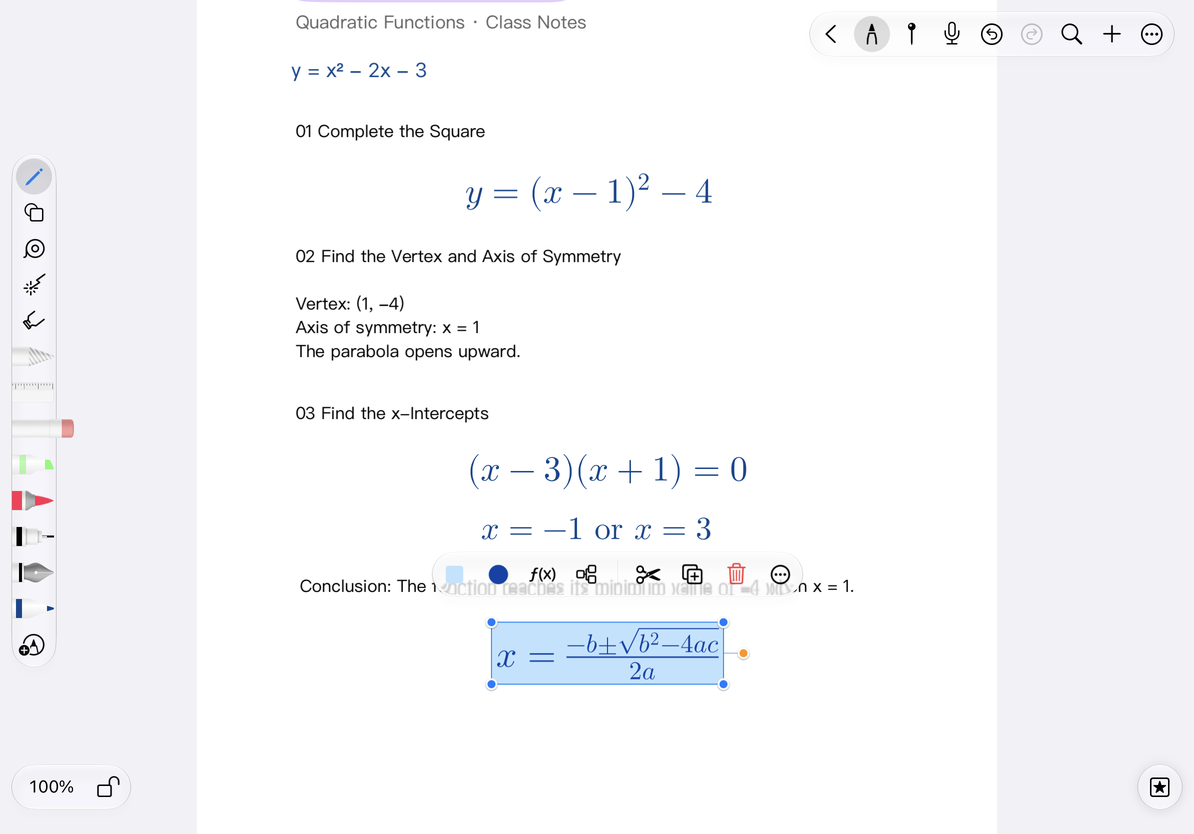
The object menu provides text color and fill color to set the formula symbol and background color respectively. Drag the formula to move it, and use the supported control points to change the display size.
The formula object does not use the exact same generic "Shape Style" panel as the picture. To include it in a mind map, choose Mind Map from the formula menu or use a supported node-creation action. New nodes added afterward are usually text nodes.
Set formula appearance and position
Reuse, export and restriction
Use More → Copy and paste, or choose Copy in the object's floating menu to create an editable duplicate immediately. To use the formula elsewhere, export an image or PDF. To keep its source and editable object, share the native document.
Entering formulas does not rely on the "Formula Recognition (Beta)" switch, and there is no need to write handwritten formulas first. LaTeX commands are limited by the support range of the current typesetter, and there is no guarantee that the complete LaTeX document, all macro packages, and any custom commands can be displayed. When encountering an invalid prompt, check backslashes, brace pairings, and command spelling, or break them into simpler expressions.
Related guides: Recognize handwriting as formula · Text formula · Create a mind map