
Search names and use Favorites
Search by name to find a named note. Use Favorites for quick access to documents you open often. You can combine both, but library name search is separate from searching inside a document.
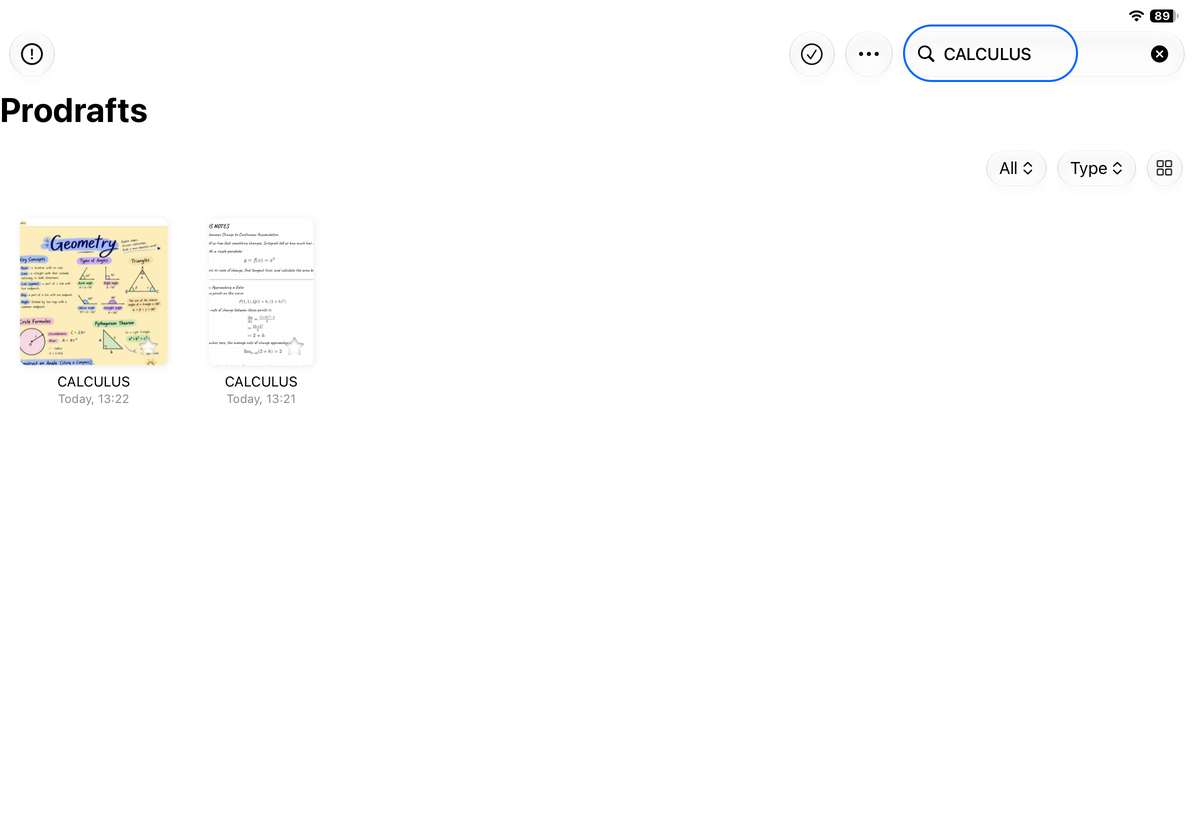
Search by name
- Open the library search field.
- Enter part of the name, such as “Math” or “Meeting.”
- Find the document in the results and tap to open it.
- Clear the field or leave search to return to the normal list.
Name search in the normal library covers multiple folders, so you do not need to open every folder in turn. It matches document names, not body text: a note containing “Meeting” only in its content will not be found by this search.
You do not need to enter the full name or match its capitalization. If you see fewer results than expected, check the type filter.
Search by document name
Add documents to Favorites
- Tap Select in the library.
- Select one or more frequently used documents.
- Open More → Add to Favorites.
- Open Favorites and check that the documents appear.
Favorites provide shortcuts to the original documents; they do not create copies. Editing through Favorites changes the original document.
Remove documents from Favorites
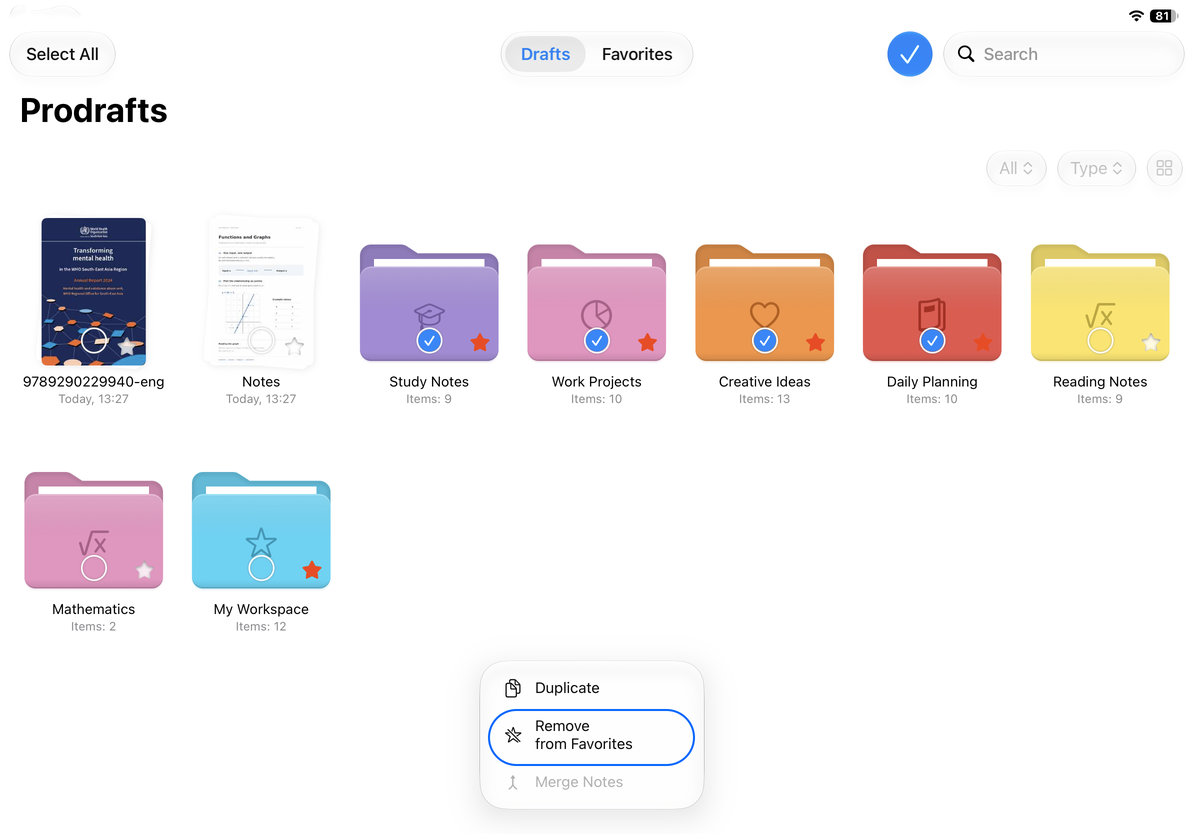
- Enter selection mode in Favorites or the library.
- Select the documents you want to remove from Favorites.
- Open More → Remove from Favorites.
If some selected items are not favorites, the menu may show Add to Favorites instead. To remove favorites, select only items already favorited. Removing a favorite does not delete the document; it remains in its folder.
Remove from Favorites
Search within Favorites
Searching in Favorites matches names only among your favorites. If the document is not favorited, search the normal library instead. No result in Favorites does not mean the note is missing.
Type filters can narrow these results further. To check all favorites again, choose All and clear the search field.
Common questions
I remember a word in the note but not its name
Library name search does not search all document contents. Use the date, type, or folder to find likely documents, then search within them:
- Search canvas content
- Search PDFs, handwriting, and text
- Find and replace in text
- Search recordings and transcripts
Will a renamed document stay in Favorites?
Yes. The favorite points to the same document. Search for its new name; you do not need to create a copy.
I cannot find a deleted note
The normal library and Favorites do not show items in Trash. Check Trash for documents that can still be restored.