
Create your first note
This exercise walks you through creating a Paged note, writing some content, revising a stroke, and reopening the note from the library. Use a practice document; you do not need to import important files.
Devices: iPhone, iPad, and Mac. The handwriting example uses an iPad and Apple Pencil. If you mainly type, start with Text documents instead.
Open the app for the first time
If an introduction appears when you first open the app, follow it to reach the library. You can start practicing without turning on sync or learning every tool.
If the library includes sample documents, open one to explore or create your own practice note.
Create a Paged note
- Open the Prodrafts library. To put your practice note in a folder, open that folder first.
- Tap + and select Paged note.
- Wait for the editor to open. New notes use the current default paper; your paper may have a different color or texture than shown.
- After confirming that the page and writing instrument appear on the screen, begin the following exercise.
Select Paged note
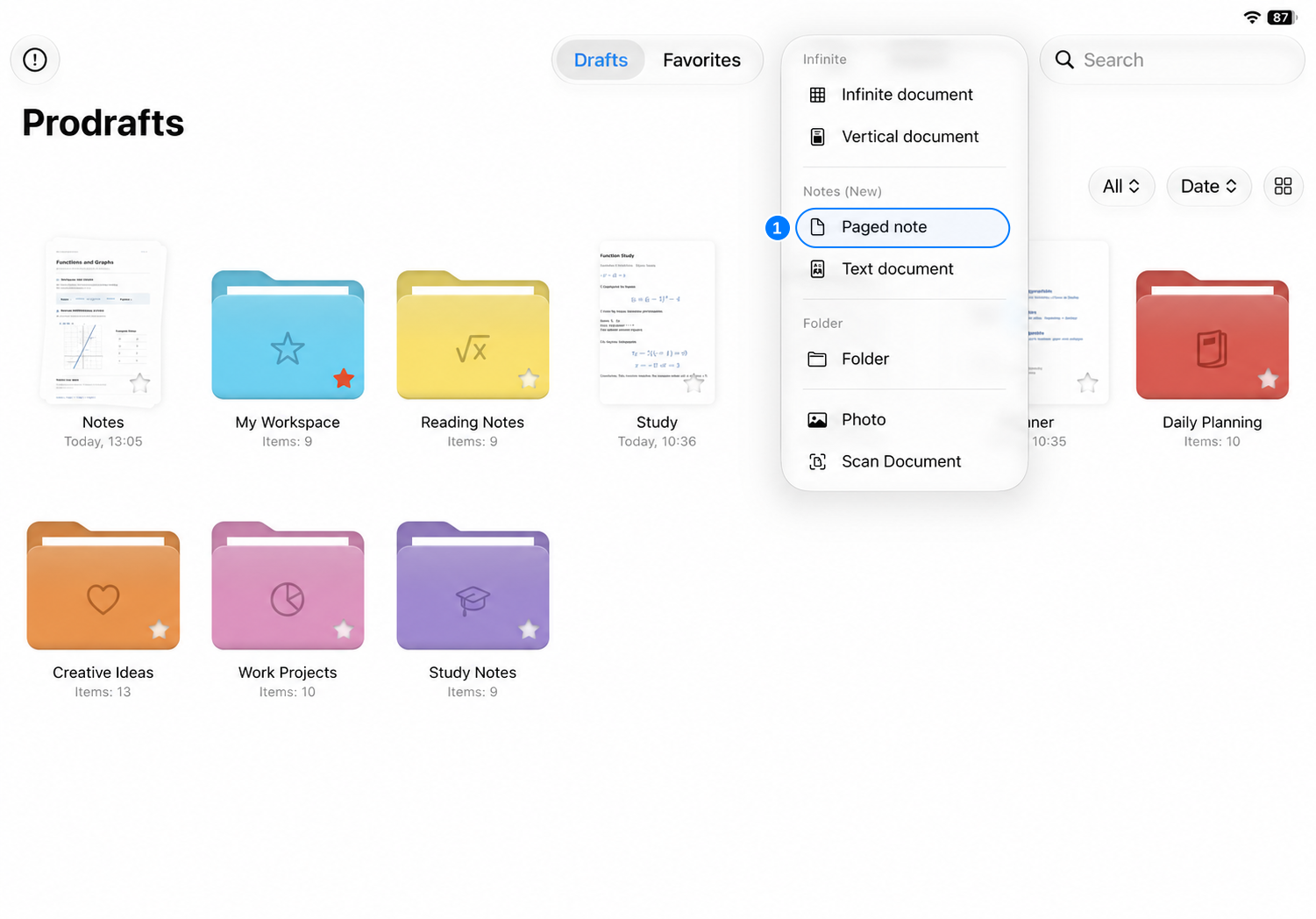
Open the editor
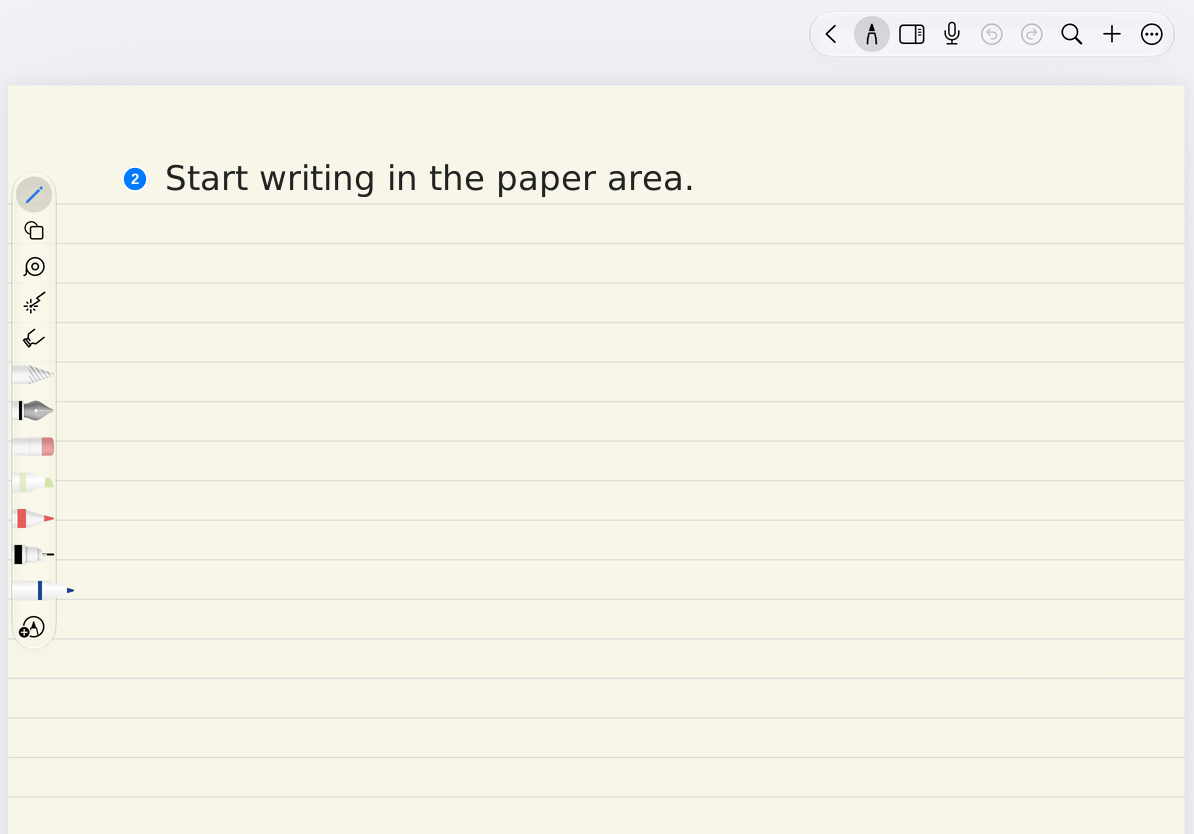
If you reach the document limit
The free creation limit is currently 3 documents across all types; folders do not count. Once you reach the limit, the app prompts you about Prodrafts Pro. Moving a document to the Trash is not permanent deletion and does not necessarily free up a slot immediately.
You can cancel the prompt, open an existing exercise document to continue learning, or view Prodrafts Pro and the free document limit.
Write some content
- Tap a pen in Pen Boxes.
- Use Apple Pencil to write "My First Note" on the page.
- Write a short task on the next line, such as "Organize today's class content."
- If you want to distinguish the title from the main text, tap the selected pen again, change its color or thickness, and keep writing.
If drawing with your finger leaves no strokes, check whether Use Apple Pencil Only is on. With this enabled, your finger navigates while Apple Pencil writes. For specific settings, see Apple Pencil and input methods.
Erase and undo
- Select the eraser in Pen Boxes.
- Erase a small section of handwriting and check how much the eraser removes.
- Tap Undo and check that the erased handwriting returns.
- Select a pen again and rewrite that section.
Different erasers remove different amounts of handwriting. Try them on practice content before editing important notes. For details, see The eraser and Scratch Out to Erase.
Full content
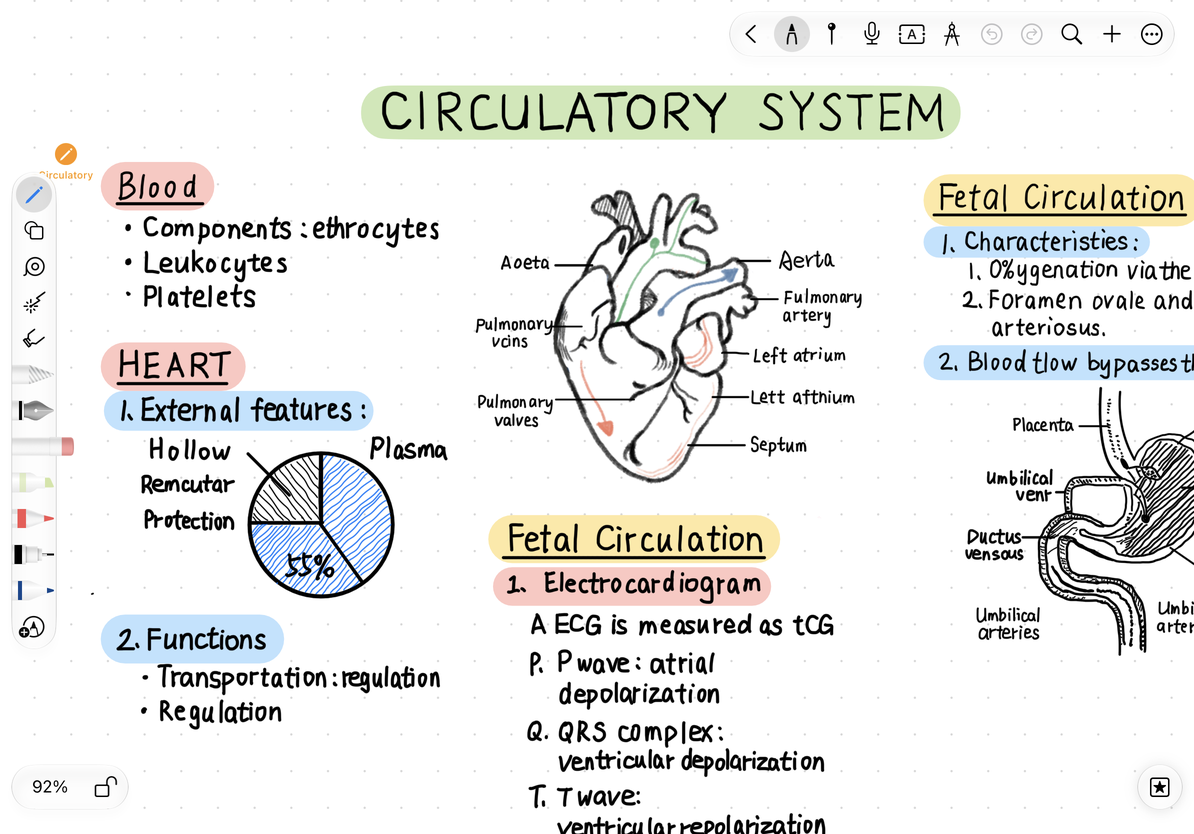
Erase a small section
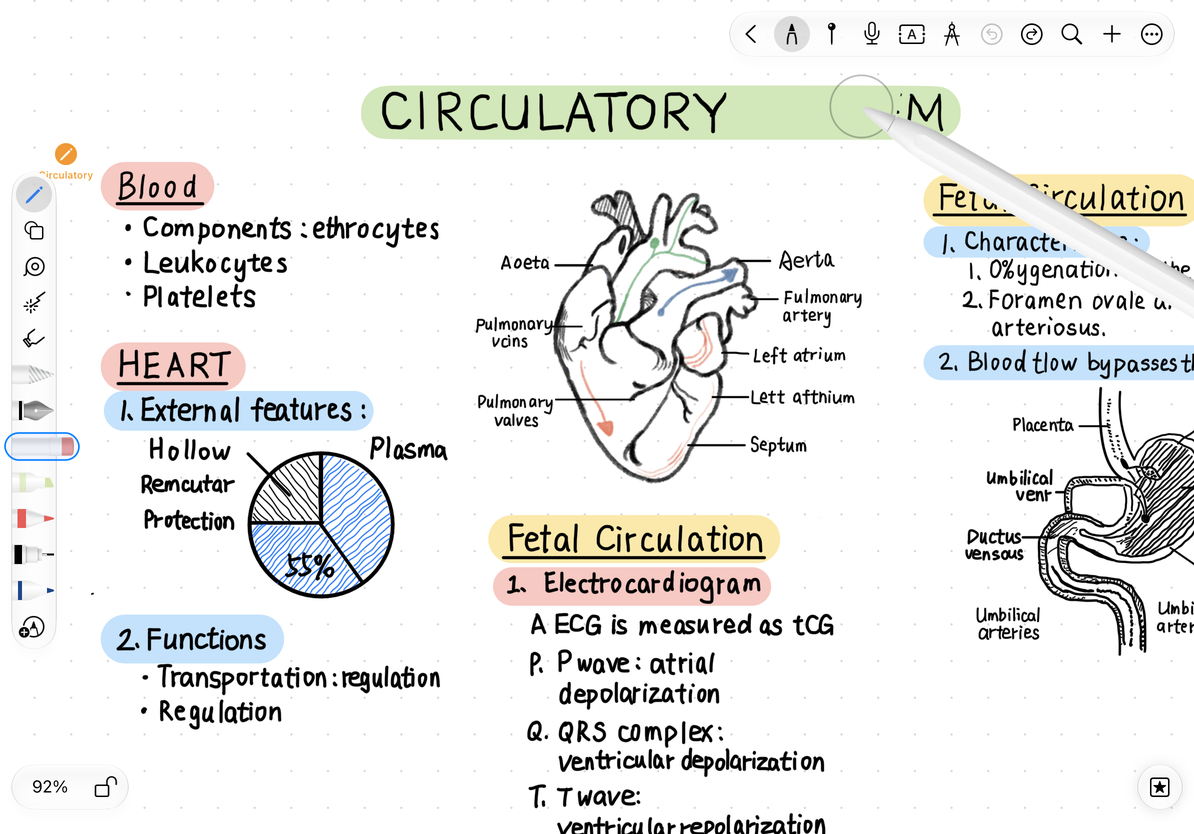
Restore after undo
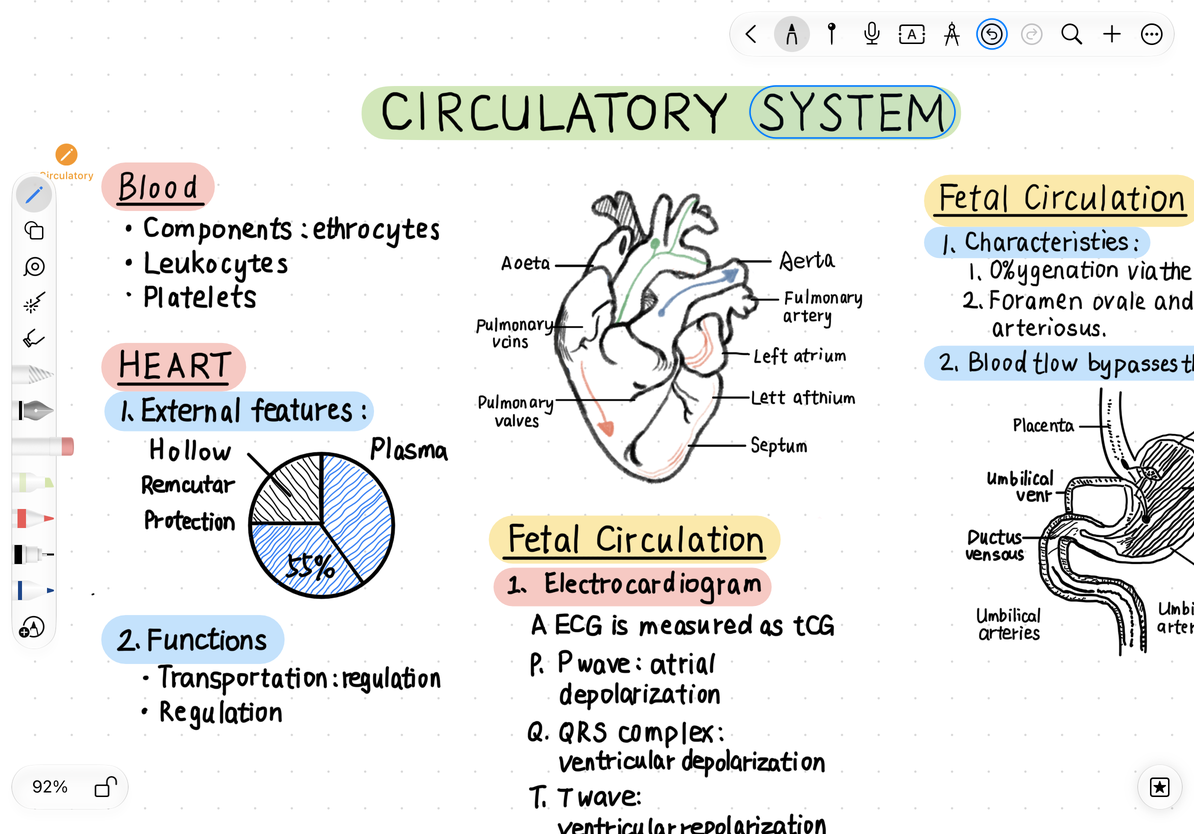
Return to the library and reopen it
- Return to the library through the Back control in the editor and let the application complete saving the current document.
- Find the note you just created and tap to open it.
- Check whether the title handwriting and modified content are retained.
- Return to the library, press and hold the document, select Rename in the menu, enter “Getting Started Practice,” and confirm.
The app saves your edits. Exporting a PDF creates a separate file to share or keep; it is not required to save the note you are editing. Check sync status separately if you want to use the note on another device.
Common questions
Can't find the note I just created
First go back to the folder where you created it and change the type filter to All. You can also sort by modification date or search by document name after naming the note.
I can see the note but cannot open it yet
If a download or iCloud prompt appears, follow the prompts to complete the download first. Just because the thumbnail is visible does not guarantee that the complete document is on your device; see iCloud Status for details.
Next steps
Continue to learn Getting Started with Paged note, Organizing Pen Boxes or Creating Folders.