
Set reading direction and page display
Reading settings apply to Paged notes and imported PDFs on iPhone, iPad, and Mac. They change how pages appear on screen without changing the actual paper size.
Change the scroll direction
- Open More → Reading Settings.
- Under Scroll Direction, choose Horizontal or Vertical.
- Return to the document and scroll to check the result.
- Enable Two-Page Reading to view neighboring pages side by side.
Horizontal scrolling moves across pages; vertical scrolling moves up and down. Two-page reading is easier in a wide window. On a narrow screen, turn it off or widen the window.
Change the scroll direction
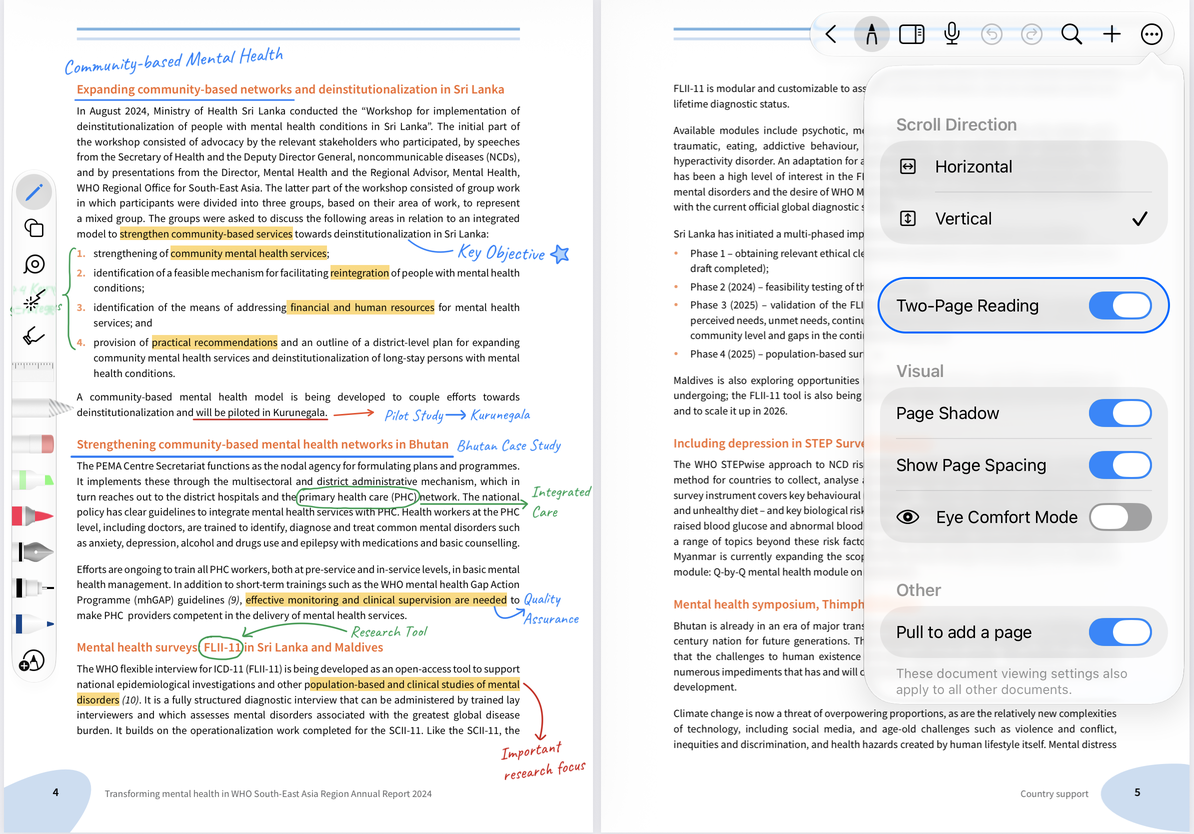
Adjust page appearance
In the Visual section, adjust these options:
| Setting | Purpose |
|---|---|
| Page Shadow | Shows shadows at page edges to make boundaries easier to see |
| Show Page Gap | Shows or hides the space between pages |
| Eye Comfort Mode | Changes the page's visual appearance while reading |
Try one setting at a time and compare the same page. Reopen the settings to restore the previous choice. To change the actual background pattern, lines, or page size, use Paper Settings.
Other settings and common questions
Pull to Add Page in the same panel controls adding pages at the document boundary. See Add pages. Turn it off if you want to read continuously without triggering a new page.
Two pages look too small
Turn off two-page reading or widen the window, then adjust the zoom.
Does hiding the gap merge pages?
No. Page numbers and order remain unchanged. Check the thumbnails.
Do Text documents use these settings?
Text documents have separate reading and appearance options.
For more space to read, use preview or immersive mode.