
Export and print Text documents
Applies to Text documents. An individual Text document, or a selection containing only Text documents, supports six export formats. If you also select canvas documents, only formats shared by all selected types remain available.
Choose the right format
| Format | More suitable uses and content to check |
|---|---|
| Prodrafts | Re-import and continue to use the original text structure and package attachments |
| Fixed page reading and delivery, checking pagination, tables and image edges | |
| HTML | Read the text in the web environment and check the style and media performance of the receiving environment |
| Markdown | Keep writing in an editor that supports Markdown and check out special content blocks and formulas |
| TXT | Get pure text, styles and complex structures will be simplified, formulas retain the source code |
| DOCX | Open in a word processor; check fonts, tables, formulas, and images |
Export text
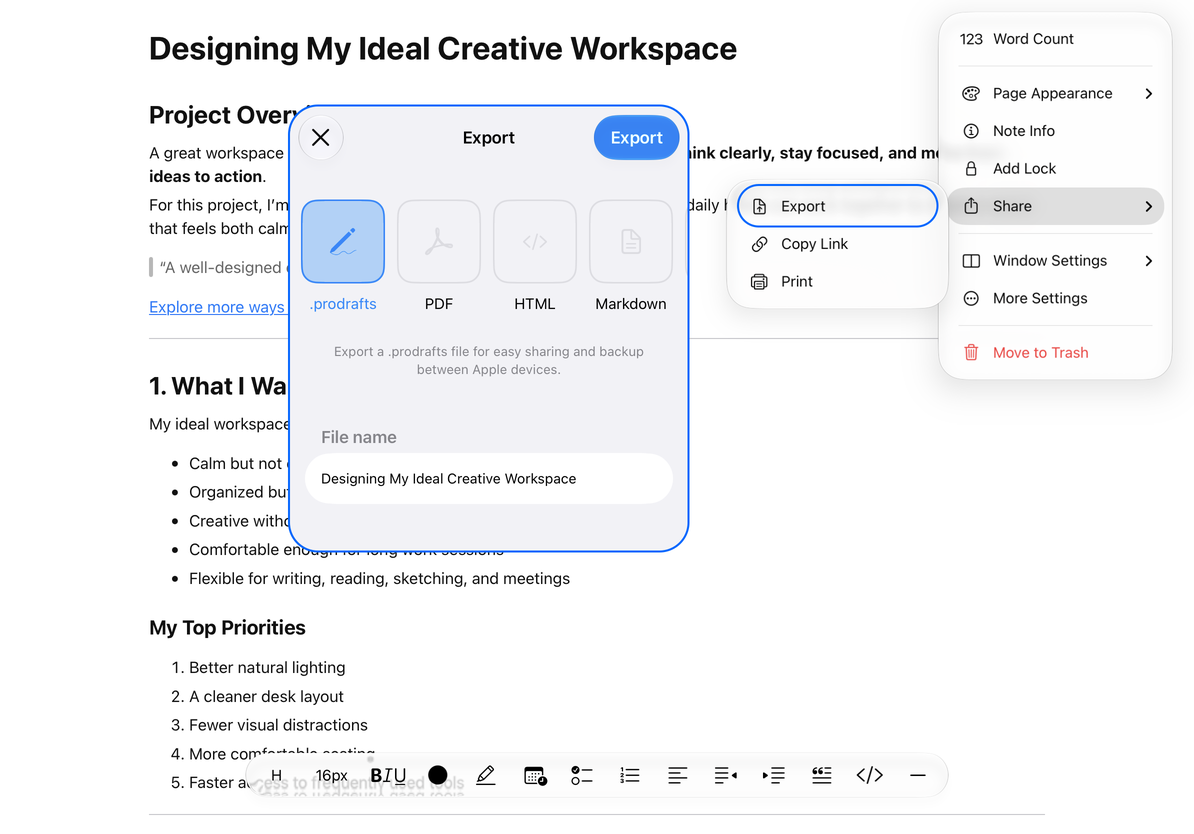
- Open the Text document, complete the current input, and enter the format panel from "More → Share → Export". This operation will save the current text first.
- Select the desired format and check the file name. If you need to keep a complete copy that can be edited again, you can export Prodrafts first and then export it in a format intended for reading.
- Tap "Export" and wait for completion. For iPhone and iPad, select the save location or target App in the system sharing panel; for Mac, select the target folder in the file saving panel and save.
- Open the file in the app the recipient will use and check the heading hierarchy, lists, tables, links, formulas, and images.
- When including video or audio recordings, check the presentation and links in the output item by item. Don't assume that every text format carries complete playable media.
Export text
Formulas retain LaTeX source code in Markdown and TXT; formula formatting is retained in HTML and PDF. DOCX attempts to convert supported formulas to Office Math, and structures that cannot be converted retain their source code. The receiving software may still interpret it differently, so a PDF should also be provided for comparison when complex formulas are involved.
Print text
- Enter from "More → Share → Print".
- Wait for the current content to be saved and generate an A4 page preview.
- Select the available printers and options on the system printing interface, check the paging, and print after confirmation; cancel system printing if it is not needed temporarily.
Printing uses white paper and dark text, and the appearance of dark and light on the screen is not equivalent to the paper output color. The text flows continuously when editing, and is paginated by A4 when printing. The positions of long tables, pictures, and paragraphs should be rechecked in the preview.
When prompted that printing is not available, check the system's printing capability and printer connection; you can also export the PDF first and then use the available printing process. If the export fails, keep the current text and check for errors. Do not delete the original document to try again.
To add Markdown to existing text, see Markdown Insert. To export several Text documents at once, see Batch Export. To re-import native files, see File Import.
This article is current as of October 12, 2026; menus may vary across devices and versions.