
Create and organize folders
Use folders to organize documents by course, project, or date. Folders can hold all four document types. Moving a document does not change its type.
Create a folder
- Open the library. To create a subfolder, open its parent folder first.
- Tap + → Folder.
- Enter a name, such as “Mathematics” or “Project materials.”
- Choose a color and icon that make it easy to recognize.
- Tap Done. The new folder appears in the library.
Open the folder before creating notes to store them there. Use descriptive names and colors to distinguish courses or projects.
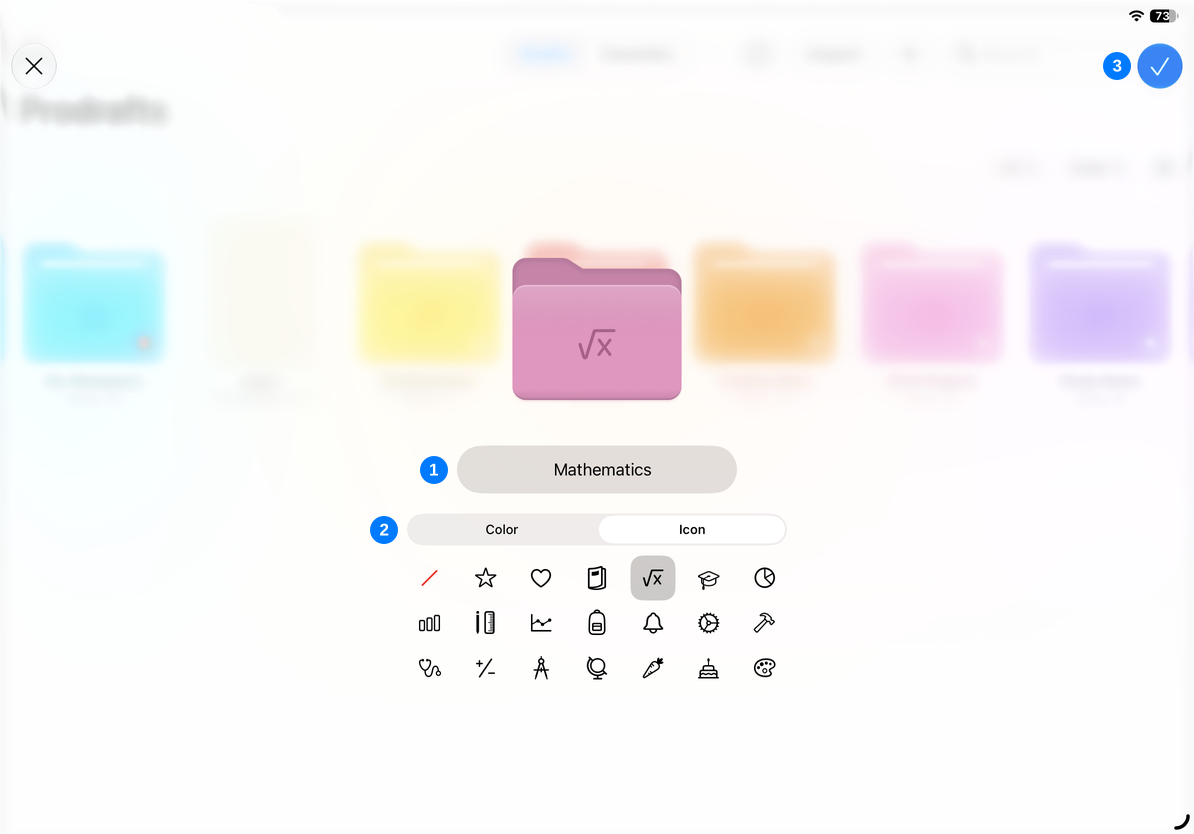
Change the name and appearance
- Touch and hold a folder in the library, or right-click on Mac.
- Choose Rename.
- Edit the name and adjust the color or icon as needed.
- Finish and check the result in the library.
Documents also have a Rename action, but folder colors and icons are not cover settings for every document type. If a name is unavailable, follow the message and adjust it before finishing.
Move a document into a folder
- Touch and hold the document and choose Move.
- Find and select the destination folder.
- Check the destination name, then tap Move.
- Open the destination folder to confirm that the document is there.
To move several documents, tap Select in the library, select them, and use the move button. You can also create a folder from the move panel: create it in the intended location, select it, and finish the move.
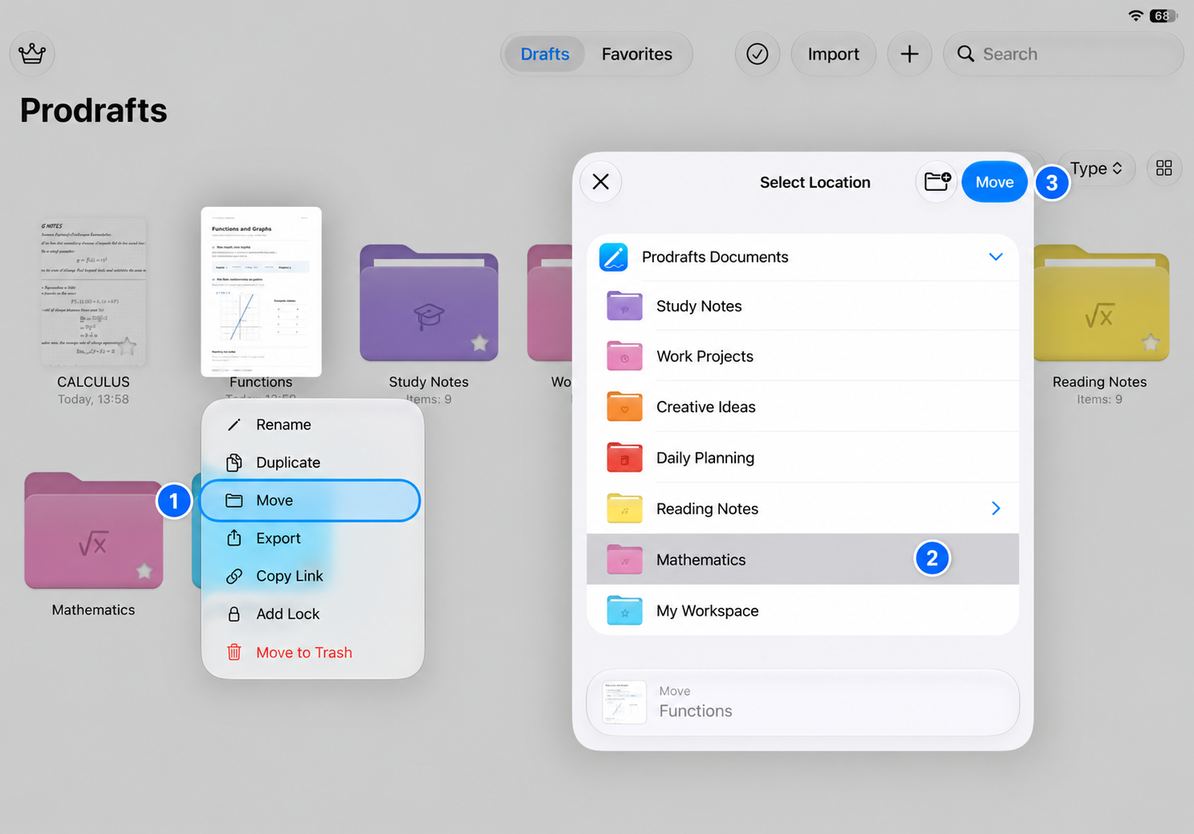
Drag items into folders
Where dragging is supported, pick up an item and drag it onto the destination folder. Wait for the folder to indicate it can accept the item, then release. Dropping onto a folder moves the item into it; dropping between items may change their order.
A folder cannot be moved into itself or any of its subfolders. If a destination is unavailable, use the Move panel to choose a valid location instead of repeatedly trying the same destination.
Common questions
The document is gone from its old location. Is it lost?
Moving changes where the document is stored. Check the destination folder or use name search. To keep two independent copies, duplicate the document instead of moving it.
A locked document will not move
Authenticate when prompted, then complete the move. Location and access protection are separate settings; see Passwords and document locks.
A document type is missing from a folder
Check the type filter and switch to All. List and grid layouts also change only the display, not the folder's contents.
Related guides
Browse and filter · Select and duplicate documents · Delete and restore