
Browse, sort, and filter documents
Library layout, sorting, and type filters help you find documents. They change what you see and how it is arranged, without converting your notes to another type.
Applies to: All four document types and folders. Some display controls are unavailable during batch selection or when cloud access is unavailable.
Switch between list and grid
Tap the list/grid button at the top of the library.
- Grid emphasizes thumbnails, making it easier to recognize covers and content previews.
- List displays names row by row and works well with a large library.
Both layouts show the same items and support opening, context menus, and selection. You do not need separate folders for each layout.
Choose a sort order
- Tap the sort control at the top.
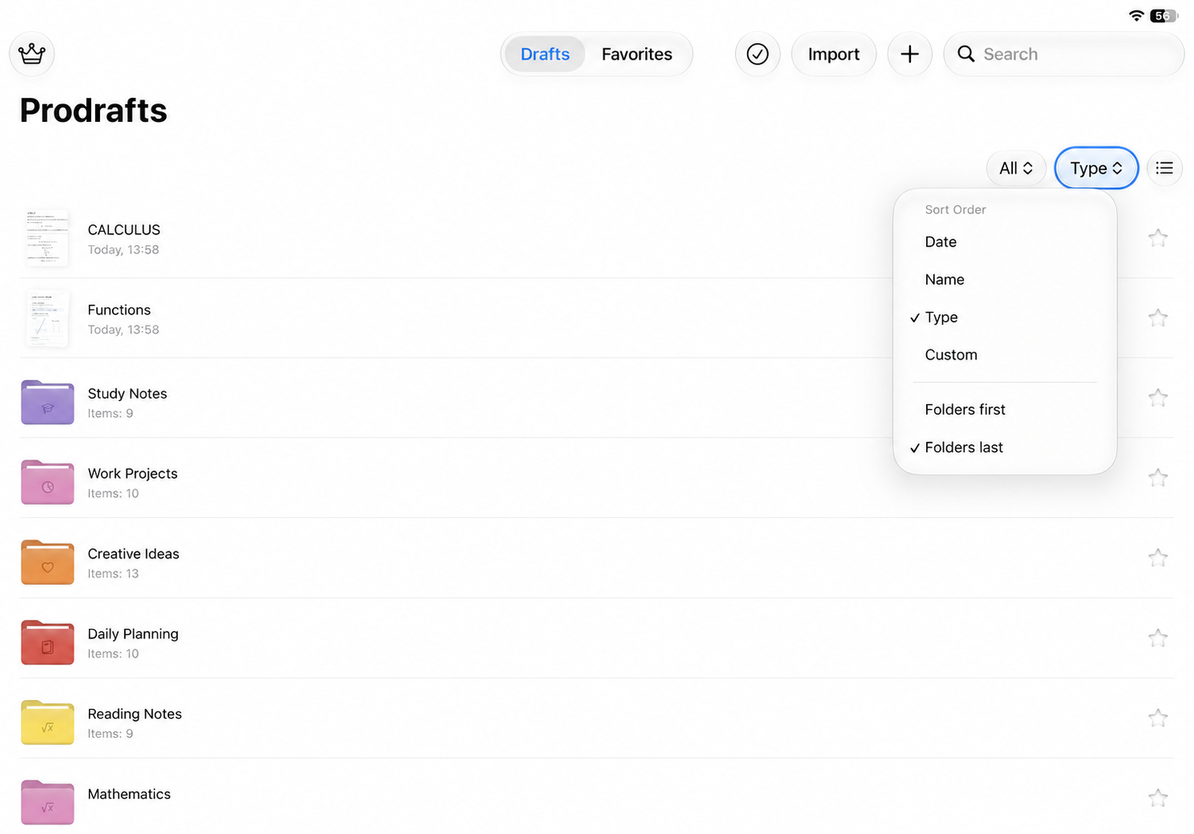
- Choose Date, Name, Type, or Custom.
- Choose a direction if the selected method offers one.
| Sort by | Useful for | Available order |
|---|---|---|
| Date | Finding recently edited documents | Newest first or oldest first |
| Name | Finding course numbers or names | Ascending or descending |
| Type | Grouping similar items | Folders first or folders last |
| Custom | Following your own workflow | Drag items into place; there is no ascending/descending toggle |
Date sorting uses modification time, not just creation time. Name sorting compares text names; avoid adding spaces to force an item into a particular position.
Choose a sort order
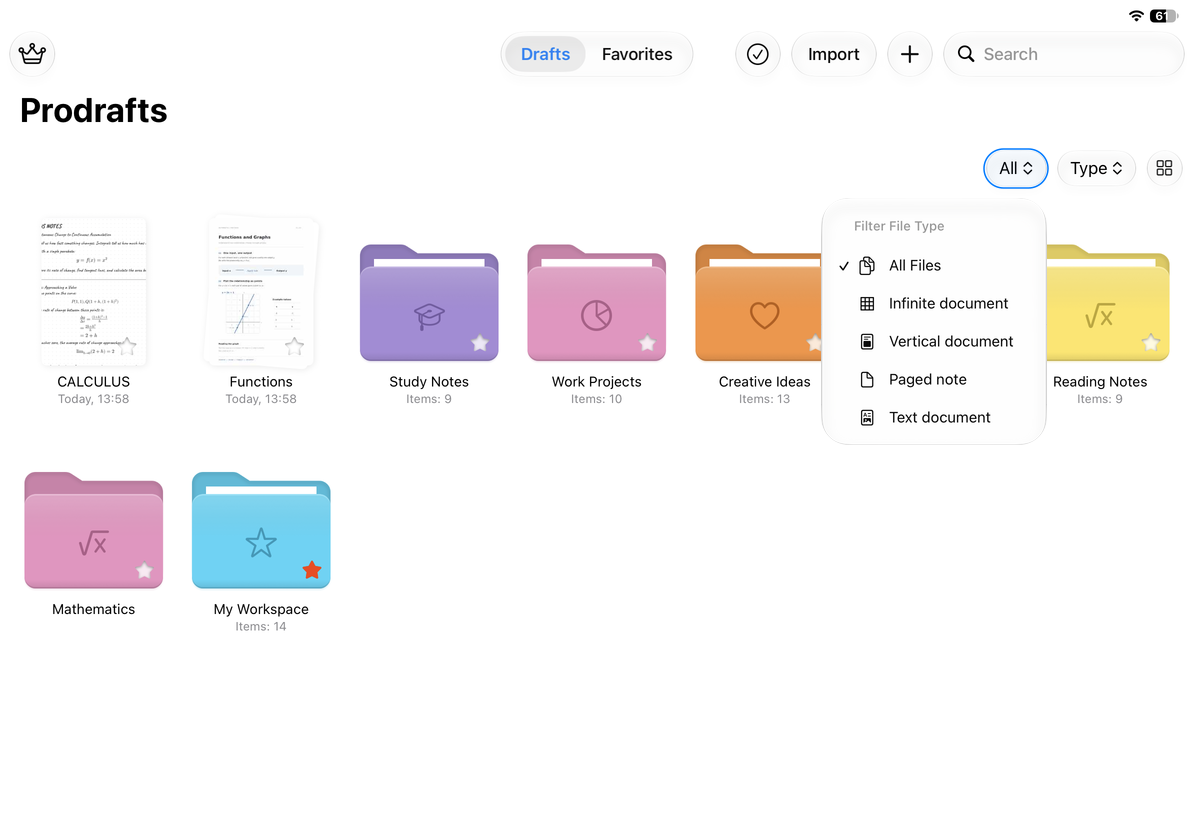
Filter by note type
Arrange items manually
- Return to the normal library, clear the search, and leave search mode.
- Choose Custom in the sort menu.
- Touch and hold an item, then drag it to the desired position.
- Drop it between items and check the order.
Dropping an item onto a folder may move it into that folder instead of reordering it. Watch the destination indicator.
Use custom ordering in the normal library. Search results and Favorites are not a complete folder listing to reorder. Sorting and filtering can be used together; documents hidden by a filter have not been deleted.
Filter by note type
Tap the type filter and choose All, Infinite document, Vertical document, Paged note, or Text document. The list shows matching documents within the current scope. Choose All to remove the type filter.
Filters also affect search. For example, with Paged note selected, a Text document with a matching name will not appear.
Common questions
Why does an item move again after I drag it?
Check whether Date, Name, or Type sorting is still selected. Use Custom to keep your own order. Also check whether you dropped it between items or into a folder.
Why is a folder I saw earlier missing?
A note type filter can narrow the visible items. Choose All, clear the search, and check the current folder.
The sort button is unavailable
Leave Select mode first. If the library reports that iCloud is unavailable, follow the iCloud account guidance and try again.
Next steps
Search names and use Favorites · Create and organize folders