
Insert file attachments and convert PDF pages to images
File attachments are independent objects on the canvas. The top Insert File option in Infinite and Vertical documents requires Prodrafts Pro. You can also drag supported files from another app onto a canvas. In Paged notes, file objects and drag-and-drop are separate from importing pages, so choose the action that matches your goal. These features work on iPhone, iPad, and Mac; external drag-and-drop support depends on the device and source app.
Add and preview files
- In an Infinite or Vertical document, tap the top add button and choose Insert File.
- Select a file in the system picker and complete the import. Alternatively, drag a supported file from another app onto the canvas.
- Select the resulting file object and choose Preview in its menu.
- To give it a clearer name, choose Rename and confirm. Canceling keeps the original name.
To read an entire PDF page by page, use Import files. Converting it to images will not preserve selectable PDF text.
Convert PDF pages to images
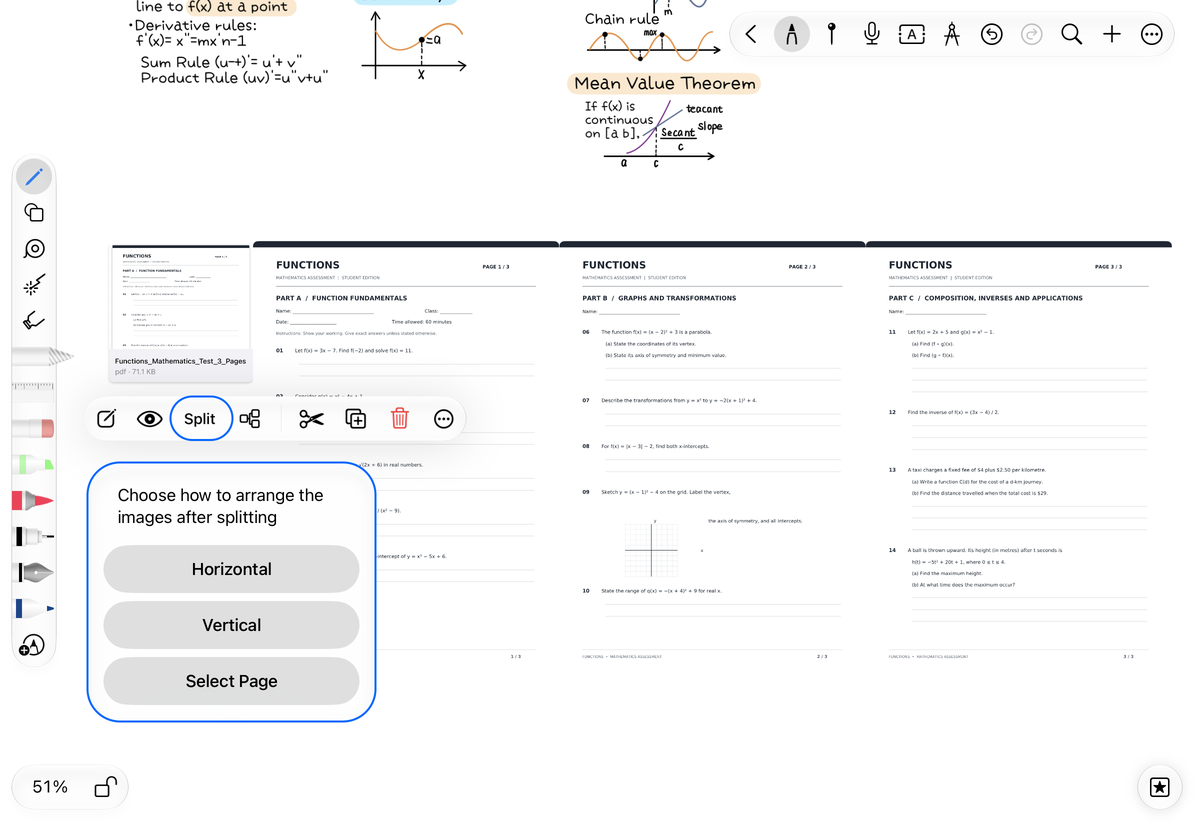
This feature is available only in Infinite and Vertical documents. Select the PDF file object and choose Split in its menu.
- Infinite document, up to 300 PDF pages: Choose Horizontal, Vertical, or Select Page. The direction controls the image arrangement. Select individual pages if you need only part of the PDF.
- Vertical document, up to 300 PDF pages: Pages are arranged vertically down the canvas.
- More than 300 pages: Select the pages you need before continuing.
Each converted page becomes a JPEG image that you can move, crop, and annotate. The original PDF card stays on the canvas, with the images to its right or below it. Selectable text and vector content from the PDF do not carry over to the images. Paged notes do not use this canvas splitting action; use Add pages to insert PDF pages there.
Convert PDF pages to images
Continue editing and troubleshoot
Canceling the file picker or arrangement choice returns to the canvas. After conversion, select images individually to adjust their positions. For a large PDF, start with only the pages you need so you can check the result easily. Both the original file and the page images are canvas objects. Check your selection before deleting: removing the PDF card and removing one page image are different actions.
Why can I not drag in a file?
The source app must provide importable file data. Try the same file from the system Files app.
Why can I not search text in the page images?
The converted pages are images. Use search in a Paged note containing the original PDF. For media insertion in a Text document, see Body media.