
Use highlighters and blending modes
Applies to Infinite documents, Vertical documents, and Paged notes. The highlighter adds strokes to the canvas. To highlight typed text in a Text document, use its text formatting tools.
Highlight freely
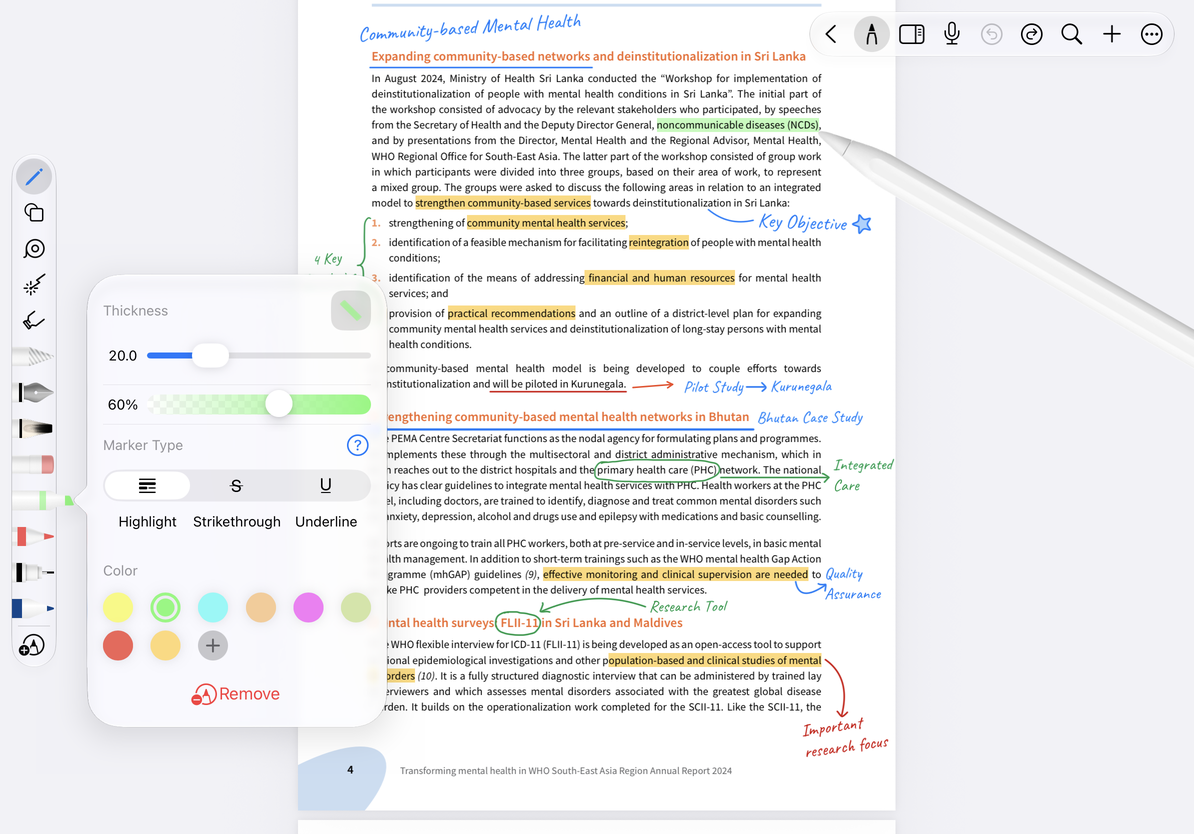
- Select the highlighter in Pen Boxes; if there is no preset, add it from + → Highlighter.
- Tap the highlighter again and set the color, thickness and opacity.
- Drag along the text or area you want to highlight. For example, underline a sentence in a handout or add a light background to a handwritten title.
- Tap Undo when you make a mistake, or use an eraser to erase the mark you just made. The full stroke eraser can erase the entire highlight in one go, while the partial eraser is better for trimming the ends.
Use the highlighter's Mark Type panel to choose its appearance. Freehand highlighting works in all three canvas note types. Highlighting that snaps to PDF text additionally requires recognizable text and the relevant support; scanned images may not support it. If text snapping is unavailable, highlight freely instead.
Highlight handwriting and handouts
Turn blending mode on or off
Open More and find Marker Blending in the Lab group. The group is in the same panel; you do not need to open another page. The switch is available on iOS/iPadOS 26 and later. It controls how highlighter strokes blend with the PDF, images, and text beneath them.
- Turn Marker Blending on or off.
- Return to the library, close the current note and reopen it for the settings to take effect.
- Compare the effect over light and dark content. Keep the same strokes and background when comparing the setting on and off.
Blending depends on system capabilities. When the option is unavailable, you can still use a regular highlighter; modifying the pen's color does not enable blending modes.
What should I do if the highlight is too dark?
Lower the opacity and avoid drawing over the same area repeatedly. Undo and redraw if needed.
Why can’t I erase colors already in a PDF?
Highlights already in an imported PDF belong to that PDF’s image or text content. The eraser removes strokes you added on the canvas.
Related guides: Use the eraser · Annotate PDF text · Text character formatting