
Select, move, and transform objects
These steps apply to canvas images, text boxes, shapes, and similar objects in Infinite documents, Vertical documents, and Paged notes. Media and tables in Text documents flow with the body text and use the Text document controls.
Select and move
- In edit mode, tap an object to show its selection outline, handles, and floating menu.
- Drag to move it. If you are typing in a text box, finish typing first, then use its move area or control.
- Release and check the position. Tap a blank area to deselect.
Tapping text, dragging a handle, and dragging the whole object have different effects. To move an entire text box, make sure its full outline is selected rather than a word or phrase inside it.
Recognize selection handles
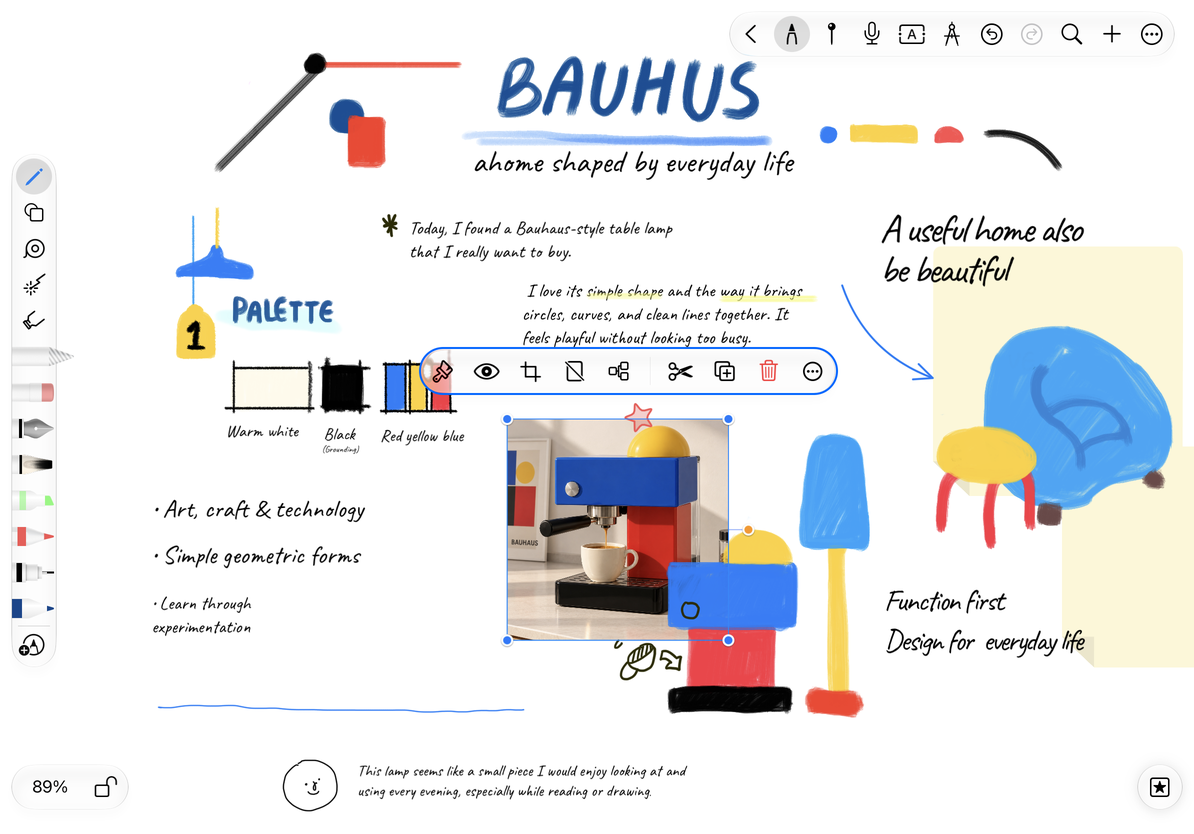
Resize and rotate
Drag a resize handle on the outline to change the size. For objects that support rotation, drag the rotation control and release at the desired angle. Use Undo if you make a mistake.
Handles vary by object type. Tables, artboards, and mind map objects do not rotate. Lines, arrows, and connectors use endpoint or path controls instead of a standard rectangular outline. A missing control does not necessarily mean the object is unselected.
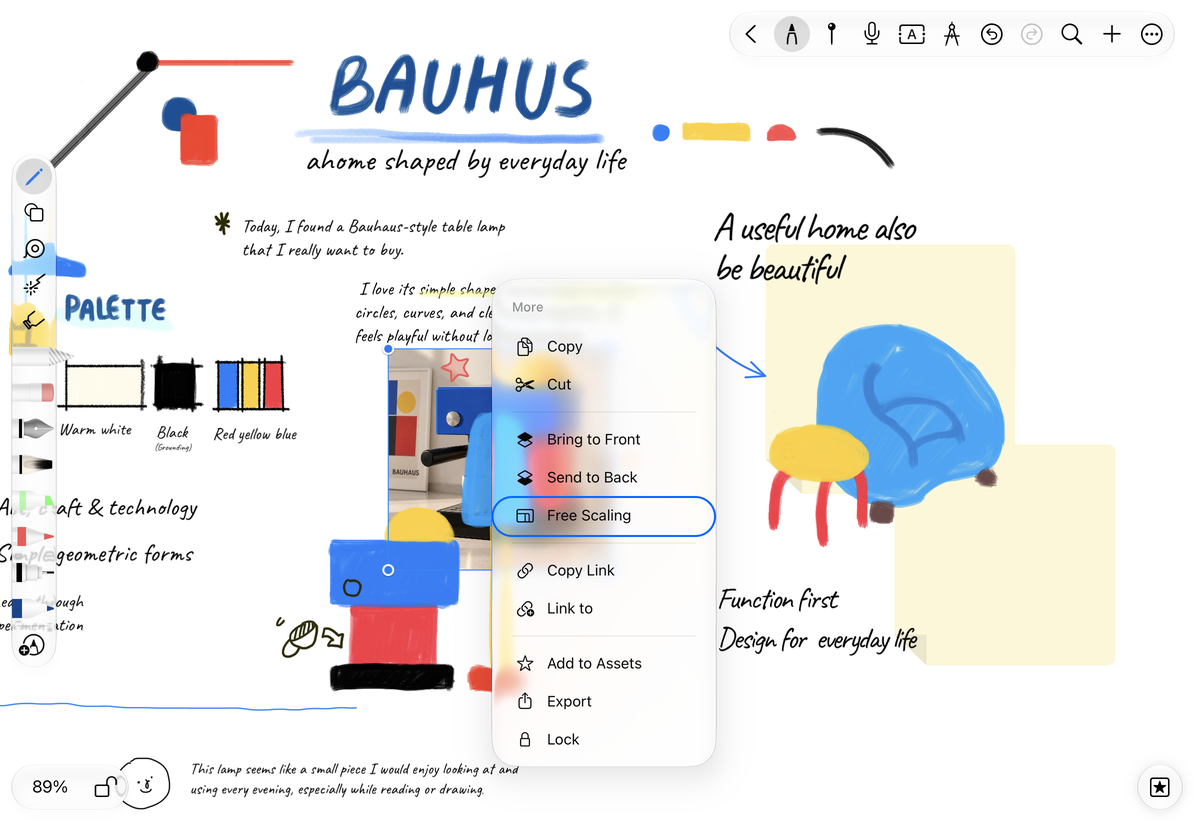
Choose free or proportional scaling
Images, media, artboards, and some shapes other than lines let you switch scaling modes:
- Select the object and open More.
- If it currently uses free scaling, choose Proportional Scaling to keep its width-to-height ratio.
- If it currently uses proportional scaling, choose Free Scaling to adjust width and height separately.
- Drag the resize handles and check the result.
Proportional scaling keeps photos and diagrams from stretching. Free scaling is useful for background panels and frames. The menu names the mode you can switch to, not the active mode. Text boxes, formulas, and tables may use their own size and formatting controls instead.
Free and proportional scaling
An object will not move
Check whether you are in preview mode, the object is locked, or its text is still being edited.
An image looks stretched
Undo the stretch and switch to proportional scaling.
I need to move several objects together
Select them with the Lasso.
Related guides: Stacking order and locks · Object appearance · Connector controls