
Add and edit object links
Supported objects in Infinite documents, Vertical documents, and Paged notes can open links. Point a text box or image to a website, or attach a copied Prodrafts link to a document, page, pin, or object.
Give an object a destination
- Select it and choose More → Link to.
- Enter a web address or paste an internal Prodrafts link, then tap Done.
- Select the object on the canvas and tap its right-arrow button to open the destination.
When the clipboard contains a recognized link, the object's More menu offers Paste Link to attach that address directly. If it is missing, paste into Link to instead. Use a complete https:// address for websites and copy internal links from the destination document or location.
Give an object a destination
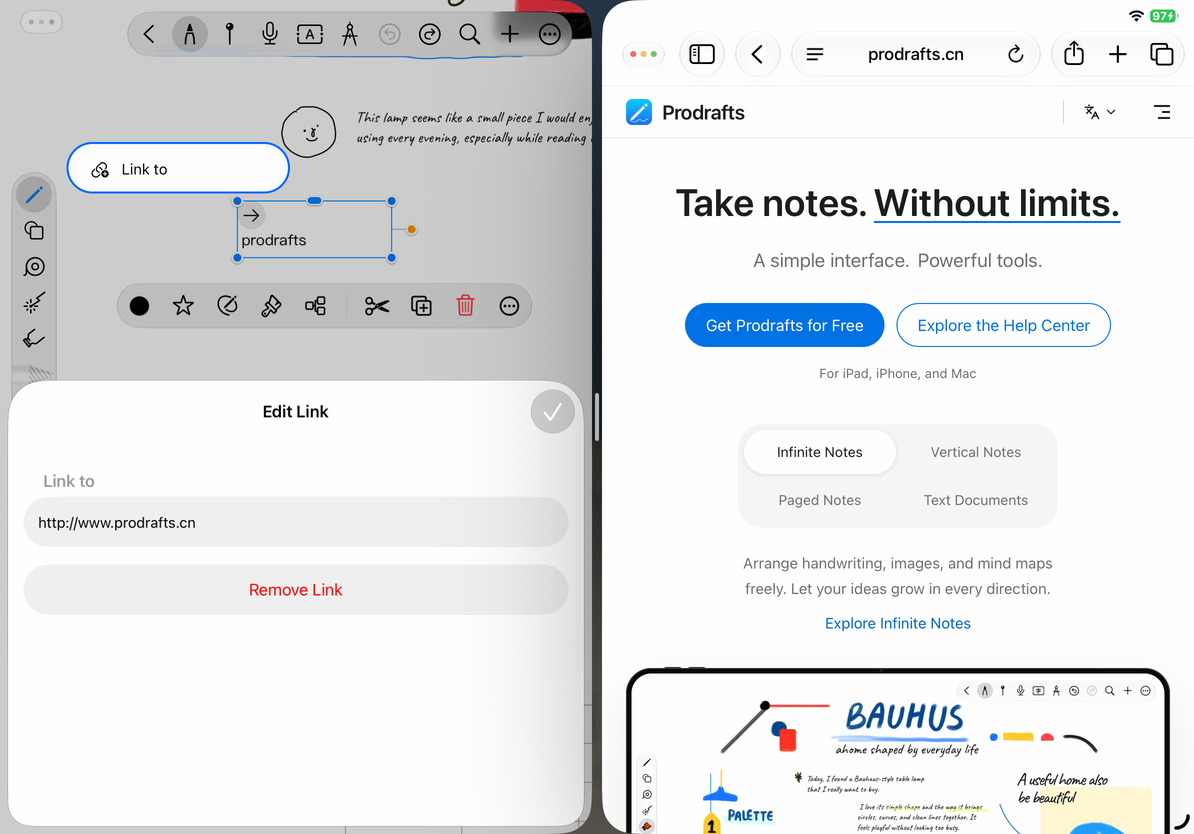
Open, edit, or remove the link
Select the object and tap its right-arrow button. Web addresses open through the system; Prodrafts links go to the document or location. During editing, tapping the object normally selects or edits it rather than opening the attached link.
After following an internal link, use the floating navigation bar to go back or forward. See Back and Forward navigation.
To change the destination, open Link to, edit the address, and finish. To stop the object from opening a link, choose Remove Link in the link editor.
Removing a link keeps the canvas object and does not delete the linked note. After changing an address, open it once to verify the destination.
Copy the object's own location link
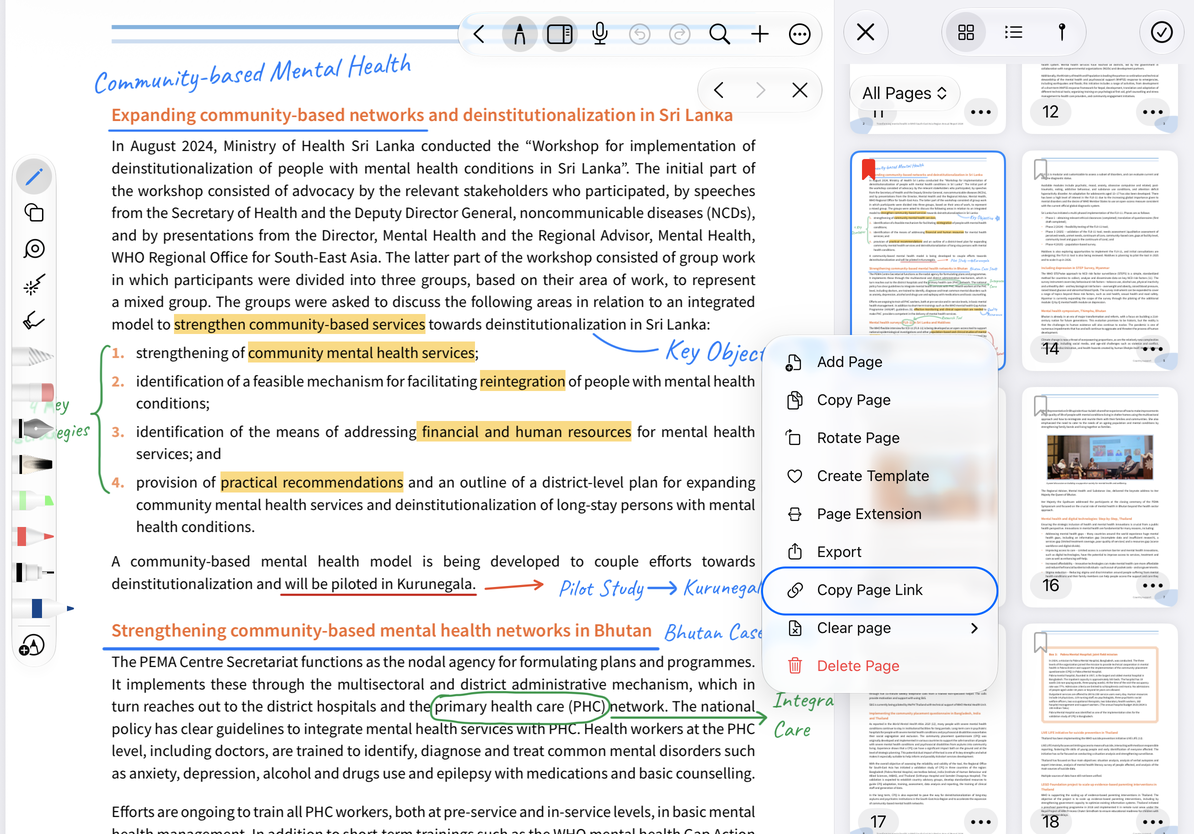
Select an ordinary object, choose More → Copy Link, and paste the link where you want to reference it. Even if the object has an attached web address, this command copies its own position in Prodrafts so you can return to it.
Web cards are an exception: their Copy Link command copies the webpage address, not the card's position. See Web cards.
An internal location link requires the destination document and object to remain available. It is not a public sharing URL and does not send the document to someone else. Export a document or image file to share the actual content.
Example of a page location link
Why is the link menu missing from a line?
Line shapes do not offer the same link controls as ordinary objects.
Why can someone else not open an internal link?
They need the corresponding document and a valid target. Sending only the address does not share the note.
Why is the object missing after the link opens?
Check that it was not deleted or replaced, then copy a fresh location link from the current object.
Related guides: Document and location links · Web cards · Export native documents