
Transcribe recordings and use transcripts
Available for recordings in all four document types. Generating or regenerating a transcript requires iOS, iPadOS, or Mac Catalyst 26 or later, support for the language in the system speech service, and the required language resources. Saved transcripts can still be read on devices that cannot generate new ones.
Generate and open a transcript
- Open the current document’s recording list and find the audio.
- Use the transcription button in the recording’s row or the transcription action in its menu.
- If no transcript exists, wait for generation to finish. A processing status appears; do not repeatedly start it for the same recording.
- Open the transcript details, check the recording name, and compare names, numbers, and specialist terms against the audio.
Transcription processes saved audio. It is not live, word-by-word transcription while speaking, and it does not synchronize text positions with handwriting playback.
Generate and open a transcript
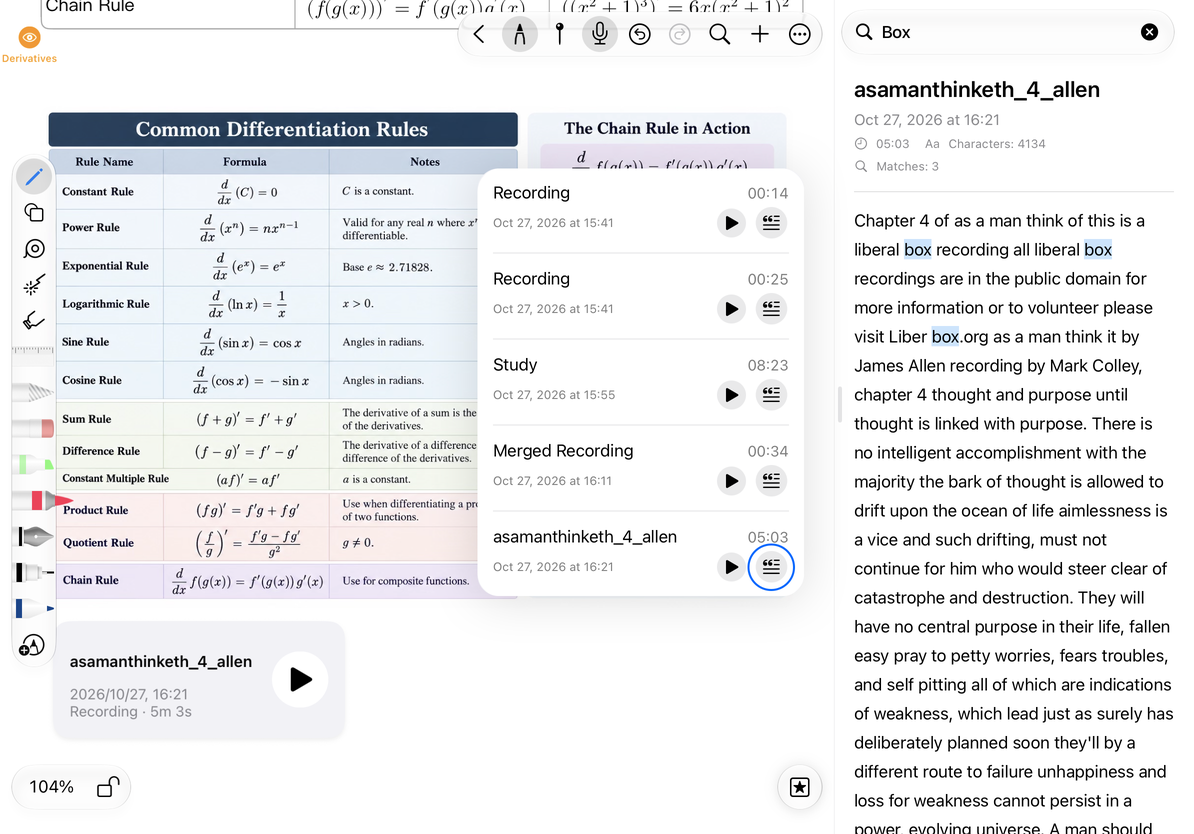
Use the transcript
Read the text in the details view and use search to locate keywords. The More menu at the top right offers:
- Copy Transcript: Copy the full text to paste into notes or another app. Create a text document if you want to turn it into an article.
- Share Transcript: Send the text through the system share sheet. Audio is not automatically included.
- Regenerate: Process the audio again. Copy or share the existing transcript first if you need to preserve it.
- Translate: Use system translation on supported iPhones and iPads. This option is not shown in Mac Catalyst, and language availability depends on the system.
Close the details to return to the recording list. Searching and copying do not change the audio. After pasting a transcript into a text document, use the text formatting tools to edit it.
Common questions
The transcription action is missing
Check the system version, speech service support, and language resources. Updating the system does not guarantee immediate support for every language.
Transcription failed
Make sure the recording plays, then follow the error message to resolve language resource or service issues before retrying.
Some words are incorrect
Check the transcript against the original audio. Correcting text after pasting it into a document does not change the recording.
Related guides: Search and merge recordings, Play audio.