
Select and edit handwriting and objects
Available in infinite documents, vertical documents, and paged notes. The lasso temporarily selects a group of canvas items so you can move handwriting or organize text and images together. It works differently from selecting text in a text document.
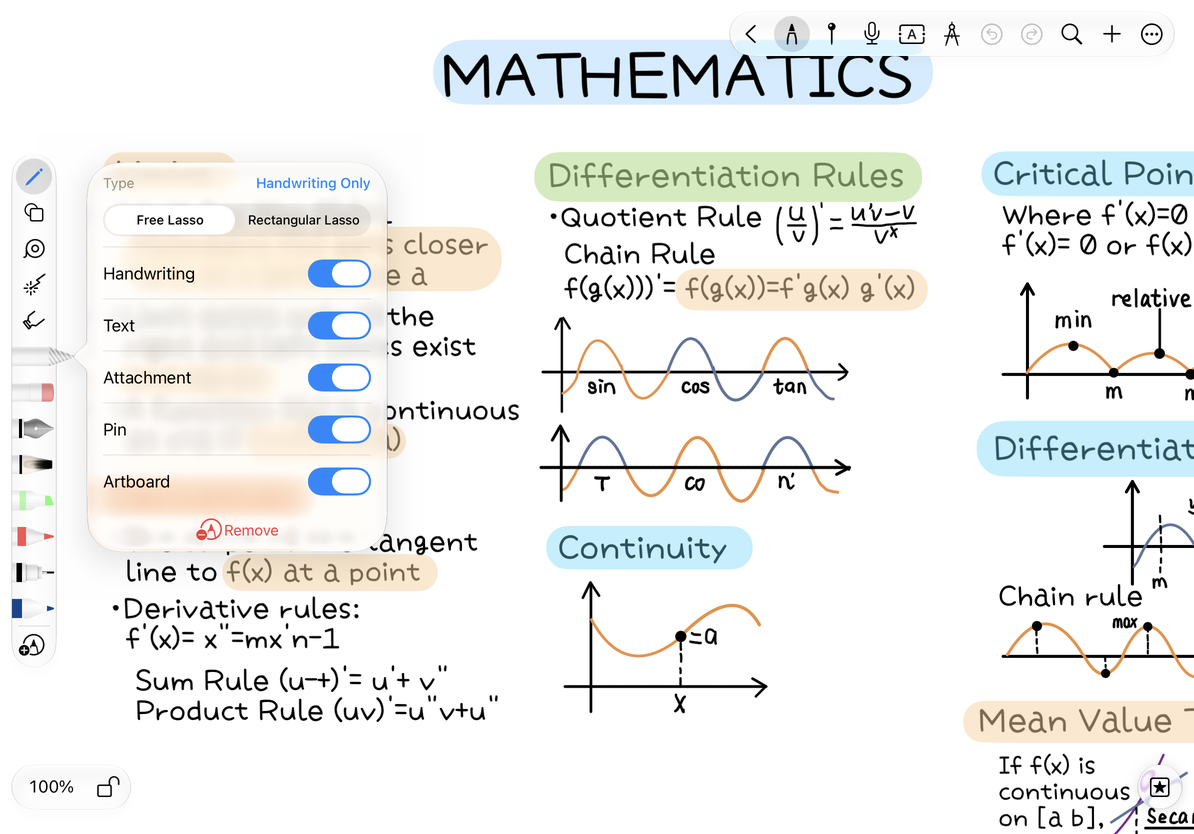
Choose a lasso shape and content types
- Select Lasso in the pen box, then tap it again to open its properties.
- Choose Free Lasso to trace around content, or Rectangular Lasso to drag a rectangular selection.
- Tap Handwriting Only to select only ink. For mixed content, enable the handwriting, text, attachment, pin, and artboard filters as needed.
- Circle the content on the canvas and check what is selected before acting. Tap a blank area outside the selection to deselect.
Filters control what the lasso can select. They do not hide or delete canvas content. Circling the original PDF page in a paged note does not turn it into movable handwriting.
Choose lasso shape and content filters
Move, resize, and rotate
Drag inside a selection to move its contents together. To change its size, choose Resize and use the control points. Rotation controls appear for supported selections. Finish the selection to leave the content at its new position and size.
A selection containing artboards, tables, or mind map nodes cannot rotate as a group. Controls depend on the content type; rotate supported objects separately when needed. Use Undo if the result is unsuitable. If a Cancel action is available, you can also cancel before applying the transformation.
Edit a Perfect Shape again
Select the lasso and enable handwriting selection, then tap a recognized shape’s outline to show its control points. If you have already selected one complete editable shape, choose Edit Shape from the menu. A selection mixed with images, text boxes, or other shapes does not use this same editing action.
See Perfect Shape drawing and snapping for control points, nearby snapping, and the controls available for each shape.
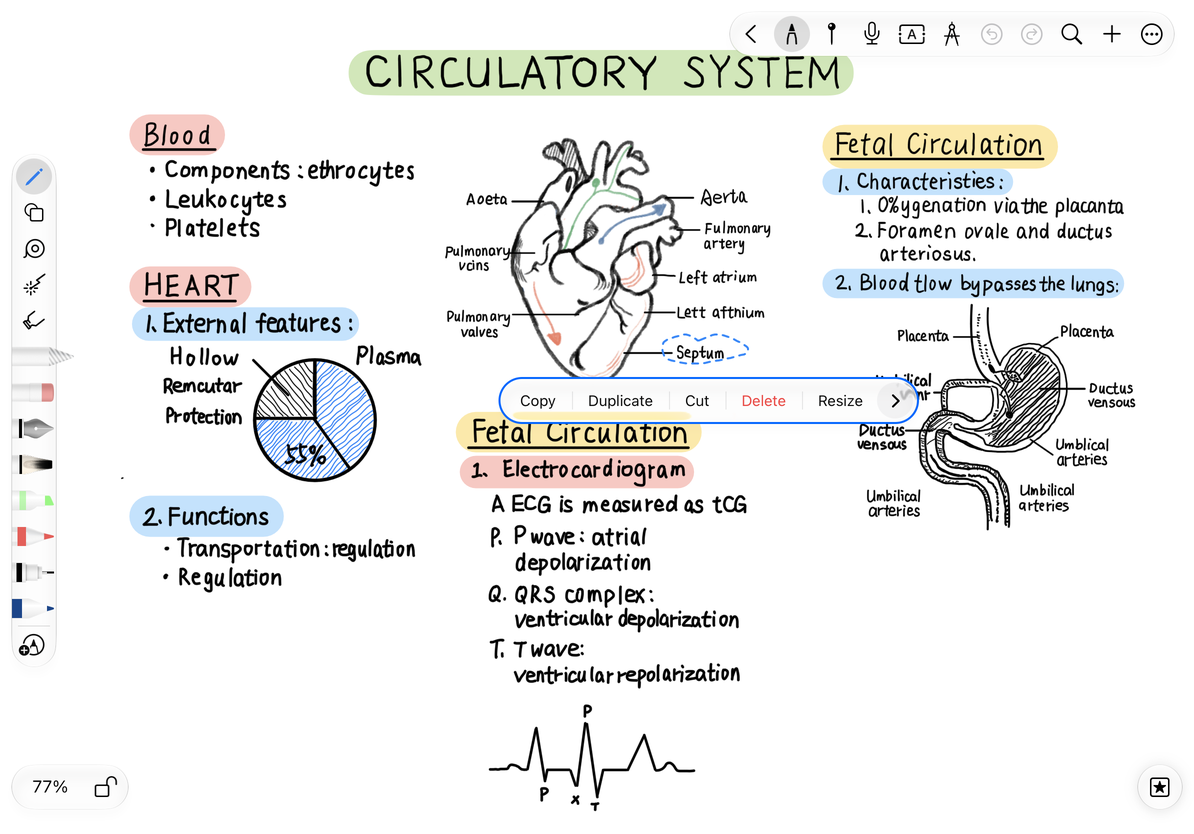
Copy, cut, and duplicate
| Action | What it does |
|---|---|
| Copy | Keeps the original content so you can paste a copy elsewhere |
| Duplicate | Creates a copy in the current location that you can drag into place |
| Cut | Removes editable content from its original location so you can paste it elsewhere |
| Delete | Removes editable content from the selection without pasting |
| Change Color | Recolors supported handwriting or objects |
Duplicate is unavailable for selections with more than 3,000 strokes. Select smaller groups instead. Not every item in a mixed selection supports recoloring; this action does not recolor the pixels of an image.
Copy, cut, or duplicate
Common questions
I circled the content, but it was not selected
Check the lasso filters, whether the objects are locked, and whether the content is part of the original PDF page.
Only Copy and Screenshot appear
Paged notes can copy or capture an area of the original page even without editable handwriting. These actions do not mean that the page content can be deleted with the lasso.
How do I save content for reuse?
See Export selections and save assets.
Related guides: Transform a single object · Clear the canvas · Recognize handwriting as text