
Add a text box to the canvas
Applies to Infinite documents, Vertical documents, and Paged notes. Text boxes sit at fixed canvas positions and work well for titles, annotations, and explanations. For longer writing that flows between paragraphs, use a Text document.
Create new text box
- Make sure you are in editing mode and open Add → Text; you can also press and hold on a blank space on the canvas and select Text.
- Enter content, such as "Key points of this section." Either use the on-screen keyboard or an external keyboard.
- To finish text input, tap on the blank space to return to the canvas.
- When you need to add something, tap the text box and enter text editing, and put the cursor at the target position to modify.
Pressing and holding a blank area creates the text box there. After inserting one from the toolbar, move it to the desired position. In Infinite and Vertical documents, adding text through the main Add menu requires Prodrafts Pro. Adding text by pressing and holding a blank area checks the object count; free users see a Pro prompt after reaching 30 objects. In Paged notes and other entry points, availability follows the current interface conditions.
When using a Mac or iPad external keyboard, first return the focus to the canvas, press T to enter the text placement state, then tap on the position you want to add to create a text box and enter. Press Esc to cancel placement; T only enters text when the cursor is already in the input box. For more operations, see Keyboard Shortcuts.
Add a canvas title
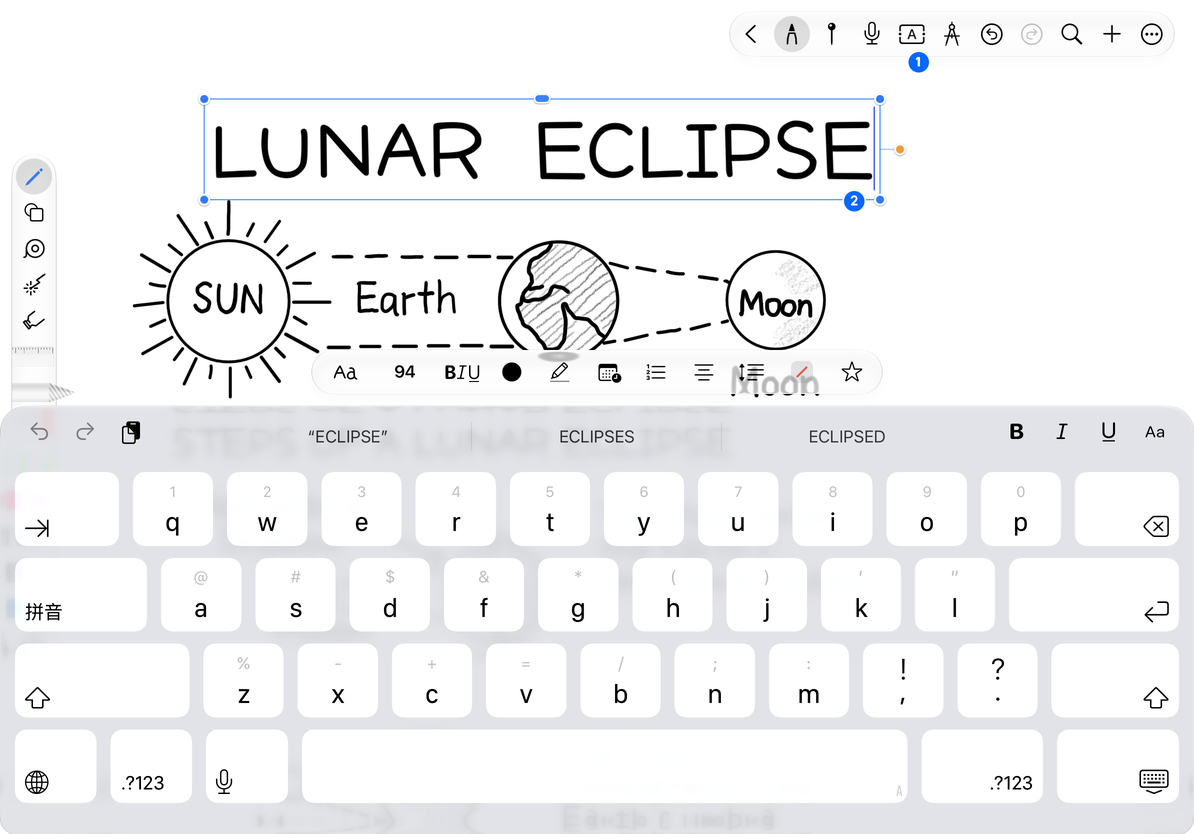
Select a section of text or the entire text box
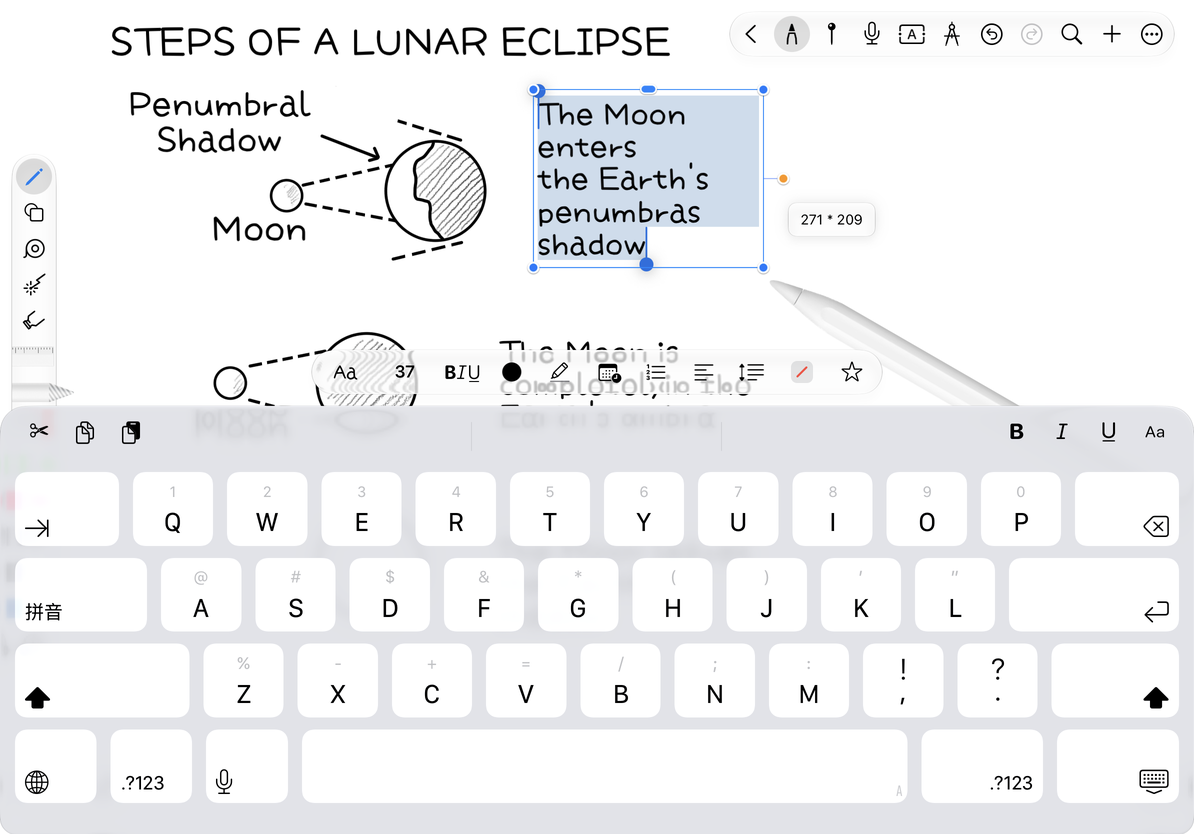
After entering text editing, use the system's text selection method to select a word, a sentence, or the entire content, and then adjust the format. At this time, dragging the text selection handle is changing the selected text range.
To move the entire box, first end text editing, let the object control box display, and then drag the moving area of the object; to change the width of the box, use the size control points. The text may be re-wrapped after the box is narrowed, which is different from selecting several words to change the font size.
Distinguish between text selection and text box boundaries
Modify, reuse and delete
Use Undo to reverse a text edit. To keep the original and edit a second version, finish typing and choose Copy in the text box's object menu. This object-menu action creates a duplicate immediately; drag it aside and edit it. To remove the entire box, select the object and tap Delete. Deleting words with the keyboard does not delete the text box itself.
In a Paged note, a text box is an annotation on the current page; it cannot edit the original PDF text. Infinite and Vertical documents share the text box tool, but Vertical documents have horizontal width limits.
I tapped the box but cannot type
Check whether you are in preview mode or the object is locked. Switch to editing or unlock it first.
The format only affects a few words
A text selection is active. To format the whole box, select all its text or use a whole-box formatting action.
Related guides: Fonts and Character Formatting · Paragraphs and Lists · Background and Style