
Use the stopwatch and countdown timer
Available in infinite documents, vertical documents, paged notes, and text documents. Open the timer from the editor’s add menu or a configured toolbar shortcut. Some entry points may show a Prodrafts Pro prompt. In a text document, text input ends before the shared timer opens.
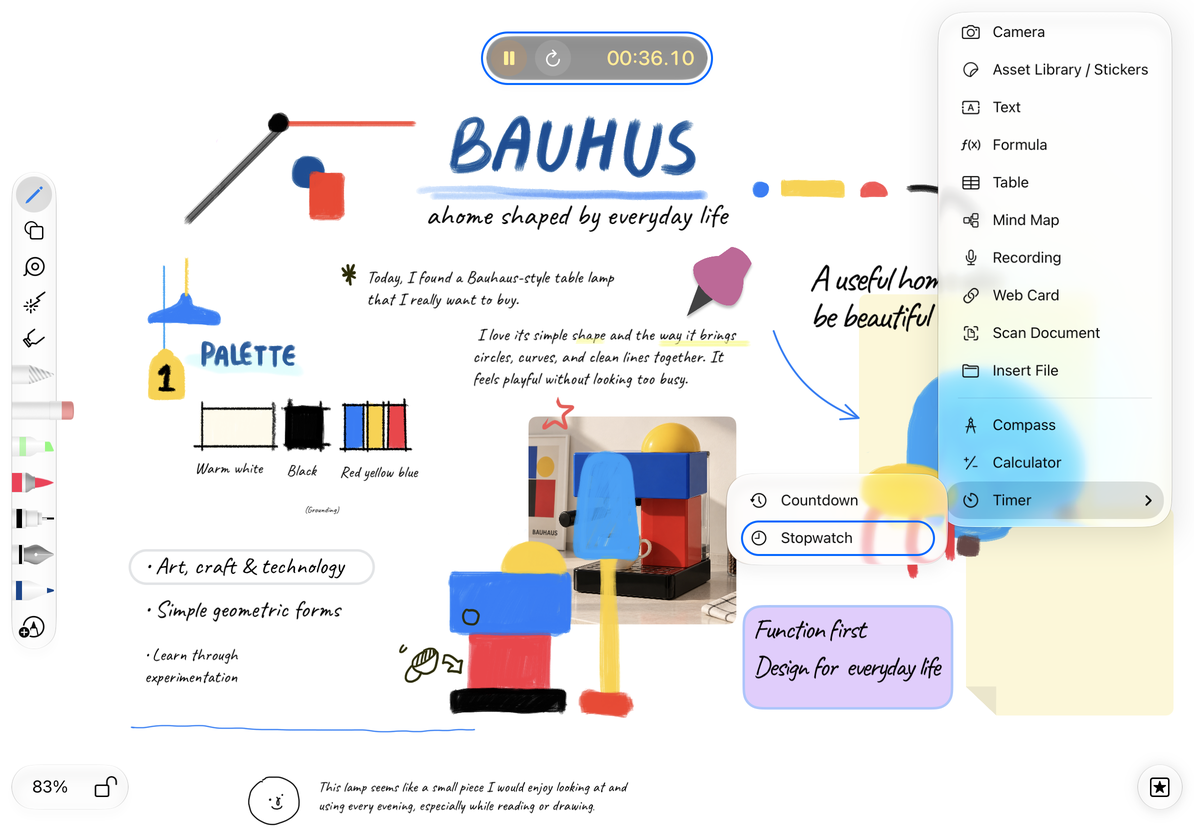
Measure elapsed time with the stopwatch
- Open + → Timer and choose the count-up option to create a stopwatch.
- Tap Start in the floating timer bar and check that the time increases.
- Tap Pause to stop temporarily, then Start to continue.
- While running, the Reset button returns to the initial reading. Tap Start to begin again. The same position shows Close when the timer is not running, so check the icon and state first.
- When finished, pause and close the timer bar.
Use the stopwatch
Set a countdown
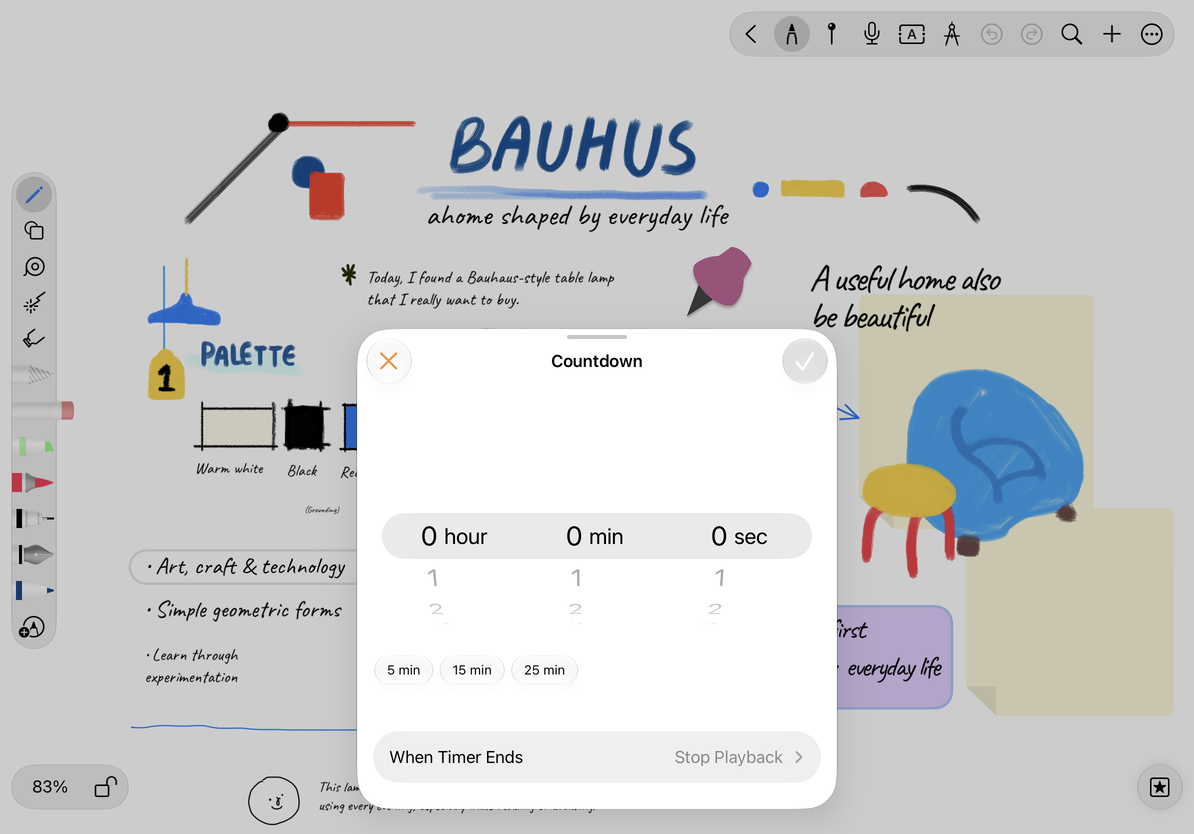
- Open + → Timer → Countdown to set the duration.
- Choose hours, minutes, and seconds, or use a preset. Last Used restores the previous duration.
- The total must be greater than zero; Done is unavailable when all values are zero. Each of the hour, minute, and second controls offers 0–59.
- Open When Timer Ends to choose a sound, then return and check the duration.
- Choose Done to create the timer bar, or cancel to discard these settings. Tap Start on the bar to begin; pause, resume, or reset as needed.
- When the countdown ends, choose Restart for another round or close the bar when finished.
Set a countdown
Choose and preview an end sound
Available sounds include Signal, School Bell, Alarm Clock, Airhorn, Beep, and Alarm. Stop Playback is the silent option. Use the preview control to check the volume, then stop the preview. Finishing or leaving the settings also stops it.
If a preview fails or you hear nothing at the end, check whether the silent option is selected, then check device volume and audio output. If a sound is reported as unavailable, try another one.
This timer supports studying and editing within the app. Do not assume it provides a configured system alarm while the app is in the background, the device is locked, or the app has exited. Use the system’s alarm or reminder features for critical alerts.
If the action is missing, check the document type and toolbar configuration. For calculations while studying, use the calculator and unit converter.
This article is current as of October 12, 2026; menus may vary across devices and versions.